
Most recent releases:
Base SAS on the SAS Viya platform
Base SAS on SAS 9.4M9
Get Started
Ready to access, transform, analyze, and report on your data using Base SAS to streamline and expedite programming tasks? These Base SAS and SAS Programming tutorials are a great place to start.


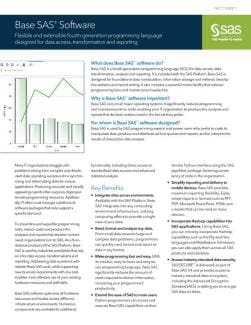
Read about the key features of Base SAS software for data access, transformation, and reporting.

Learn the basics
Learn how to get started with SAS programming by accessing these tutorials:

Stay connected
Be a part of the SAS community. We offer a variety of ways for you to interact with users and experts.
Tutorials
Browse our library of free SAS programming tutorials. Learn something new. Sharpen your skills.
Accessing Data: Understanding SAS Libraries and Importing Data
- Accessing Data in SAS Libraries (Video)
- Accessing a SAS Library
- Using Data Libraries
- LIBNAME Statement Syntax
- LIBNAME Statement Syntax for the V9 Engine
- Overview: PROC IMPORT
- PROC IMPORT Statement Syntax
- Example: Importing a Comma-Delimited File with a CSV Extension
- Using the Import Data Utility in SAS Studio (Video)
- Creating a SAS Table from a CSV File (Video)
- How to Automatically Generate XMLMap Files (Video)
- How to Generate Custom XMLMap Files (Video)
Exploring and Validating Your Data Using SAS Procedures and Built-in Tasks
- Overview: PRINT Procedure
- About the List Data Task
- Overview: FREQ Procedure
- About the One-Way Frequencies Task
- The One-Way Frequencies Task in SAS Studio (Video)
- Overview: MEANS Procedure
- About the Summary Statistics Task
- The Summary Statistics Task in SAS Studio (Video)
- About the Data Exploration Task
- Example: Exploring the SASHELP.CARS Data
Preparing and Manipulating Your Data
- About SAS DATA Step Statements
- How the DATA Step Works: A Basic Introduction
- Merging SAS Tables in a DATA Step (Video)
- Filtering a SAS Table in a DATA Step (Video)
- Creating a New Column in SAS (Video)
- Performing Conditional Logic in SAS (Video)
- Formatting Values in SAS (Video)
- Getting Started with the Macro Facility
- Using %IF-%THEN-%ELSE in SAS Programs
- Introduction to the SQL Procedure
- Comparing PROC SQL with the SAS DATA Step
- PROC SQL - Joining Two Tables
- Recoding Values
- Recoding Ranges of Values
Analyzing and Reporting on Your Data
- Overview: FREQ Procedure
- Example: One-Way Frequencies of Unit Sales
- Overview: MEANS Procedure
- Example: Summary Statistics of Unit Sales
- Overview: SGPLOT Procedure
- Example: Bar Chart
- Overview: CORR Procedure
- Example: Correlation Analysis of Cars Data
- Overview: REG Procedure
- Example: Regression Analysis on Student Data
- Overview: TIMEDATA Procedure
- Example: Time Series Exploration on Price Data

Base SAS tip sheets
Most of these PDFs should be printed in landscape mode on both sides of legal-sized (8.5 x 14 inches) paper. Those marked with an asterisk (*) can be printed in portrait mode on letter-sized paper.

Training Courses
Learn SAS technology quickly and efficiently by taking a course from the analytics experts.
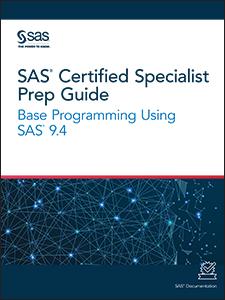
Base SAS Programmer Certification
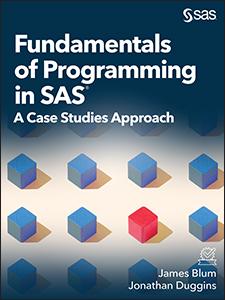
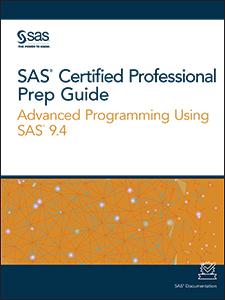
Books
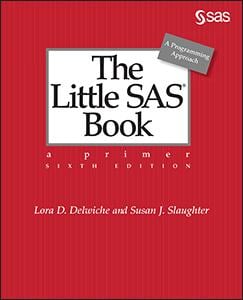
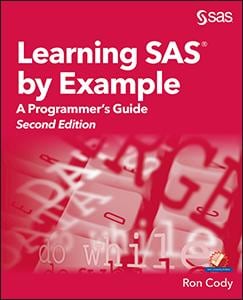
For more in-depth information, read books written by SAS experts.
Documentation
Find user's guides and other technical documentation for Base SAS.
SAS Viya Platform
SAS 9.4
Related Documentation
Previous Versions
SAS 9.3
Quick Links
- What's New in SAS 9.3 HTML
- SAS 9.3 Procedures by Name and Product HTML
- SAS 9.3 Language Reference by Name, Product, and Category HTML
Videos
About the SAS Language
- SAS 9.3 Language Reference: Concepts, Second Edition PDF | HTML
- Getting Started with the SAS 9.3 Output Delivery System PDF | HTML
SAS Procedure Guides
- Base SAS 9.3 Procedures Guide, Second Edition PDF | HTML
- Base SAS 9.3 Procedures Guide: Statistical Procedures, Second Edition PDF | HTML (compatible with the second maintenance release for SAS 9.3)
- Base SAS 9.3 Procedures Guide: Statistical Procedures PDF
- SAS 9.3 National Language Support (NLS): Reference Guide PDF | HTML
- SAS 9.3 Output Delivery System: User's Guide, Second Edition PDF | HTML
- SAS 9.3 ODS Graphics: Procedures Guide, Third Edition PDF | HTML
- SAS 9.3 SQL Procedure: User's Guide PDF | HTML Updated May 2017
- Data sets for SAS 9.3 SQL Procedure: User's Guide ZIP
DATA Step References
- SAS 9.3 Component Objects: Reference PDF | HTML
- SAS 9.3 Data Set Options: Reference PDF | HTML
- SAS 9.3 Formats and Informats: Reference PDF | HTML
- SAS 9.3 Functions and CALL Routines: Reference PDF | HTML
- SAS 9.3 National Language Support (NLS): Reference Guide PDF | HTML
- SAS 9.3 Output Delivery System: User's Guide, Second Edition PDF | HTML
- SAS 9.3 Statements: Reference PDF | HTML
- SAS 9.3 System Options: Reference, Second Edition PDF | HTML
- Base SAS 9.3 Utilities: Reference PDF | HTML
Macros
Operating Environment Specific Information
- SAS 9.3 Companion for UNIX Environments PDF | HTML
- SAS 9.3 Companion for Windows PDF | HTML
- SAS 9.3 VSAM Processing for z/OS PDF | HTML
- SAS 9.3 Companion for z/OS, Second Edition PDF | HTML
ODS Graphics
- SAS 9.3 ODS Graphics: Getting Started with Business and Statistical Graphics PDF | HTML
- SAS 9.3 ODS Graphics: Procedures Guide, Third Edition PDF | HTML
- SAS 9.3 ODS Graphics Designer: User's Guide PDF | HTML
- SAS 9.3 ODS Graphics Editor: User's Guide PDF | HTML
- SAS 9.3 Graph Template Language: Reference, Third Edition PDF | HTML
- SAS 9.3 Graph Template Language: User's Guide PDF | HTML
More Documentation
- Base SAS Glossary HTML
- Base SAS 9.3 Guide to Information Maps PDF | HTML
- SAS 9.3 Guide to Metadata-Bound Libraries PDF | HTML
- Moving and Accessing SAS 9.3 Files PDF | HTML
- SAS 9.3 CDISC Procedure: User's Guide PDF | HTML
- SAS 9.3 Interface to Application Response Measurement (ARM): Reference PDF | HTML
- SAS 9.3 Language Interfaces to Metadata PDF | HTML
- SAS 9.3 Logging: Configuration and Programming Reference PDF | HTML
- SAS 9.3 Scalable Performance Data Engine: Reference PDF | HTML
- SAS 9.3 SQL Query Window: User's Guide PDF | HTML
- SAS Universal Viewer 1.2: User's Guide PDF | HTML
- SAS 9.3 LIBNAME Engine for DataFlux Federation Server: User's Guide PDF | HTML
- SAS 9.3 XML LIBNAME Engine: User's Guide, Second Edition PDF | HTML
- Step-by-Step Programming with Base SAS Software PDF | HTML
- Encryption in SAS 9.3, Second Edition PDF | HTML
- The documentation for SAS/SECURE is in Encryption in SAS 9.3.
- The documentation for the SAS/ACCESS Interface to Hadoop is in SAS/ACCESS 9.3 for Relational Databases: Reference, Second Edition. The FILENAME statement (for the Hadoop access method) is in SAS 9.3 Statements: Reference, and the HADOOP procedure is in the Base SAS 9.3 Procedures Guide, Second Edition.
- Help for Base SAS is accessible within the product.
SAS 9.2
What's New in SAS 9.2 PDF | HTML
Most Used Documentation
- Base SAS 9.2 Procedures Guide PDF | HTML
- Base SAS 9.2 Procedures Guide: Statistical Procedures, Third Edition PDF | HTML
- SAS 9.2 Procedures by Name and Product HTML
- SAS 9.2 Language Reference by Name, Product, and Category HTML
- SAS 9.2 Language Reference: Concepts, Second Edition PDF | HTML
- SAS 9.2 Language Reference: Dictionary, Fourth Edition PDF | HTML
- SAS 9.2 Macro Language: Reference PDF | HTML
- SAS 9.2 National Language Support (NLS): Reference Guide PDF | HTML
- SAS 9.2 Output Delivery System: User's Guide PDF | HTML
Operating Environment Specific Information
More Documentation
- Base SAS Glossary HTML
- Base SAS 9.2 Guide to Information Maps PDF | HTML
- Encryption in SAS 9.2 PDF | HTML
- Moving and Accessing SAS 9.2 Files PDF | HTML
- SAS 9.2 CDISC Procedure: User's Guide PDF | HTML
- SAS 9.2 Interface to Application Response Measurement (ARM): Reference PDF | HTML
- SAS 9.2 Language Interfaces to Metadata PDF | HTML
- SAS 9.2 Logging: Configuration and Programming Reference PDF | HTML
- SAS 9.2 Scalable Performance Data Engine: Reference PDF | HTML
- SAS 9.2 SQL Procedure User's Guide PDF | HTML
- SAS 9.2 SQL Query Window: User's Guide PDF | HTML
- SAS Universal Viewer 1.1: User's Guide PDF | HTML
- SAS 9.2 XML LIBNAME Engine: User's Guide, Second Edition PDF | HTML
- Step-by-Step Programming with Base SAS Software PDF | HTML
- Help for Base SAS is accessible within the product.
SAS 9, 9.1, 9.1.2, and 9.1.3
What's New in SAS 9, 9.1, 9.1.2, and 9.1.3 PDF
Most Used Documentation
- Base SAS 9.1.3 Procedures Guide, Second Edition PDF
- SAS 9.1.3 Language Reference: Concepts PDF
- SAS 9.1.3 Language Reference: Dictionary, Fifth Edition PDF
- SAS 9.1 Macro Language: Reference PDF
- SAS 9.1 National Language Support (NLS): User's Guide PDF
- SAS 9.1.3 Output Delivery System: User's Guide PDF
Operating Environment Specific Information
- SAS 9.1 Companion for OpenVMS Alpha PDF
- SAS 9.1 Companion for UNIX Environments PDF
- SAS 9.1 Companion for Windows PDF
- SAS 9.1.3 Companion for z/OS PDF
More Documentation
- Base SAS Guide to Information Maps PDF
- Data Security Technologies in SAS 9.1.3 PDF
- Moving and Accessing SAS 9.1 Files PDF
- SAS 9.1.3 Metadata LIBNAME Engine: User's Guide, Second Edition PDF
- SAS 9.1 Scalable Performance Data Engine: Reference PDF
- SAS 9.1 SQL Procedure User's Guide PDF
- SAS 9.1 SQL Query Window: User's Guide PDF
- SAS 9.1.3 XML LIBNAME Engine: User's Guide PDF
- Step-by-Step Programming with Base SAS Software PDF
- Help for Base SAS is accessible within the product.
Additional Software Documentation
- Moving and Accessing SAS 9.1 Files
- SAS 9.1 Companion for OpenVMS Alpha
- SAS 9.1 Companion for UNIX Environments
- SAS 9.1 Companion for Windows PDF
- SAS 9.1 Companion for z/OS
- SAS 9.1.2 Data Security Technologies
- SAS 9.1 Language Reference: Concepts
- SAS 9.1 Language Reference: Dictionary
- SAS 9.1 Macro Language: Reference c
- SAS 9.1 Metadata LIBNAME Engine: User's Guide
- SAS 9.1 National Language Support (NLS): User's Guide
- SAS 9.1 Output Delivery System: User's Guide
- SAS 9.1 Scalable Performance Data Engine: Reference
- SAS 9.1 SQL Procedure User's Guide
- SAS 9.1 SQL Query Window: User's Guide
- SAS System for CMS: What's New in Version 8
- SAS 9.1 XML LIBNAME Engine: User's Guide
SAS Technical Papers
Read technical papers to learn how to complete a task or achieve a goal.

Software Downloads
The downloads application contains updates for SAS products and solutions.

Base SAS Blogs & Communities

Connect with other SAS users by joining a users group or attending an upcoming event.