XML Property File Elements
Overview
The most basic properties
file consists of a single
Component element
with attributes, a single nested PropertyDescriptors element, and a single nested Views element.
In the example properties file depicted above, the PropertyDescriptors and Views elements are empty. As the discussion
progresses, the PropertyDescriptors element
is populated with a variety of Property elements
and Control elements; the Views element is populated with a variety of View elements, Group elements, and PropertyRef elements. Some of these elements are used
to integrate the node into the SAS Enterprise Miner application. Some
elements link the node with a SAS program that you write to provide
the node with computational functionality. Other elements are used
to populate the node's Properties panel, which serves as a graphical
user interface (GUI) for the node's SAS program.
The Component Element
The
Component element encompasses all other elements in the properties file. The
attributes of the Component element provide
information that is used to integrate the extension node into the
SAS Enterprise Miner environment. All extension nodes share three
common Component attributes: type, resource, and serverclass. These three attributes must have the values
that are displayed in the preceding example. The values of the other Component attributes are unique for each extension node.
-
prefix— a string used to name files (data sets, catalog, and so on) that are created on the server. The prefix must be a valid SAS variable name and should be as short as possible. SAS filenames are limited to 32 characters, so if your prefix is k characters long, SAS Enterprise Miner is left with 32 – k characters with which to name files. The shorter the prefix, the greater the flexibility the application has for generating unique filenames.
<?xml version="1.0" encoding="UTF-8"?>
<!DOCTYPE Component PUBLIC
		"-//SAS//EnterpriseMiner DTD Components 1.3//EN"
		"Components.dtd">
<Component
	type="AF"
	resource="com.sas.analytics.eminer.visuals.PropertyBundle"
	serverclass="EM6"
	name="Example"
	displayName="Example"
	description="Extension Node Example"
	group="EXPLORE"
	icon="Example.gif"
	prefix="EXMPL" >

<PropertyDescriptors>
</PropertyDescriptors>

<Views>
</Views>

</Component>
The
displayName="Example" and description="Extension Node Example" attributes together produce the tooltip that appears when you hover
your mouse over the extension node's icon on the node Toolbar.
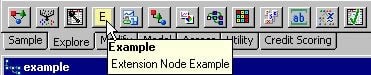
The
name="Example" attribute produces the name on the icon in the following example.
The displayName="Example" produces the tooltip
that is displayed when you hover your mouse over the node's icon in
the process flow diagram.

The
group="EXPLORE" attribute informs SAS Enterprise Miner that the extension node's
icon should be displayed in the Explore tab of the node toolbar. The icon="Example.gif" attribute informs SAS Enterprise
Miner of the name of the .gif file used to produce the icon on the
node toolbar. The prefix="EXMPL" attribute
informs SAS Enterprise Miner that filenames of files generated on
behalf of this node should share a common prefix of EXMPL. The prefix
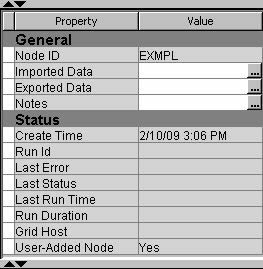
is also used as the Node ID in the Properties panel. When deployed,
this extension node would have the following Properties panel:
The PropertyDescriptors Element
General Information
The
PropertyDescriptors element provides structure to the XML document. Having all of the Property elements encompassed by a single PropertyDescriptors element isolates the Property elements from the rest of the file's contents
and promotes efficient parsing. The real information content of the PropertyDescriptors element is provided by the individual Property elements that you place within the PropertyDescriptors element. A variety of Property elements can be used in an extension node.
Each type of Property element is discussed
in detail here. Working examples for each type of Property element are also provided.
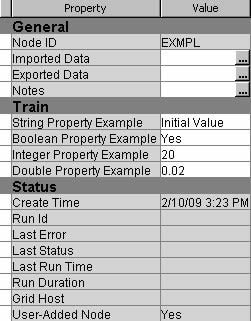
In the following sections,
you will see example code that will create four different property
types. Those types are string, Boolean, integer, and double. The extension
node’s Properties Panel will resemble the following image:
These four elements
are the most basic forms of the available
Property elements. For some applications, the basic forms are sufficient.
However, some applications might require a more sophisticated interface.
You might also want to restrict the set of valid values that a user
can enter. Such capabilities are provided by Control elementsNote: For this example, all of
the newly created properties were placed under the heading Train.
That heading was generated using a View element, discussed later.
Property Elements
The different types
of
Property elements are distinguished by
their attributes. The attributes that are currently supported for
extension nodes are as follows:
-
name— a name by which thePropertyelement is referenced elsewhere in the properties file and in the node's SAS code. At run time, SAS Enterprise Miner generates a corresponding macro variable with the name &EM_PROPERTY_name. By default, &EM_PROPERTY_name resolves to the value that is declared in the initial attribute of thePropertyelement. If a user specifies a value for the property in the Properties panel, &EM_PROPERTY_name resolves to that new value. Macro variable names are limited to 32 characters. Twelve characters are reserved for the EM_PROPERTY_ prefix, so the value specified for the name attribute must be 20 characters or less.
The String Property
<Property
	type="String"
	name="StringExample"
	displayName="String Property Example"
	description="write your own description here"
	initial="Initial Value"
	edit="Y" />
The value of a
String property is displayed as a text box that a user
can edit. Use a String property when you
want the user to type in a string value. For example, your extension
node might create a new variable, and you could allow the user to
provide a variable label.
The preceding example
is typical of a
String Property element that
corresponds to a specific option or argument of the node's SAS program.
However, there are two special String Property elements, referred to as the Location Property and the Catalog Property, that you must
include in the properties file. These two special String
Property elements are used to inform SAS Enterprise Miner
of the location of the node's SAS program. These two Property elements appear as follows:
<Property
	type="String"
	name="Location"
	initial="CATALOG"/>

<Property
	type="String"
	name="Catalog"
	initial="SASHELP.EMEXT.Example.SOURCE"/>
The
Location
                        Property
should be copied verbatim. The Catalog
Property can also be copied. However, you should change
the value of the initial attribute to the name of the file that contains
the entry point of your SAS program in the Catalog Property. As discussed earlier in the section on Server Code, your SAS program
can be stored in several separate files. However, there must always
be one file that contains a main program that executes first. The
value of the initial attribute of the Catalog Property should be set to the name of this file. If you want to store the
main program in an external file, you still need to create a source
file that is stored in a SAS catalog. The contents of that file would
then simply have the following form:
The Integer Property
The Control Element
General Information
In addition to specifying
the attributes for a
Property element, you
can also specify one of several types of Control elements. Control elements are nested within Property elements. Seven types of Control elements are currently supported for extension nodes. Each type
of Control element has its own unique syntax.
The seven types of Control elements are
Some
Control elements require accompanying server code to provide functionality.
These include the TableEditor, DynamicChoiceList, Filetransfer, and some Dialog Control elements. Examples of these types of Control elements are presented in a later chapter following a discussion
of extension node server code.
String Property with a ChoiceList Control
<Property
	type="String"
	name="ChoiceListExample"
	displayName="Choice List Control Example"
	description="write your own description here"
	initial="SEGMENT">
	<Control>
		<ChoiceList>
		<Choice rawValue="SEGMENT" displayValue="Segment" />
		<Choice rawValue="ID" displayValue="ID" />
		<Choice rawValue="INPUT" displayValue="Input" />
		<Choice rawValue="TARGET" displayValue="Target" />
		</ChoiceList>
	</Control>
</Property>
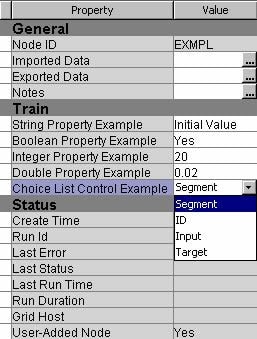
A
ChoiceList control enables you to present the user with a drop-down list containing
predetermined values for a property. A String property with a ChoiceList control consists
of the following items:
Note: Make sure that the value
of the initial attribute of the
Property element
matches the rawValue attribute of one of
the Choice elements. The value of the Property element's initial attribute is the default
value for the property; it is the value that is passed to your SAS
program if the user doesn't select a value from the Properties panel.
If the initial attribute does not match the rawValue attribute of one of the Choice elements,
you could potentially be passing an invalid value to your SAS program.
To avoid case mismatches, it is a good practice to write the rawValue attributes and the initial attribute using
all capital letters.
String Property with a Dialog Control
There are three types
of
Dialog Control elements supported for
extension nodes in Enterprise Miner 7.1. The Dialog elements are uniquely distinguished by their class attributes. The
class attributes are as follows:
In each of the three
cases, the class attribute must be specified verbatim. The
Dialog control with class=com.sas. analytics.eminer.visuals.VariablesDialog is the only Dialog control of the three
that does not require accompanying server code.
Dialog Control with class=com.sas.analytics.eminer.visuals.VariablesDialog
<Property
	type="String"
	name="VariableSet"
	displayName="Variables"
	description="Variable Properties">
	<Control>
		<Dialog
			class="com.sas.analytics.eminer.visuals.VariablesDialog"
			showValue="N" />
	</Control>
</Property>
This  ) is displayed in the Value column.
Property element configuration provides access to the variables exported
by a predecessor Data Source node. Notice the class attribute of the Dialog element. When you include a Property element of this type, the displayName value
is displayed in the Properties panel and an ellipsis icon () is displayed in the Value column.
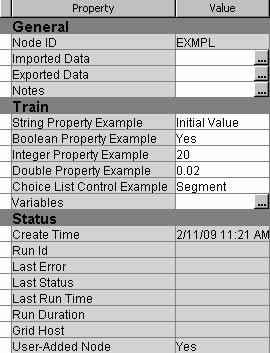
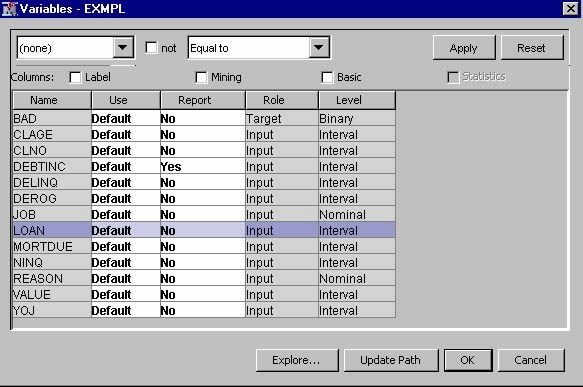
Clicking on the icon opens a window containing a variables table.
A filter based on the variable metadata column values can be applied
so that only a subset of the variables is displayed in the table.
The user can set the Use and Report status for individual variables, view the columns
metadata, or open the Explore window. In
the Explore window, the user can view a variable's
sampling information, observation values, or plots of variables' distributions.
icon opens a window containing a variables table.
A filter based on the variable metadata column values can be applied
so that only a subset of the variables is displayed in the table.
The user can set the Use and Report status for individual variables, view the columns
metadata, or open the Explore window. In
the Explore window, the user can view a variable's
sampling information, observation values, or plots of variables' distributions.
If you set the value
of the
showValue attribute to Y, the name of the VariableSet data set name is displayed beside the ellipsis icon.
Note: You use this
Property and Control configuration
only when you want the user to be able to control which variables
the node uses.
The other two types
of
Dialog Control elements are used to access
files or data sets that are not exported by predecessor nodes in a
process flow diagram. In order to access such files or data sets,
you must first register these files or data sets with Enterprise Miner.
This topic is explained later in a discussion about extension node
server code. Therefore, illustrations of the two additional Dialog Control elements are presented in a later chapter
after you have gained the requisite knowledge for registering files
and data sets that are to be accessed by your extension node.
Integer Property with a Range Control
<Property
	type="int"
	name="Range"
	displayName="Integer Property with Range Control"
	description="write your own description here"
	initial="20"
	edit="Y">
	<Control>
		<Range min="1"
			excludeMin="N"
			max="1000"
			excludeMax="N"/>
	</Control>
</Property>
The addition of the
Range Control element to an Integer Property element enables you to restrict the range of permissible values
that a user can enter. The Control element
has no attributes in this case. Instead, a Range element is nested within the Control element.
The Range element has these four attributes:
Double Property with a Range Control
<Property
	type="double"
	name="double_range"
	displayName="Double Property with Range Control"
	description="write your own description here"
	initial="0.33"
	edit="Y">
	<Control>
		<Range
			min="0"
			excludeMin="Y"
			max="1"
			excludeMax="Y" />
	</Control>
</Property>
The addition of the
Range Control element to a Double Property element enables you to restrict the range of permissible values
that a user can enter. The Control element
has no attributes in this case. Instead, a Range element is nested within the Control element.
The Range element has these four attributes:
String Property with a SASTABLE Control
<Property
	type="String"
	name="SASTable"
	displayName="SASTABLE Control Example"
	description="write your own description here"
	initial=""
	edit="Y">
	<Control
		type="SASTABLE"
		showValue="Y"
		showSystemLibraries="Y"
		noDataSpecified="Y" />
</Property>
A
SASTABLE
                        Control
element enables the user to select the name of
a SAS data set. The default value of a String Property element with a SASTABLE control is a null
string.
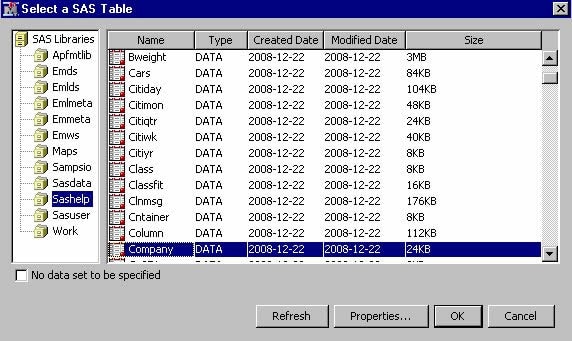
When the user clicks
on the icon, a Select a SAS Table window is displayed and the user is permitted to select a SAS data
set from the SAS libraries that are displayed.
icon, a Select a SAS Table window is displayed and the user is permitted to select a SAS data
set from the SAS libraries that are displayed.
The
Control element has these four attributes:
-
showSystemLibraries— when this attribute is set to Y, SAS Enterprise Miner project libraries are displayed in the Select a SAS Table window. When this attribute is set to N, SAS Enterprise Miner project libraries are not displayed in the Select a SAS Table window. For example, in the previous example, notice the SAS Enterprise Miner project libraries Emds, Emlds, Emlmeta, Emmeta, and Emws2. If theshowSystemLibrariesattribute had been set to N, these SAS Enterprise Miner libraries would not be displayed. -
noDataSpecified— When this attribute is set to Y, a check box with the label No data set to be specified appears in the bottom left corner of the Select a SAS Table window. When checked, theSASTABLEcontrol is cleared and the value of the String Property is set to null. When set to N, this attribute has no effect.
The default values of
the property and the corresponding macro variable &EM_PROPERTY_propertyname
are null. When a user selects a data set, the name of the data set
is assigned to &EM_PROPERTY_propertyname and is displayed in the Value column of the Properties panel. The property's
value can be changed to another data set name by clicking on the icon
and selecting a new data set. Clicking on the icon and then clicking on the No data set to be specified
check box clears the property.
icon and then clicking on the No data set to be specified
check box clears the property.
String
                        Property
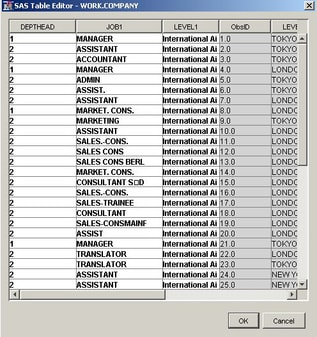
with a TableEditor Control: A Preview
A
String
                        Property
with a TableEditor control
requires SAS code in order for it to function properly. Because this
control requires server code, which has not yet been discussed, a
complete discussion and example of this type of Property and Control configuration is provided in Appendix 2: Controls that Require Server Code. This section provides a preview
of the most basic type of table editor. This preview also serves as
a reference example for the discussion on server code in the next
chapter.
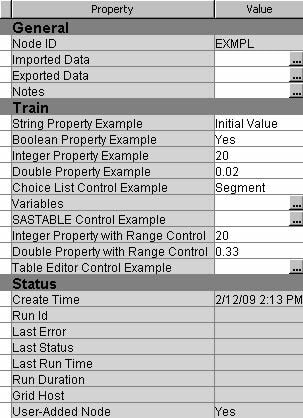
When a ) appears in the Value column
of the Properties panel next to the property name.
String
Property with a TableEditor control
is implemented, an ellipsis icon () appears in the Value column
of the Properties panel next to the property name.
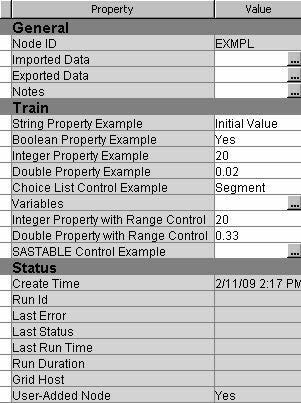
The Views Element
General Information
The
Views element organizes properties in the Properties panel. The following
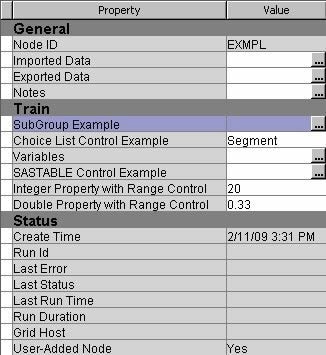
Properties panel contains one of each type of Property element:
<Views>
	<View name="Train">
		<PropertyRef nameref="StringExample"/>
		<PropertyRef nameref="BooleanExample"/>
		<PropertyRef nameref="Integer"/>
		<PropertyRef nameref="Double"/>
		<PropertyRef nameref="ChoiceListExample"/>
		<PropertyRef nameref="VariableSet"/>
		<PropertyRef nameref="Range"/>
		<PropertyRef nameref="double_range"/>
		<PropertyRef nameref="SASTable"/>
	</View>
</Views>
Within the
Views element, there is a single View element. That View element has a single
attribute — name — and its
value is Train. Nested within the View element is a collection of PropertyRef elements. There is one PropertyRef element
for each Property element in the properties
file. Each PropertyRef element has a single nameref attribute. Each nameref has a value that corresponds to the name attribute of one of the Property elements.
When you add the
Train View element, SAS Enterprise Miner separates the
node's properties into three groups: General, Train, and Status. The General and Status groups are automatically generated and populated by SAS Enterprise
Miner. These two groups and the properties that populate them are
common to all nodes and do not have to be specified in the extension
node's XML properties file. The Train group
contains all of the properties that are specified by the PropertyRef elements that are nested within the Train View element.
Now suppose that instead
of a single
View element, there were three View elements: Train, Score, and Report. Suppose that
we also remove some of the PropertyRef elements
from the Train View, put some in the Score View, and put the rest in the Report
View, as follows:
<Views>
	<View name="Train">
		<PropertyRef nameref="StringExample"/>
		<PropertyRef nameref="BooleanExample"/>
		<PropertyRef nameref="Integer"/>
		<PropertyRef nameref="Double"/>
	</View>
	<View name="Score">
		<PropertyRef nameref="ChoiceListExample"/>
		<PropertyRef nameref="VariableSet"/>
		<PropertyRef nameref="SASTable"/>
	</View>
	<View name="Report">
		<PropertyRef nameref="Range"/>
		<PropertyRef nameref="double_range"/>
	</View>
</Views>
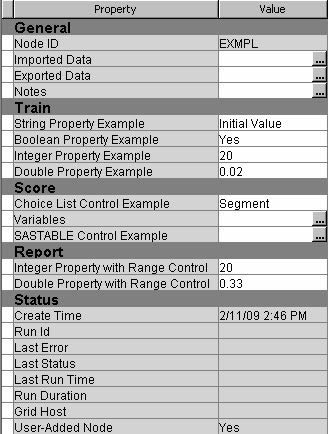
By convention, SAS Enterprise
Miner nodes use only three
View elements
with the names Train, Score, and Report. However, not all nodes need
all three View elements. Although it is recommended,
you are not required to follow this convention. Your node can have
as many different View elements as you like
and you can use any names that you want for the View elements.
The Group Element
You can indicate to
the user when a set of
Property elements
is related by placing the related Property elements in a group. When a group is defined, all of the properties
in the group appear as items in an expandable and collapsible list
under a separate subheading. This is accomplished by nesting a Group element within a View element and then nesting PropertyRef elements
inside of the Group element.
<Views>
	<View name="Train">
		<PropertyRef nameref="StringExample" />
		<PropertyRef nameref="BooleanExample" />
		<Group
			name="GroupExample"
			displayName="Group Example"
			description="write your own description here">
			<PropertyRef nameref="Integer" />
			<PropertyRef nameref="Double" />
			<PropertyRef nameref="ChoiceListExample" />
		</Group>
		<PropertyRef nameref="VariableSet" />
		<PropertyRef nameref="SASTable" />
		<PropertyRef nameref="Range" />
		<PropertyRef nameref="double_range" />
	</View>
</Views>
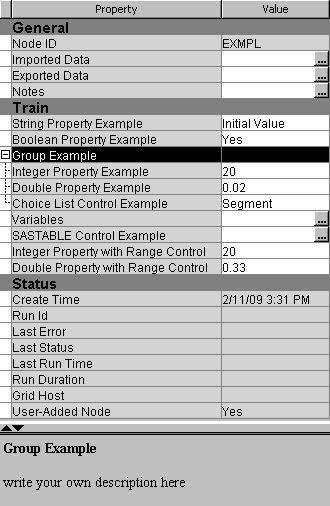
You can click on the
+ or - sign beside the group name to expand or collapse, respectively,
the list of properties that are included in a group.
You can examine the
XML properties files of existing SAS Enterprise Miner nodes and use
them as guides to constructing your own properties files. The exact
location of these files depends on your operating system and installation
configuration, but they can be found under the SAS configuration directory:
...\SAS\Config\Lev1\AnalyticsPlatform\apps\EnterpriseMiner\conf\components.
The SubGroup Element
You might also encounter
situations where your node's SAS program has many options and arguments.
In such cases, the list of properties can become too long to conveniently
display in the Properties panel. In such situations, you might want
to have related properties in their own separate Properties panel.
This is accomplished by using SubGroup elements. SubGroup elements
have essentially the same structure as Group elements. That is, SubGroup
elements have these three attributes:
Nest the icon appears in the Value column of the Properties panel next to the icon opens a child window. The properties that are
nested within the
SubGroup element within a View element, and nest PropertyRef elements
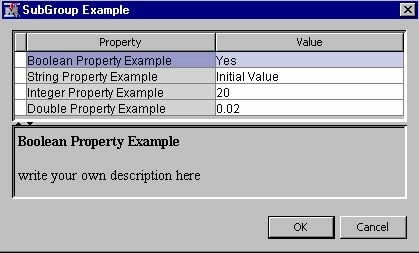
within the SubGroup element. When a SubGroup element is used, an icon appears in the Value column of the Properties panel next to the displayName of the SubGroup. Clicking the icon opens a child window. The properties that are
nested within the SubGroup element are displayed
in that window. The Property elements and Control elements within the subgroup's Properties panel
function the same way that they function in the main Properties panel.
<Views>
	<View name="Train">
		<SubGroup
			name="SubGroupExample"
			displayName="SubGroup Example"
			description="write your own description here">
			<PropertyRef nameref="BooleanExample"/>
			<PropertyRef nameref="StringExample"/>
			<PropertyRef nameref="Integer"/>
			<PropertyRef nameref="Double"/>
		</SubGroup>
		<PropertyRef nameref="ChoiceListExample"/>
		<PropertyRef nameref="VariableSet"/>
		<PropertyRef nameref="SASTable"/>
		<PropertyRef nameref="Range"/>
		<PropertyRef nameref="double_range"/>
	</View>
</Views>