Score New Data
To create a new data
source for the sample
data that you will score:
-
On the File menu, select New
 Data Source. The Data Source Wizard opens.
-
Proceed through the steps that are outlined in the wizard.
-
SAS Table is automatically selected as the Source. Click Next.
-
Enter
DONOR.DONOR_SCORE_DATAas the two-level filename of the Table. Click Next. -
Click Next.
-
The Basic option is automatically selected. Click Next.
-
Click Next.
-
The No option is automatically selected. Click Next.
-
Select Score as the Role of the data source, and click Next.
-
Click Finish.
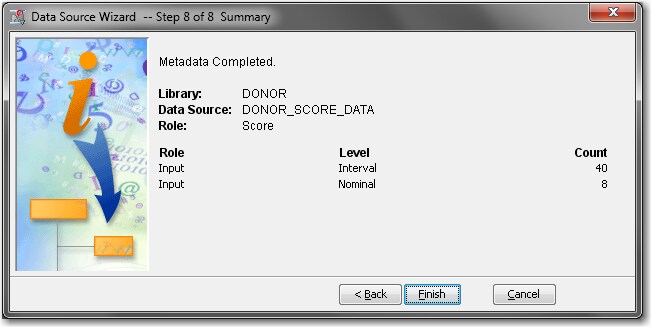
-
-
Select the DONOR_SCORE_DATA data source in the Project Panel. Drag it into the Diagram Workspace.
To use the Score node
to score new data:
-
Select the Assess tab on the Toolbar.
-
Select the Score node icon. Drag the node into the Diagram Workspace.
-
Connect the Model Comparison node and the DONOR_SCORE_DATA data source node to the Score node.
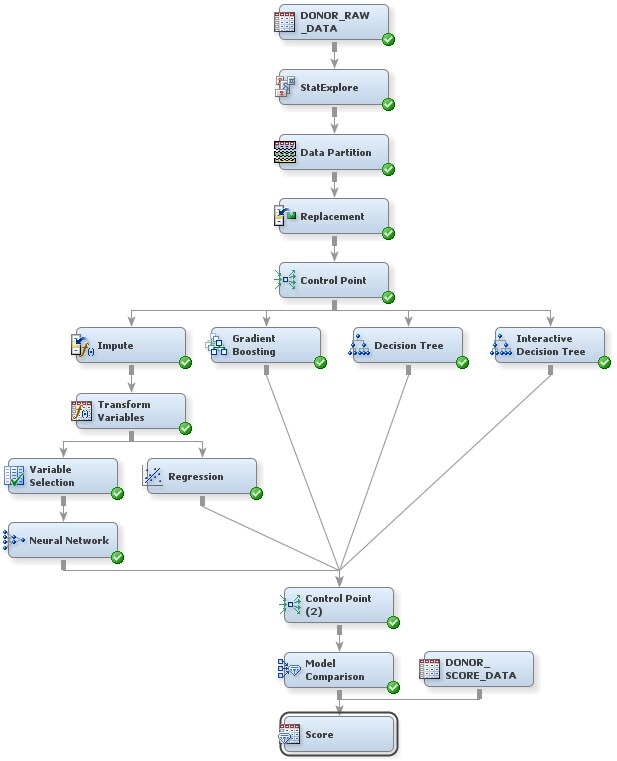
-
In the Diagram Workspace, right-click the Score node, and select Run from the resulting menu. Click Yes in the Confirmation window that opens.
-
In the window that appears when processing completes, click OK. The scoring code has been generated, and the scoring data has been scored.Note: The SAS scoring code is viewable in the node results.
Copyright © SAS Institute Inc. All Rights Reserved.