Problem Note 63148: The SAS® Backup Manager web application does not open and returns the error "The application has encountered an unknown error"
 |  |  |  |
In your SAS® Viya® 3.4 environment, you might encounter an issue opening the SAS Backup Manager web application. This issue occurs when you configure a reverse proxy in front of the Apache HTTP Server on your SAS Viya deployment.
Symptom
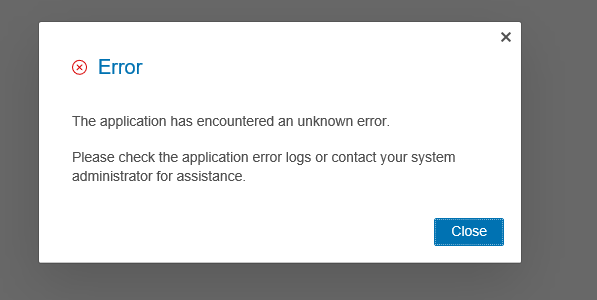
If you are experiencing this issue, you see this error message when you log on to SAS® Environment Manager and click the Backup and Restore icon:
Problem Source
This issue happens because of an incorrect redirection by the Apache HTTP Server on the SAS Viya deployment.
Capture a network trace of this issue occurring and look for either of the following requests. In this example, external.sas.com is the host name of the reverse proxy server that you put in front of the Apache HTTP Server on your SAS Viya deployment.
This problematic behavior can happen for either of these requests, which results in the failure of the SAS Backup Manager web application. Both of these requests should generate an HTTP 302 response code, which is a redirect. The problem occurs in the Location header of the HTTP response. When this issue occurs, the Location header for the requests above would look similar to the following:
Note the protocol in the Location header compared to the protocol in the original GET request. The external.sas.com reverse proxy is configured for HTTPS. However, the URL in the Location header (which is where the request is redirected to) is HTTP. The incorrect protocol used in this redirect causes a failure in loading the SAS Backup Manager web application.
Workaround
After you have confirmed that you are encountering this specific behavior, implement the following workaround. You can add explicit rewrite rules to the Apache configuration, which force these requests to redirect to the URL with the correct protocol.
Use the following steps to apply this workaround:
- This workaround requires you to edit the httpd.conf file for the Apache HTTP Server on the SAS Viya deployment. Make a backup copy of this file before making any changes. (By default, this file is located in the /etc/httpd/conf directory.)
- Add the following to the httpd.conf file. Be sure to change external.sas.com to the actual host name of your reverse proxy server:
RewriteEngine On
RewriteCond "%{QUERY_STRING}" "_=*"
RewriteRule "^/deploymentBackup$" "https://external.sas.com/deploymentBackup/" [R,L,NE,QSA]
RewriteRule "^/deploymentBackup$" "https://external.sas.com/deploymentBackup/" [R,L,NE]
####End of workaround for SAS Problem Note 63148####
- Restart the Apache HTTP Server. For information about restarting the Apache HTTP Server, refer to the "Infrastructure Servers - Apache HTTP Server" section of the SAS® Viya® 3.4 Administration Guide.
- To see whether the problem is resolved, try to access the SAS Backup Manager web application by logging into SAS Environment Manager and clicking the Backup and Restore icon.
If you need assistance confirming that you are experiencing this specific issue or with applying this workaround, contact SAS Technical Support.
A fix for this issue is planned for a future software release.
Operating System and Release Information
| Product Family | Product | System | SAS Release | |
| Reported | Fixed* | |||
| SAS System | SAS Environment Manager (on Viya) | Linux for x64 | Viya | |
| Type: | Problem Note |
| Priority: | medium |
| Date Modified: | 2018-11-30 15:05:02 |
| Date Created: | 2018-10-31 15:48:47 |