Usage Note 60873: Selecting a data source that is located in a mapped drive while creating a new SAS® Contextual Analysis project
 |  |  |  |
SAS Contextual Analysis projects enable you to use a data source that is located in a mapped drive. Work with your SAS Contextual Analysis compute (application)-server administrator to follow the steps below to create a symbolic link to the location of the data source:
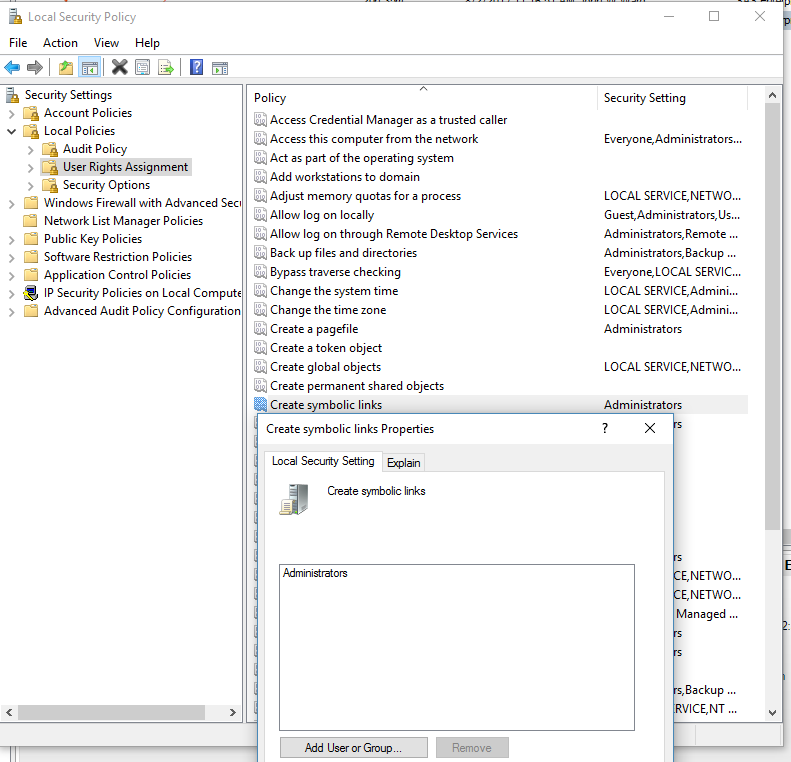
1. Assign the "Create symbolic links" right to the administrator's user account if needed:
2. Launch Command Prompt as an administrator and run the following command:
location - file system location where you want to create the symbolic link
UNC path - Uniform Naming Convention path to the directory on the mapped drive where your data source resides
Example: you want to create a symbolic link named test under C:\temp. Your mapped drive resolves to \\server\data in the Uniform Naming Convention path, and your data source resides in the data directory. Run this command:
If the symbolic link is created successfully, then the following message is displayed in Command Prompt:
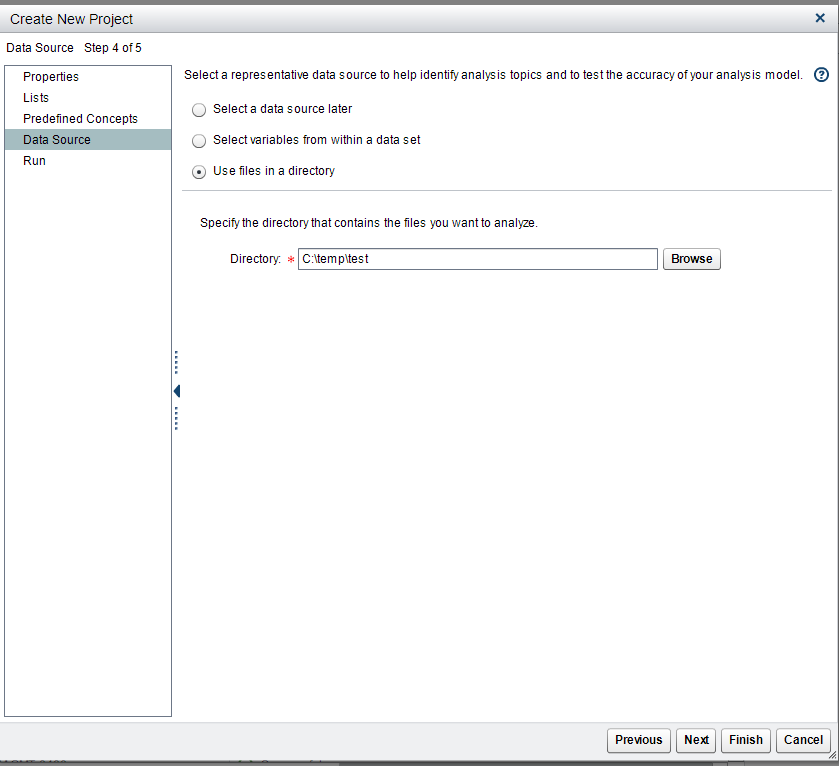
3. Create a new SAS Contextual Analysis project. Navigate to the data source in the mapped drive via the symbolic link when you select the Use files in a directory option on the "Data Source" tab:
Operating System and Release Information
| Product Family | Product | System | Product Release | SAS Release | ||
| Reported | Fixed* | Reported | Fixed* | |||
| SAS System | SAS Contextual Analysis | Microsoft® Windows® for x64 | 13.2 | 9.4 TS1M2 | ||
| Type: | Usage Note |
| Priority: |
| Date Modified: | 2017-08-04 08:44:55 |
| Date Created: | 2017-08-03 14:25:38 |