Installation Note 50263: The SAS® Deployment Manager "Checking System" dialog box shows unwriteable files
 |  |  |  |
Important: If your SAS software was installed and configured using a plan file, do not continue with this SAS Note. Instead, see the SAS® 9.3 Intelligence Platform: Installation and Configuration Guide for an overview of uninstalling the SAS Intelligence Platform.
If you have a basic SAS installation, one for which you did not configure SAS software using a plan file (the most common case), proceed with the following instructions.
Instructions for a Basic SAS Installation for Which No Plan File Was Used
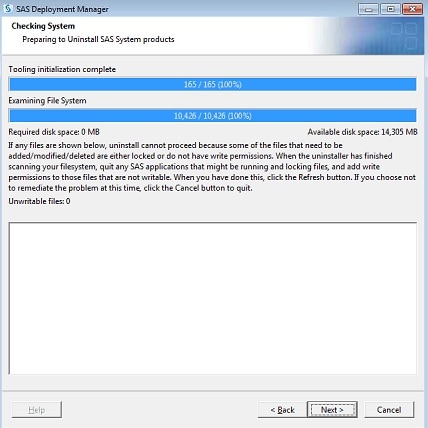
In preparing to uninstall SAS system products, the SAS Deployment Manager examines the file system to ensure that files flagged for modification are not currently in use by any other process. Files identified as being in use by another process are displayed in the SAS Deployment Manager Checking System dialog box. This scenario occurs when SAS processes or services were not terminated before the SAS Deployment Manager was run.
Here is an example of how the SAS Deployment Manager displays files that are in use:

To proceed with the uninstallation of your software, you must identify processes that are still running.
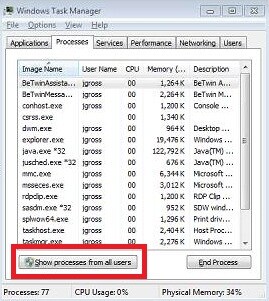
- Start the Windows Task Manager. Click the Processes tab. Be sure to select Show processes from all users.
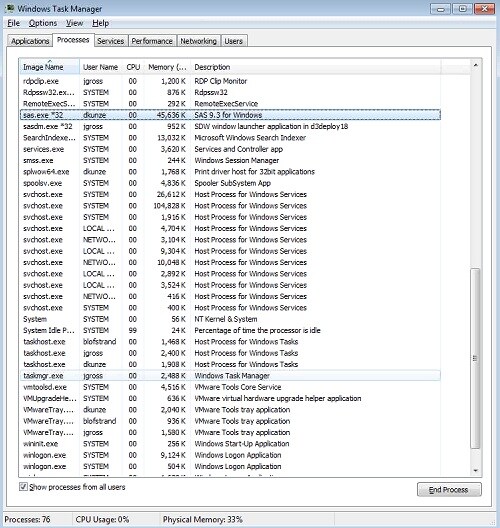
- Search the list of processes in Windows Task Manager and terminate any SAS processes that are running. Do this before you begin to uninstall any products.
- After terminating the process or processes, click Refresh in the SAS Deployment Manager Checking System dialog box. Ensure that no files are found to be in use.
- Now you can continue with the uninstallation.
Operating System and Release Information
| Product Family | Product | System | Product Release | SAS Release | ||
| Reported | Fixed* | Reported | Fixed* | |||
| SAS System | Base SAS | Microsoft® Windows® for x64 | 9.3 | |||
| Microsoft Windows 8 Ent | 9.3 | |||||
| Microsoft Windows 8 Pro | 9.3 | |||||
| Microsoft Windows Server 2003 Datacenter Edition | 9.3 | |||||
| Microsoft Windows Server 2003 Enterprise Edition | 9.3 | |||||
| Microsoft Windows Server 2003 Standard Edition | 9.3 | |||||
| Microsoft Windows Server 2003 for x64 | 9.3 | |||||
| Microsoft Windows Server 2008 | 9.3 | |||||
| Microsoft Windows Server 2008 R2 for x64 | 9.3 | |||||
| Microsoft Windows Server 2008 for x64 | 9.3 | |||||
| Microsoft Windows Server 2012 Datacenter | 9.3 | |||||
| Microsoft Windows Server 2012 Std | 9.3 | |||||
| Microsoft Windows XP Professional | 9.3 | |||||
| Windows 7 Enterprise 32 bit | 9.3 | |||||
| Windows 7 Enterprise x64 | 9.3 | |||||
| Windows 7 Home Premium 32 bit | 9.3 | |||||
| Windows 7 Home Premium x64 | 9.3 | |||||
| Windows 7 Professional 32 bit | 9.3 | |||||
| Windows 7 Professional x64 | 9.3 | |||||
| Windows 7 Ultimate 32 bit | 9.3 | |||||
| Windows 7 Ultimate x64 | 9.3 | |||||
| Windows Vista | 9.3 | |||||
| Windows Vista for x64 | 9.3 | |||||
| Type: | Installation Note |
| Priority: | medium |
| Date Modified: | 2014-05-12 17:02:09 |
| Date Created: | 2013-06-25 14:40:10 |