Usage Note 49983: Eliminating SAS map data sets from the selection list of data sets that are accessed with the SAS® ODBC driver
 |  |  |  |
When you use the SAS ODBC driver to access a local SAS server or a remote SAS/SHARE® server, you might see the many SAS map data sets in the selection list of data sets. There are approximately 1,000 data sets, many with the same names. This large number of map data sets in the selection list makes it time consuming to locate the data set you want.
One way to avoid this issue is to eliminate map data sets from the selection list by editing the Microsoft Windows registry entries for each of your ODBC data sources, as documented in the driver's help files and in SAS Note 11354, "How to eliminate GIS Maps data sets from the listing when using SAS ODBC."
A cleaner way to avoid the issue is to modify the SAS server's start-up parameters so that the various MAPS librefs reference locations that have no SAS data sets. You can use this method for a manually configured SAS/SHARE server, a SAS/SHARE server that is configured in a SAS® Business Intelligence environment, and a local SAS ODBC data source.
- For a SAS/SHARE Server That Is Configured Manually
For a server that is configured manually, use either of the following methods:
- Add the following options directly to the invocation command for the SAS/SHARE server:
-maps "!SASROOT" -mapsgfk "!SASROOT" -mapssas "!SASROOT"
- Include the options above in a special configuration file that you can reference in the SAS/SHARE invocation on the SAS command line.
Note: If you reference this configuration file on the command line, be sure to add a –CONFIG line that references your normal SAS® System configuration file above the –MAPS options. The following is an example of such a –CONFIG line for a typical Microsoft Windows installation:
-config "C:\Program Files\SASHome\SASFoundation\9.3\nls\en\sasv9.cfg"After you add the options, be sure to restart the SAS/SHARE server in order to make the changes effective.
- Add the following options directly to the invocation command for the SAS/SHARE server:
- For a SAS/SHARE Server That Is Configured in a SAS Business-Intelligence Environment
Locate the SAS/SHARE server's modifiable configuration file (sasv9_usermods.cfg) in the SAS–configuration–directory/Lev1/ShareServer directory. Add the –MAPS options above to this sasv9_usermods.cfg file. In this file, you do not need to include the –CONFIG line that is noted above.
Then, restart the SAS/SHARE server in order to make the changes effective.
- For a Local SAS ODBC Data Source
- In the SAS® ODBC Driver Configuration dialog box, click the Servers tab.
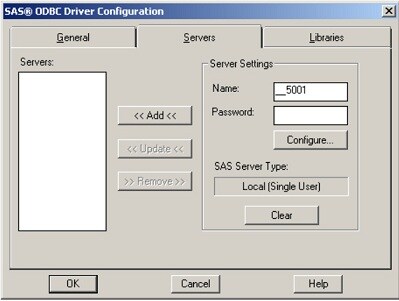
- Click the Configure button to open the Local Options dialog box.
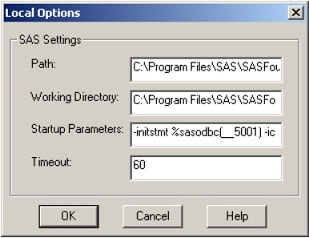
- Locate the options string in the Startup Parameters text box, as shown in the display above. The full options string in the display above is the following:
-initstmt %sasodbc(__nnnn) -icon -nologo
In the display above, the string nnnn is specified by the value 5001. That number in your options string likely will be different.
Do not remove any text. Simply move the cursor to the end of the options string and add a blank space. Then, on that same line, add the –MAPS options shown previously. The complete option string should look similar to the following:
-initstmt %sasodbc(__5001) -icon -nologo -maps "!sasroot" -mapsgfk "!sasroot" -mapssas "!sasroot"
- In the SAS® ODBC Driver Configuration dialog box, click the Servers tab.
Operating System and Release Information
| Product Family | Product | System | SAS Release | |
| Reported | Fixed* | |||
| SAS System | SAS Drivers for ODBC | z/OS | ||
| Microsoft® Windows® for 64-Bit Itanium-based Systems | ||||
| Microsoft Windows Server 2003 Datacenter 64-bit Edition | ||||
| Microsoft Windows Server 2003 Enterprise 64-bit Edition | ||||
| Microsoft Windows XP 64-bit Edition | ||||
| Microsoft® Windows® for x64 | ||||
| Microsoft Windows 8 Ent | ||||
| Microsoft Windows 8 Pro | ||||
| Microsoft Windows 95/98 | ||||
| Microsoft Windows 2000 Advanced Server | ||||
| Microsoft Windows 2000 Datacenter Server | ||||
| Microsoft Windows 2000 Server | ||||
| Microsoft Windows 2000 Professional | ||||
| Microsoft Windows NT Workstation | ||||
| Microsoft Windows Server 2003 Datacenter Edition | ||||
| Microsoft Windows Server 2003 Enterprise Edition | ||||
| Microsoft Windows Server 2003 Standard Edition | ||||
| Microsoft Windows Server 2003 for x64 | ||||
| Microsoft Windows Server 2008 | ||||
| Microsoft Windows Server 2008 for x64 | ||||
| Microsoft Windows Server 2012 Datacenter | ||||
| Microsoft Windows Server 2012 Std | ||||
| Microsoft Windows XP Professional | ||||
| Windows 7 Enterprise 32 bit | ||||
| Windows 7 Enterprise x64 | ||||
| Windows 7 Home Premium 32 bit | ||||
| Windows 7 Home Premium x64 | ||||
| Windows 7 Professional 32 bit | ||||
| Windows 7 Professional x64 | ||||
| Windows 7 Ultimate 32 bit | ||||
| Windows 7 Ultimate x64 | ||||
| Windows Millennium Edition (Me) | ||||
| Windows Vista | ||||
| Windows Vista for x64 | ||||
| 64-bit Enabled AIX | ||||
| 64-bit Enabled HP-UX | ||||
| 64-bit Enabled Solaris | ||||
| HP-UX IPF | ||||
| Linux | ||||
| OpenVMS Alpha | ||||
| Tru64 UNIX | ||||
| Type: | Usage Note |
| Priority: |
| Date Modified: | 2013-05-22 10:20:00 |
| Date Created: | 2013-05-17 13:33:18 |