Usage Note 46025: Connecting to a WebEx Remote Support session
 |  |  |  |
WebEx Remote Support allows your SAS Technical Support consultant to connect to your computer to view and control it in order to provide you with assistance.
This SAS Note describes how to set up the WebEx Remote Support session on the computer that you would like your SAS Technical Support consultant to troubleshoot.
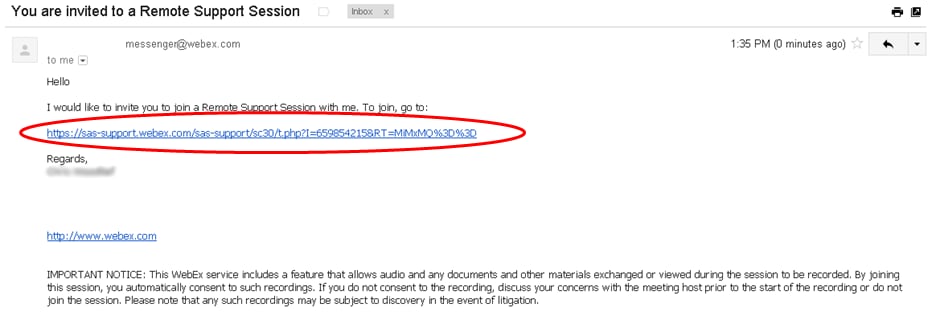
- In the e-mail from your SAS Technical Support consultant, click the link to start the WebEx Remote Support session.
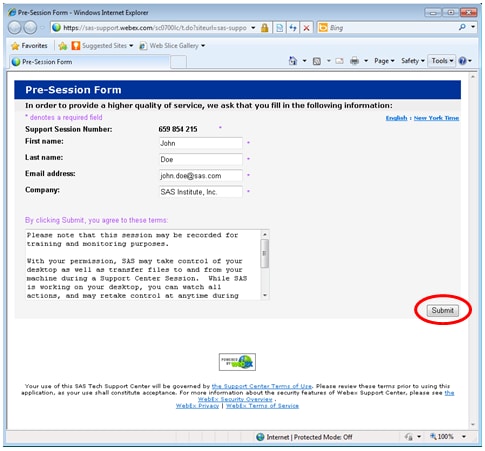
- After you click the link, a Pre-Session Form appears. Enter your information into the form and click Submit when you are finished.
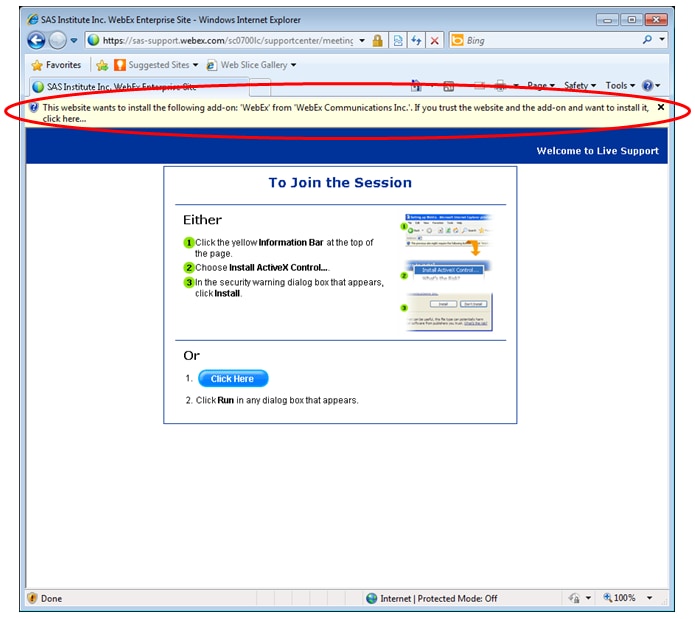
- Next, you are prompted to install the WebEx add-on. To install the add-on, click the information bar at the top of the page.
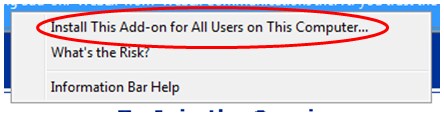
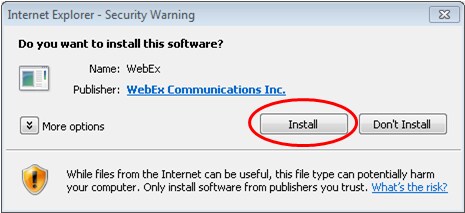
- A Security Warning dialog box prompts you to confirm the installation. Click Install.
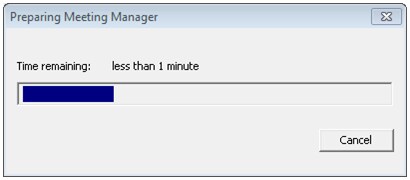
- After you install the add-on, the WebEx Meeting Manager begins preparing the remote support session.
Wait for this process to complete.
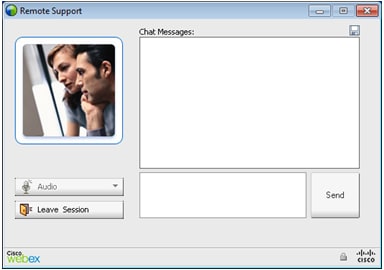
- When connected, a Remote Support chat box appears.
Once this appears, the SAS Technical Support consultant is able to connect to your computer.
- Once the SAS Technical Support consultant has connected to your computer, he/she might ask to take control of your computer. This enables them to see your screen and use your keyboard and mouse.
Note: You are not required to check the box in this screen. However, if you do not check the box, WebEx then prompts you for any additional tasks that the SAS Technical Support consultant might want to perform.
- If at any time you want to retake control of the mouse from the SAS Technical Support consultant, click the screen to regain control.
- When the remote support session has ended, you are notified.
At this point, the SAS Technical Support consultant can no longer see or control your computer.



Operating System and Release Information
| Product Family | Product | System | SAS Release | |
| Reported | Fixed* | |||
| SAS System | N/A | Microsoft Windows 2000 Professional | ||
| Microsoft® Windows® for 64-Bit Itanium-based Systems | ||||
| Microsoft Windows Server 2003 Datacenter 64-bit Edition | ||||
| Microsoft Windows Server 2003 Enterprise 64-bit Edition | ||||
| Microsoft Windows XP 64-bit Edition | ||||
| Microsoft® Windows® for x64 | ||||
| Microsoft Windows 95/98 | ||||
| Microsoft Windows 2000 Advanced Server | ||||
| Microsoft Windows 2000 Datacenter Server | ||||
| Microsoft Windows 2000 Server | ||||
| Microsoft Windows NT Workstation | ||||
| Microsoft Windows Server 2003 Datacenter Edition | ||||
| Microsoft Windows Server 2003 Enterprise Edition | ||||
| Microsoft Windows Server 2003 Standard Edition | ||||
| Microsoft Windows Server 2003 for x64 | ||||
| Microsoft Windows Server 2008 | ||||
| Microsoft Windows Server 2008 for x64 | ||||
| Microsoft Windows XP Professional | ||||
| Windows 7 Enterprise 32 bit | ||||
| Windows 7 Enterprise x64 | ||||
| Windows 7 Home Premium 32 bit | ||||
| Windows 7 Home Premium x64 | ||||
| Windows 7 Professional 32 bit | ||||
| Windows 7 Professional x64 | ||||
| Windows 7 Ultimate 32 bit | ||||
| Windows 7 Ultimate x64 | ||||
| Windows Millennium Edition (Me) | ||||
| Windows Vista | ||||
| Windows Vista for x64 | ||||
| Type: | Usage Note |
| Priority: |
| Date Modified: | 2012-05-30 12:54:55 |
| Date Created: | 2012-03-14 18:32:02 |