Usage Note 45275: SAS® Drug Development Desktop Connection 4.5 - Documentation
 |  |  |  |
Starting SAS Drug Development Desktop Connection Client (Xythos Drive 32x client)
To start the SAS Drug Development Desktop Connection client (SDDDC client), go to Start Programs, Programs and Settings, SAS, and select SDDDC client. The SDDDC client is listed as a separate SAS offering within the SAS folder.
Connect
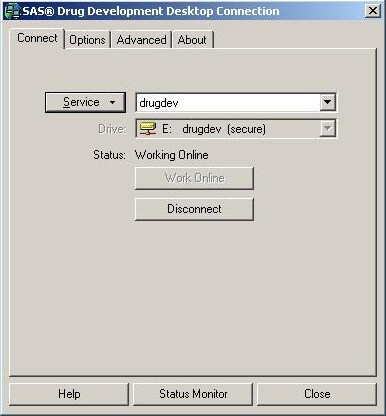
From the SDDDC client window, select the Connect tab to see the currently connected SAS Drug Development instance.
For a working connection, Status: should show Working Online.
Service Properties
From the Connect tab, select the Service button to create a New connection, Edit an existing, Duplicate, or Delete a SAS Drug Development instance connection.
This image shows the Edit connection screen with the Advanced button expanding the entire window options:
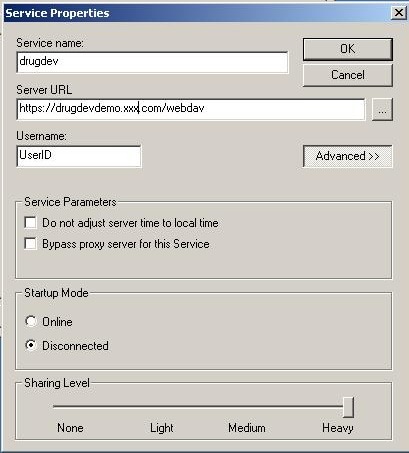
Bypass proxy server for this server is not checked as the default setting. Start Mode is Disconnected as the default setting. Both are the recommended options for the recommended Heavy Sharing Level.
Setting the Sharing Level
The recommended Sharing Level for a SAS Drug Development instance connection is Heavy.
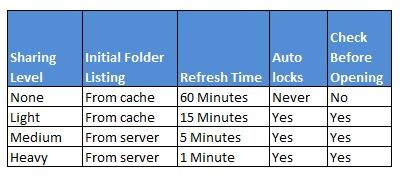
Consider the following risks for a Sharing Level set less than Heavy:
- Folder lists might be incorrect or incomplete for Sharing Levels set to None or Light since the information is cached locally for these settings
- Refresh times for Sharing Levels set to None or Light could be significant to update completely from the SAS Drug Development instance
- Autolocks are not applied and file level collaboration is not available when the Sharing Levels set to None unless a refresh is manually done
- File checks for newer versions of a file are not done when the Sharing Levels set to None unless a refresh is manually done
Options
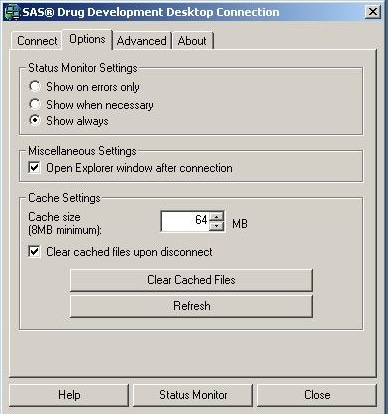
The default option for Status Monitor Settings is to Show on errors only. For debugging end-user performance issues, change this setting to Show always as shown below:
Cache Settings
The SDDDC caches files locally and synchronizes changes in the background. This means that when saving a large document in a Windows application, end-users do not have to wait for the entire document to be uploaded to their SAS Drug Development instance before continuing with your work. Caching improves performance when SAS repeatedly accesses the same SAS program, data set, or any file from the SAS Drug Development instance.
For optimal performance, the Cache Size should be no less than the total size of all the SAS Drug Development files that the end-user regularly accesses. As shown above, the default is 64 Mbs.
The Clear cached files on disconnect setting clears all cached files from the end-users system every time the end-user disconnects from the SDDDC client.
The Clear Cached Files button deletes all cached files, which forces the SDDDC to download files from the end-users SAS Drug Development instance the next time the end-user accesses them. If other users edit a SAS Drug Development file this feature ensures that the end-user accesses the most recent version including changes. Clear Cached Files results in a temporary reduction in performance for the SDDDC client as the files are refreshed. Refresh updates the connected files in the end-users SAS Drug Development instance.
Advanced
S Proxy and user identification settings are set in the Advanced tab in the SDDDC client
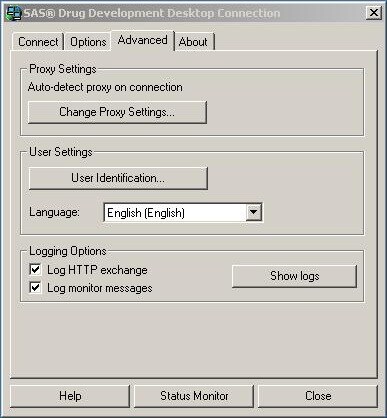
Proxy Settings
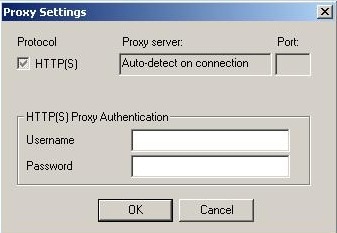
Below is the Proxy Settings window for changing proxy setting for end-user locations, most often Automatically detect proxy server option is the one selected:
Logging Options
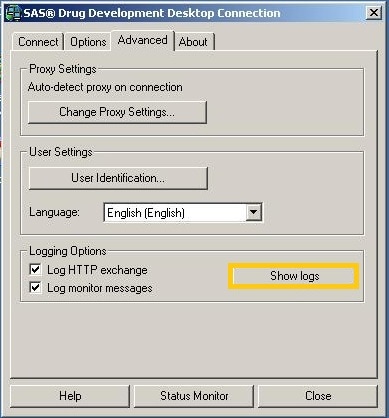
To capture the full amount of Logging Option information select Log HTTP exchange for HTML exchanges with SDD and Log monitor message for file and connection monitoring messages, as shown below:
Status Monitor
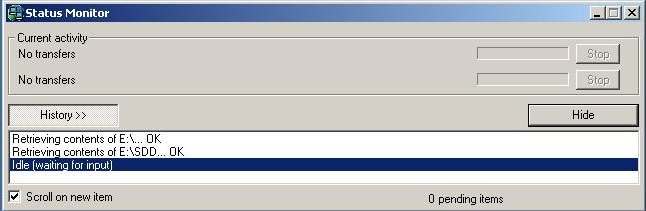
For on-going file and folder refreshing, select Status Monitor:
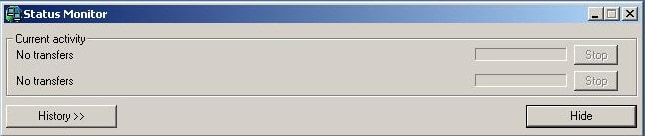
For a detailed history, select the History button for all transaction for this session:
Identifying SDDDC Client Version
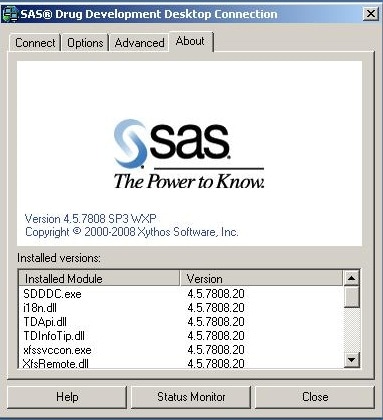
Select About from the SDDDC client. The current SDDDC client is Xythos Drive version 4.5.7808.
Operating System and Release Information
| Product Family | Product | System | SAS Release | |
| Reported | Fixed* | |||
| SAS System | SAS Drug Development - SAS Hosted Edition | Microsoft Windows 2000 Professional | ||
| Microsoft Windows XP Professional | ||||
| Windows 7 Enterprise 32 bit | ||||
| Windows 7 Home Premium 32 bit | ||||
| Windows 7 Professional 32 bit | ||||
| Windows 7 Ultimate 32 bit | ||||
| Windows Millennium Edition (Me) | ||||
| Windows Vista | ||||
| Type: | Usage Note |
| Priority: |
| Date Modified: | 2012-01-12 10:39:16 |
| Date Created: | 2012-01-03 17:11:29 |