Usage Note 40608: Publishing a SAS Report from SAS® Enterprise Guide® 7.1 and earlier to SAS® Web Report Studio
 |  |  |  |
To publish a SAS Report from SAS Enterprise Guide 7.1 and earlier to SAS Web Report Studio, follow these instructions:
- In SAS Enterprise Guide, create the report that you want to publish, or use an existing report. The Result Format must be SAS Report.
- In the Process Flow, right-click on the SAS Report icon and select Publish to launch the Publish to the Enterprise wizard.
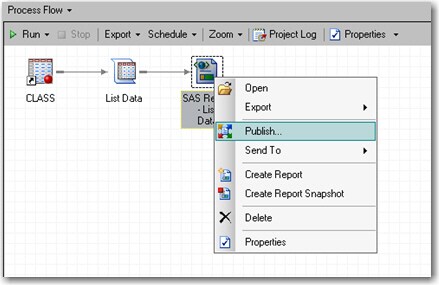
Note: In order to see the Publish option, you must be a member of an Enterprise Guide role with the Publish to Distribution Channel capability and the Save to SAS Folder capability enabled. Both capabilities are in the Save or Distribute category. Typically, a system administrator manages role memberships.
Tip: When viewing results, you can click Publish on the Results tab to launch the wizard.
- On page 1 of the wizard, select Report Repository and click Next.
- On page 2 of the wizard, you can accept the defaults or enter your own values. To change the default location, click Modify. When you are done, click Next.
- On page 3 of the wizard, accept that the report will be a snapshot of the results that you generated by using SAS Enterprise Guide. This means that you will not be able to refresh the data in SAS Web Report Studio.
Note: If your SAS Report is the output from a stored process, then the Data can be refreshed after the report is published option is available. Because stored processes are stored on a central server, they can be accessed by multiple clients, including SAS Web Report Studio. If you select this option, then reports that are created from a stored process can be refreshed from SAS Web Report Studio. The third option, Data can be refreshed for only portions of the published report, is available for SAS Reports that contain output from both stored processes and tasks. You can refresh the content that is generated by the stored process, but you cannot refresh the content that is generated by the task.
- Click Finish.
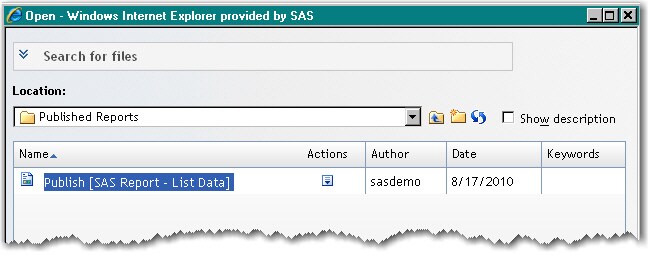
- Log on to SAS Web Report Studio and use the Open dialog box to navigate to the report that you just published, and then click Open.
Operating System and Release Information
| Product Family | Product | System | Product Release | SAS Release | ||
| Reported | Fixed* | Reported | Fixed* | |||
| SAS System | SAS Enterprise Guide | Microsoft Windows 8.1 Pro 32-bit | 7.1 | 9.4 TS1M2 | ||
| Microsoft Windows 8.1 Enterprise x64 | 7.1 | 9.4 TS1M2 | ||||
| Microsoft Windows 8.1 Enterprise 32-bit | 7.1 | 9.4 TS1M2 | ||||
| Microsoft Windows 8 Pro x64 | 7.1 | 9.4 TS1M2 | ||||
| Microsoft Windows 8 Pro 32-bit | 7.1 | 9.4 TS1M2 | ||||
| Microsoft Windows 8 Enterprise x64 | 7.1 | 9.4 TS1M2 | ||||
| Microsoft Windows 8 Enterprise 32-bit | 7.1 | 9.4 TS1M2 | ||||
| Microsoft® Windows® for x64 | 7.1 | 9.4 TS1M2 | ||||
| Microsoft Windows 8.1 Pro x64 | 7.1 | 9.4 TS1M2 | ||||
| Microsoft Windows 10 | 7.1 | 9.4 TS1M2 | ||||
| Microsoft Windows Server 2008 | 7.1 | 9.4 TS1M2 | ||||
| Microsoft Windows Server 2008 R2 | 7.1 | 9.4 TS1M2 | ||||
| Microsoft Windows Server 2008 for x64 | 7.1 | 9.4 TS1M2 | ||||
| Microsoft Windows Server 2012 Datacenter | 7.1 | 9.4 TS1M2 | ||||
| Microsoft Windows Server 2012 R2 Datacenter | 7.1 | 9.4 TS1M2 | ||||
| Microsoft Windows Server 2012 R2 Std | 7.1 | 9.4 TS1M2 | ||||
| Microsoft Windows Server 2012 Std | 7.1 | 9.4 TS1M2 | ||||
| Windows 7 Enterprise 32 bit | 7.1 | 9.4 TS1M2 | ||||
| Windows 7 Enterprise x64 | 7.1 | 9.4 TS1M2 | ||||
| Windows 7 Home Premium 32 bit | 7.1 | 9.4 TS1M2 | ||||
| Windows 7 Home Premium x64 | 7.1 | 9.4 TS1M2 | ||||
| Windows 7 Professional 32 bit | 7.1 | 9.4 TS1M2 | ||||
| Windows 7 Professional x64 | 7.1 | 9.4 TS1M2 | ||||
| Windows 7 Ultimate 32 bit | 7.1 | 9.4 TS1M2 | ||||
| Windows 7 Ultimate x64 | 7.1 | 9.4 TS1M2 | ||||
| Type: | Usage Note |
| Priority: |
| Date Modified: | 2018-07-05 10:55:37 |
| Date Created: | 2010-08-17 10:53:34 |