Sample 36545: Tracking progress in SAS programs in SAS Enterprise Guide
 |  |  |  |  |
But most of us, even as we say we enjoy "living in the moment", like to have some idea about when our current activity will end and we'll be free to move on to the next activity. It's that sense of progress that keeps us going, especially during the work day.
When you run a big long SAS program in SAS Enterprise Guide, and you open the task status window to see how it's going, do you like to see the status as "Running...", whether it's been running for 10 seconds or 10 minutes or an hour? Or would you rather see something more meaningful, such as "10 out 12 steps complete - almost done..."?
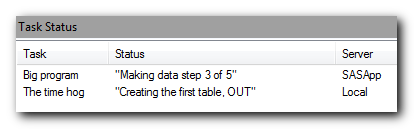
If you answered the latter, then you will enjoy the new feature in SAS 9.2 and SAS Enterprise Guide 4.2 that allows you to instrument your SAS programs to report the current progress within the task status window. This trick is made possible by a new SAS global statement, SYSECHO.
The remainder of this post provides instructions and a code example for using the SYSECHO statement. (5 more short paragraphs plus a code block, for those keeping track of blog post status.)
You can sprinkle the SYSECHO statement throughout your programs to add more insight into your task status window. However, even though you can use the SYSECHO statement anywhere (it is a global statement), it's most effective if you place it just inside the DATA step or PROC step block. SAS Enterprise Guide already provides status updates when your program is processing; it reports a status change each time a new step boundary (such as a DATA or PROC step) begins. To preserve a useful SYSECHO status, you need to place the statements after a DATA step or PROC statement. Otherwise, your informative SYSECHO text will be overridden by the more generic "step boundary encountered" status.
When used inside a DATA step, only the last SYSECHO statement will be reflected in the status window. Why? Because SAS global statements are processed at the time that a DATA step is compiled, not as it's being run. So even though your DATA step statements might seem to take a while to run, the SYSECHO statements are not processed in serial within the step -- they are processed all at once, in the beginning.
However, for certain interactive SAS procedures such as PROC SQL, you can use multiple SYSECHO statements to show more status information between statements.
This example program shows a SAS program that has been adorned with SYSECHO statements designed to communicate status information. The program is somewhat contrived, including some SLEEP function calls to simulate longer operations. You can paste this into your SAS Enterprise Guide 4.2 session and see how it works. Be sure to select View->Task Status to make the task status window visible.
These sample files and code examples are provided by SAS Institute Inc. "as is" without warranty of any kind, either express or implied, including but not limited to the implied warranties of merchantability and fitness for a particular purpose. Recipients acknowledge and agree that SAS Institute shall not be liable for any damages whatsoever arising out of their use of this material. In addition, SAS Institute will provide no support for the materials contained herein.
data class (drop=x);
sysecho "In the first DATA step";
set sashelp.class;
x = sleep(1);
run;

proc sql;
sysecho "Creating the first table, OUT";
create table out as
    select name,
    /* Calculation */
    (sleep(1)) AS zzzz
    from class where age>14;

sysecho "Creating the second table, OUT2";
create table out2 as
    select name,
    /* Calculation */
    (sleep(1)) AS zzzz
    from class where sex="M" and age>14;
quit;

%macro makedata(count);
%do i = 1 %to &count;
  data outdata&i;
     sysecho "Making data step &i of &count";
     zzz = sleep(3);
  run;
%end;
%mend;

%makedata(5);
These sample files and code examples are provided by SAS Institute Inc. "as is" without warranty of any kind, either express or implied, including but not limited to the implied warranties of merchantability and fitness for a particular purpose. Recipients acknowledge and agree that SAS Institute shall not be liable for any damages whatsoever arising out of their use of this material. In addition, SAS Institute will provide no support for the materials contained herein.
| Type: | Sample |
| Date Modified: | 2009-08-13 13:02:49 |
| Date Created: | 2009-07-15 15:56:30 |
Operating System and Release Information
| Product Family | Product | Host | SAS Release | |
| Starting | Ending | |||
| SAS System | SAS Enterprise Guide | z/OS | ||
| Microsoft® Windows® for 64-Bit Itanium-based Systems | ||||
| Microsoft Windows Server 2003 Datacenter 64-bit Edition | ||||
| Microsoft Windows Server 2003 Enterprise 64-bit Edition | ||||
| Microsoft Windows XP 64-bit Edition | ||||
| Microsoft® Windows® for x64 | ||||
| Microsoft Windows 95/98 | ||||
| Microsoft Windows 2000 Advanced Server | ||||
| Microsoft Windows 2000 Datacenter Server | ||||
| Microsoft Windows 2000 Server | ||||
| Microsoft Windows 2000 Professional | ||||
| Microsoft Windows NT Workstation | ||||
| Microsoft Windows Server 2003 Datacenter Edition | ||||
| Microsoft Windows Server 2003 Enterprise Edition | ||||
| Microsoft Windows Server 2003 Standard Edition | ||||
| Microsoft Windows Server 2008 | ||||
| Microsoft Windows XP Professional | ||||
| Windows Millennium Edition (Me) | ||||
| Windows Vista | ||||
| 64-bit Enabled AIX | ||||
| 64-bit Enabled HP-UX | ||||
| 64-bit Enabled Solaris | ||||
| HP-UX IPF | ||||
| Linux | ||||
| Linux for x64 | ||||
| OpenVMS on HP Integrity | ||||
| Solaris for x64 | ||||