Sample 35699: Allowing users to log back into a SAS® Web application from the SAS® Logon Manager exit window
 |  |  |  |
Overview
In SAS® 9.2, Web applications such as SAS® Web Report Studio and SAS® Information Delivery Portal share the new SAS® Logon Manager component. In the initial configuration, the exit window for this component does not allow users to log back in after they time out or log off. In order to log back into an application, users must exit and then relaunch the SAS Logon Manager. This sample explains how to change the default behavior so that the exit window for the SAS Logon Manager includes a Log On button.
Enable the Log On Button
- Log into SAS® Management Console as the unrestricted user, typically the internal account
sasadm@saspw. - On the Plug-ins tab, navigate to Application Management ► Configuration Manager.
- Right-click on SAS Application Infrastructure and select Properties.
- On the Settings tab, select Policies, and then select Yes for the Allow user login from web logoff page and Allow user login from web timeout page options.

- Click OK to save these changes.
- Restart your servlet container (such as JBoss).
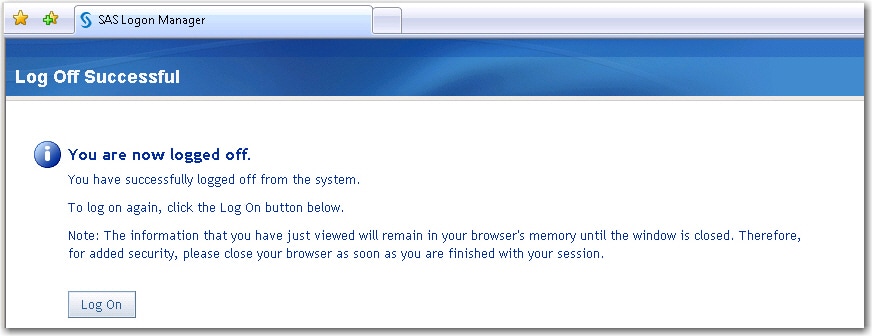
- Test the modified behavior by launching a SAS Web application and then logging off. You should now see a Log On button as shown in the following display.

Additional Documentation
For more information about configuring SAS 9.2 Web applications, see the SAS 9.2 Intelligence Platform: Web Application Administration Guide.
These sample files and code examples are provided by SAS Institute Inc. "as is" without warranty of any kind, either express or implied, including but not limited to the implied warranties of merchantability and fitness for a particular purpose. Recipients acknowledge and agree that SAS Institute shall not be liable for any damages whatsoever arising out of their use of this material. In addition, SAS Institute will provide no support for the materials contained herein.
These sample files and code examples are provided by SAS Institute Inc. "as is" without warranty of any kind, either express or implied, including but not limited to the implied warranties of merchantability and fitness for a particular purpose. Recipients acknowledge and agree that SAS Institute shall not be liable for any damages whatsoever arising out of their use of this material. In addition, SAS Institute will provide no support for the materials contained herein.
By default, in order to log back into a SAS Web application, users must exit and then relaunch the SAS Logon Manager. This sample explains how to include a Log On button on the exit window of the SAS Logon Manager.
| Type: | Sample |
| Topic: | System Administration ==> Security System Administration ==> Servers ==> Web System Administration ==> Web |
| Date Modified: | 2009-06-15 16:50:19 |
| Date Created: | 2009-04-27 14:47:42 |
Operating System and Release Information
| Product Family | Product | Host | Product Release | SAS Release | ||
| Starting | Ending | Starting | Ending | |||
| SAS System | SAS Enterprise BI Server | z/OS | 4.2 | 9.2 TS2M0 | ||
| Microsoft® Windows® for 64-Bit Itanium-based Systems | 4.2 | 9.2 TS2M0 | ||||
| Microsoft Windows Server 2003 Datacenter 64-bit Edition | 4.2 | 9.2 TS2M0 | ||||
| Microsoft Windows Server 2003 Enterprise 64-bit Edition | 4.2 | 9.2 TS2M0 | ||||
| Microsoft Windows XP 64-bit Edition | 4.2 | 9.2 TS2M0 | ||||
| Microsoft® Windows® for x64 | 4.2 | 9.2 TS2M0 | ||||
| Microsoft Windows Server 2003 Datacenter Edition | 4.2 | 9.2 TS2M0 | ||||
| Microsoft Windows Server 2003 Enterprise Edition | 4.2 | 9.2 TS2M0 | ||||
| Microsoft Windows Server 2003 Standard Edition | 4.2 | 9.2 TS2M0 | ||||
| Microsoft Windows XP Professional | 4.2 | 9.2 TS2M0 | ||||
| Windows Vista | 4.2 | 9.2 TS2M0 | ||||
| 64-bit Enabled AIX | 4.2 | 9.2 TS2M0 | ||||
| 64-bit Enabled HP-UX | 4.2 | 9.2 TS2M0 | ||||
| 64-bit Enabled Solaris | 4.2 | 9.2 TS2M0 | ||||
| HP-UX IPF | 4.2 | 9.2 TS2M0 | ||||
| Linux | 4.2 | 9.2 TS2M0 | ||||
| Linux for x64 | 4.2 | 9.2 TS2M0 | ||||
| Solaris for x64 | 4.2 | 9.2 TS2M0 | ||||