Sample 32233: How to Build a Java Project in SAS® AppDev Studio 3.3
 |  |  |  |
Overview
This sample demonstrates how to build a Java project in SAS AppDev Studio 3.3. The instructions assume that you have already completed the new workspace setup steps that were performed after the installation.
Create a New SAS Java Project
- Open SAS AppDev Studio 3.3 by using the Start menu shortcut that was created by the installation.
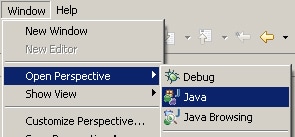
- If you are not in the Java perspective, select Window → Open Perspective → Java.
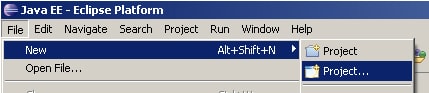
- Select File → New → Project.
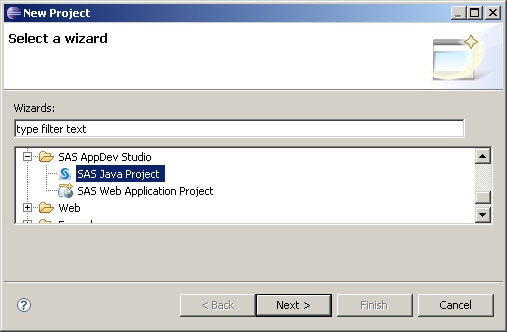
- Expand SAS AppDev Studio, select SAS Java Project, and click Next to launch the New SAS Java Project wizard.
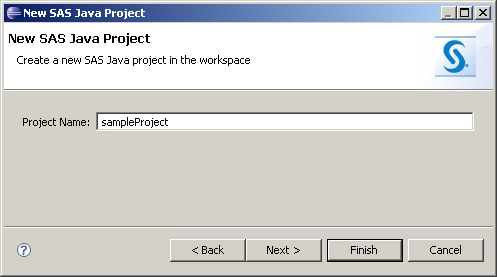
- Enter a project name, and then click Next.
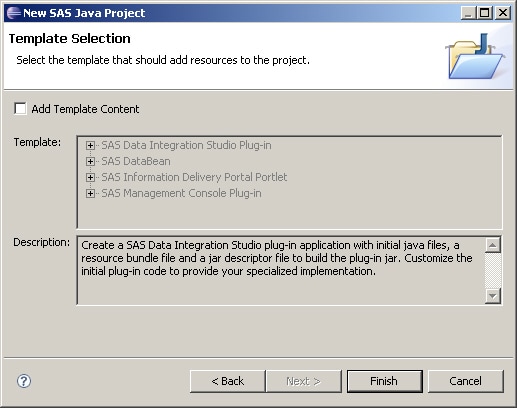
- On the Template Selection page, choose whether or not to use a template. If you select a template, some additional steps might be included in the new project wizard. If you do not want to use a template, click Finish.
Additional Documentation
For a list of available documentation for SAS AppDev Studio, see http://support.sas.com/documentation/onlinedoc/ads/index.html
These sample files and code examples are provided by SAS Institute Inc. "as is" without warranty of any kind, either express or implied, including but not limited to the implied warranties of merchantability and fitness for a particular purpose. Recipients acknowledge and agree that SAS Institute shall not be liable for any damages whatsoever arising out of their use of this material. In addition, SAS Institute will provide no support for the materials contained herein.
These sample files and code examples are provided by SAS Institute Inc. "as is" without warranty of any kind, either express or implied, including but not limited to the implied warranties of merchantability and fitness for a particular purpose. Recipients acknowledge and agree that SAS Institute shall not be liable for any damages whatsoever arising out of their use of this material. In addition, SAS Institute will provide no support for the materials contained herein.
| Type: | Sample |
| Date Modified: | 2008-06-02 10:57:40 |
| Date Created: | 2008-05-23 16:45:39 |
Operating System and Release Information
| Product Family | Product | Host | Product Release | SAS Release | ||
| Starting | Ending | Starting | Ending | |||
| SAS System | SAS AppDev Studio | Microsoft® Windows® for x64 | 3.3 | 9.1 TS1M3 SP4 | ||
| Microsoft Windows 2000 Advanced Server | 3.3 | 9.1 TS1M3 SP4 | ||||
| Microsoft Windows 2000 Datacenter Server | 3.3 | 9.1 TS1M3 SP4 | ||||
| Microsoft Windows 2000 Server | 3.3 | 9.1 TS1M3 SP4 | ||||
| Microsoft Windows 2000 Professional | 3.3 | 9.1 TS1M3 SP4 | ||||
| Microsoft Windows NT Workstation | 3.3 | 9.1 TS1M3 SP4 | ||||
| Microsoft Windows Server 2003 Datacenter Edition | 3.3 | 9.1 TS1M3 SP4 | ||||
| Microsoft Windows Server 2003 Enterprise Edition | 3.3 | 9.1 TS1M3 SP4 | ||||
| Microsoft Windows Server 2003 Standard Edition | 3.3 | 9.1 TS1M3 SP4 | ||||
| Microsoft Windows XP Professional | 3.3 | 9.1 TS1M3 SP4 | ||||
| Windows Vista | 3.3 | 9.1 TS1M3 SP4 | ||||