Sample 26022: How to Create a Swing DualListSelector
 |  |  |  |  |  |
Overview
The DualListSelector is a list-to-list selector that enables you to move single or multiple items between the two lists and submit the items that are selected on the target list. This sample shows how to create a Swing DualListSelector.
Here are the steps for creating a simple DualListSelector:
- Create a ListModel.
- Create a DualListSelector.
- Set the model on the DualListSelector.
The resulting code would look something like this:
DefaultListModel sourceModel = new DefaultListModel();
...
add elements to your ListModel
...
DualListSelector dualListSelector = new DualListSelector();
dualListSelector.setModel(sourceModel);
The code shown on the Full Code tab will create a ListModel and display a default DualListSelector with that model. It contains the customizations shown below, but they are commented out. You can remove the comment delimiters that surround the customization code in order to see that customization in your Java application.
Customizations
This sample shows the following customizations:
- Changing move up/down arrow visibility below target list
- Changing the item move button styles
- Enabling copy mode
- Restricting duplicate items in copy mode
A default DualListSelector looks like the following after an item is selected:

Changing move up/down arrow visibility below target list
Below the target list, there are two arrows used to reorder items in the list. These are not displayed by default. To enable these buttons, add the following line of code after you create the DualListSelector:
dualListSelector.setTargetControlsVisible(true);
You will see the up and down arrows show up below the target list:

Changing the item move button styles
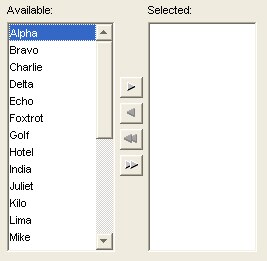
By default, the selector displays two buttons that initiate movement between the source and target lists. These buttons allow movement of single items and multiple items. They also alternate directions based on which list, source or target, has the currently selected item. This alternating style can be changed to show two buttons, one for each direction, for each type of move, single or multiple. They can be set independently, for each type of move, allowing various combinations of buttons.
You do not have to set both of these properties. You can choose to expand only single move buttons or only multiple move buttons.
To make both left and right move buttons show up for single and multiple moves, add the following lines of code after you create the DualListSelector:
dualListSelector.setAlternatingSingleButtonStyle(false);

dualListSelector.setAlternatingMultipleButtonStyle(false);
You will see all the move buttons show up:
Enabling copy mode
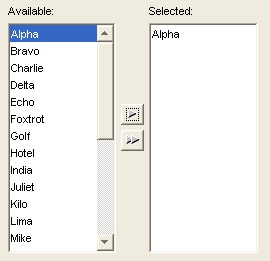
By default, moved items are displayed in the target component and removed from the source component. Some applications might require the source list to remain static. That is, the items are not removed from the source list after they are used in the target list. This is known as Copy Mode.
To enable copy mode, add the following line of code after you create the DualListSelector:
dualListSelector.setCopyModeEnabled(true);
You will see that selected items now show up in the available list and in the selected list:
Restricting duplicate items in copy mode
When an application is set to copy items from the source to the target component, an item can be selected and copied more than once. This results in two or more items in the target component. To prevent the target list from having duplicates, you must disable duplicates. Add the following lines of code after you create the DualListSelector to enable copy mode and disable duplicates:
dualListSelector.setCopyModeEnabled(true);

dualListSelector.setCopyModeDuplicatesAllowed(false);
Now you can select an item more than once and it will only show up once in the selected list.
Additional Documentation
- For a list of samples for common tasks, see SAS Note 32218.
- The SAS AppDev Studio Developer's Site contains detailed information that will assist you when developing Web applications with SAS AppDev Studio, including an API reference and the custom tag reference for the sas tagset.
These sample files and code examples are provided by SAS Institute Inc. "as is" without warranty of any kind, either express or implied, including but not limited to the implied warranties of merchantability and fitness for a particular purpose. Recipients acknowledge and agree that SAS Institute shall not be liable for any damages whatsoever arising out of their use of this material. In addition, SAS Institute will provide no support for the materials contained herein.
Instructions
- Build a new SAS Java Project in SAS AppDev Studio. No template is required for this sample
- Create a new java class called DualListSelectorApp, using samples as the package.
- Run the class as a SAS Java Application
Tip: For help with building a SAS Java Project, see SAS Note 32218.
Code for DualListSelectorApp.java
package samples;

import java.awt.BorderLayout;
import java.awt.Container;

import javax.swing.DefaultListModel;
import javax.swing.JFrame;
import javax.swing.JLabel;
import javax.swing.UIManager;

import com.sas.swing.visuals.dualselector.DualListSelector;

public class DualListSelectorApp
{
	protected DualListSelector dualListSelector;

    public static void main(String[] args)
	{
        //set swing look and feel with system look and feel
        try {
            UIManager.setLookAndFeel(UIManager.getSystemLookAndFeelClassName());
        }
        catch (Exception e) {
            e.printStackTrace();
        }

		DualListSelectorApp simpleApp = new DualListSelectorApp();
		simpleApp.createFrame(args).setVisible(true);
	}

	// create a frame and add the table view to it
	public JFrame createFrame(String [] args)
	{
		JFrame frame = new JFrame(this.getClass().getName());

		Container contentPane = frame.getContentPane();
		contentPane.setLayout(new BorderLayout(20,20));

		//create a new model for the dual list selector
		DefaultListModel sourceModel = new DefaultListModel();
		sourceModel.addElement( "Alpha" );
		sourceModel.addElement( "Bravo" );
		sourceModel.addElement( "Charlie" );
		sourceModel.addElement( "Delta" );
		sourceModel.addElement( "Echo" );
		sourceModel.addElement( "Foxtrot" );
		sourceModel.addElement( "Golf" );
		sourceModel.addElement( "Hotel" );
		sourceModel.addElement( "India" );
		sourceModel.addElement( "Juliet" );
		sourceModel.addElement( "Kilo" );
		sourceModel.addElement( "Lima" );
		sourceModel.addElement( "Mike" );
		sourceModel.addElement( "November" );
		sourceModel.addElement( "Oscar" );
		sourceModel.addElement( "Papa" );
		sourceModel.addElement( "Quebec" );
		sourceModel.addElement( "Romeo" );
		sourceModel.addElement( "Sierra" );
		sourceModel.addElement( "Tango" );
		sourceModel.addElement( "Uniform" );
		sourceModel.addElement( "Victor" );
		sourceModel.addElement( "Whiskey" );
		sourceModel.addElement( "XRay" );
		sourceModel.addElement( "Yankee" );
		sourceModel.addElement( "Zulu" );

		//create a dual list selector and set the model on the selector
		dualListSelector = new DualListSelector();
		dualListSelector.setModel(sourceModel);

		//CUSTOMIZATION: Add move up and down buttons to target list
		//uncomment the next line to see this customization in your java app
		//dualListSelector.setTargetControlsVisible(true);

		//CUSTOMIZATION: Show both left and right buttons for single and multiple move.
		//Don't show one button that alternates.
		//uncomment the next two lines to see this customization in your java app
		//dualListSelector.setAlternatingSingleButtonStyle(false);
		//dualListSelector.setAlternatingMultipleButtonStyle(false);

		//CUSTOMIZATION: Enable copy mode
		//Items from the source list will remain in the source list when they are selected
		//A copy will be placed in the target list
		//uncomment the next line to see this customization in your java app
		//dualListSelector.setCopyModeEnabled(true);

		//CUSTOMIZATION: Restrict duplicates in copy mode
		//When copy mode is enabled, duplicates can occur
		//Do not allow duplicates
		//uncomment the next two lines to see this customization in your java app
		//dualListSelector.setCopyModeEnabled(true);
		//dualListSelector.setCopyModeDuplicatesAllowed(false);

		//add the selector to the center of the content pane
		contentPane.add(dualListSelector, BorderLayout.CENTER);

		//add some dummy labels to the layout
		//this will add some white space around the selector
		//this can be removed if you don't want the white space
		contentPane.add(new JLabel(), BorderLayout.NORTH);
		contentPane.add(new JLabel(), BorderLayout.SOUTH);
		contentPane.add(new JLabel(), BorderLayout.EAST);
		contentPane.add(new JLabel(), BorderLayout.WEST);

		frame.setDefaultCloseOperation(JFrame.EXIT_ON_CLOSE);
		frame.pack();

		return frame;
	}
}
|
These sample files and code examples are provided by SAS Institute Inc. "as is" without warranty of any kind, either express or implied, including but not limited to the implied warranties of merchantability and fitness for a particular purpose. Recipients acknowledge and agree that SAS Institute shall not be liable for any damages whatsoever arising out of their use of this material. In addition, SAS Institute will provide no support for the materials contained herein.

| Type: | Sample |
| Date Modified: | 2008-08-06 16:03:11 |
| Date Created: | 2006-02-09 14:09:02 |
Operating System and Release Information
| Product Family | Product | Host | Product Release | SAS Release | ||
| Starting | Ending | Starting | Ending | |||
| SAS System | SAS AppDev Studio | Microsoft® Windows® for x64 | 3.2 | 9.1 TS1M3 SP4 | ||
| Microsoft Windows 2000 Advanced Server | 3.2 | 9.1 TS1M3 SP4 | ||||
| Microsoft Windows Server 2003 Enterprise Edition | 3.2 | 9.1 TS1M3 SP4 | ||||
| Microsoft Windows 2000 Server | 3.2 | 9.1 TS1M3 SP4 | ||||
| Microsoft Windows Server 2003 Datacenter Edition | 3.2 | 9.1 TS1M3 SP4 | ||||
| Microsoft Windows 2000 Professional | 3.2 | 9.1 TS1M3 SP4 | ||||
| Microsoft Windows 2000 Datacenter Server | 3.2 | 9.1 TS1M3 SP4 | ||||
| Microsoft Windows NT Workstation | 3.2 | 9.1 TS1M3 SP4 | ||||
| Microsoft Windows Server 2003 Standard Edition | 3.2 | 9.1 TS1M3 SP4 | ||||
| Microsoft Windows XP Professional | 3.2 | 9.1 TS1M3 SP4 | ||||
| Windows Vista | 3.2 | 9.1 TS1M3 SP4 | ||||