Step 2: Register the Task
About Registering a Task
In order to run a task
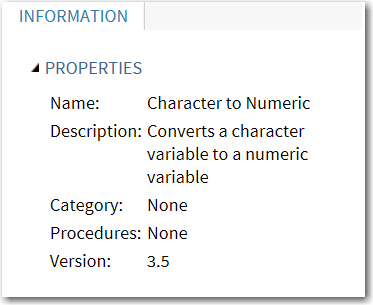
in SAS Studio, you must register the task. The registration information
is displayed on the INFORMATION tab in the
user interface. When you complete this step, you will have registered
the Convert Character to Numeric task and created the INFORMATION tab,
as shown in this screen shot.
Edit the Registration Element
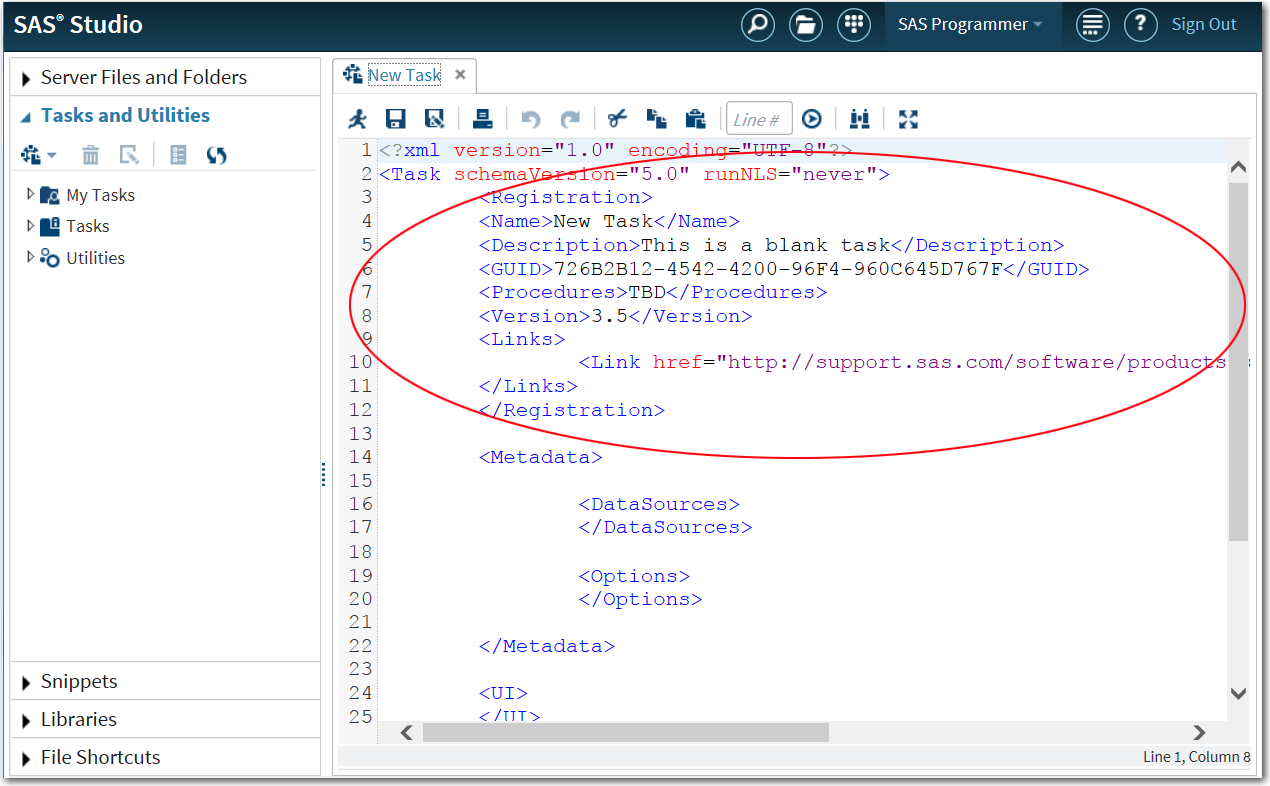
Revise the code in the
Registration element
to match the following code:
<Registration>
   <Name>Convert Character to Numeric</Name>
   <Description>Converts a character variable to a numeric variable</Description>
   <GUID>TBD</GUID>
   <Procedures>None</Procedures>
   <Version>3.5</Version>
</Registration>
Note: This code removes the
Link element
because it is not needed for this example. The GUID and Procedures elements
are required for the CTM code to run.


Copyright © SAS Institute Inc. All rights reserved.