To create a profile,
complete the following steps:
-
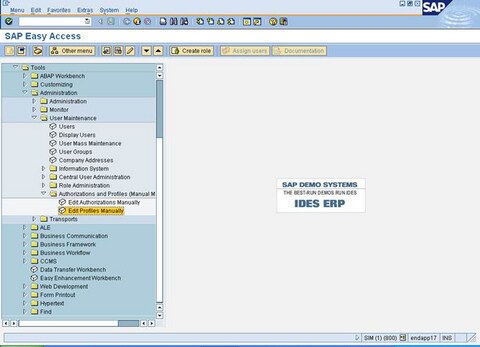
In the
SAP
Easy Access window, under
Authorizations
and Profiles (Manual Maintenance), double-click
Edit
Profiles Manually or enter the transaction code
SU02.
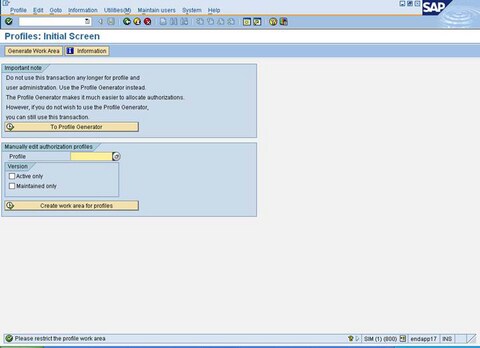
Profiles: Initial Screen Window
-
Click
Generate
Work Area.
-
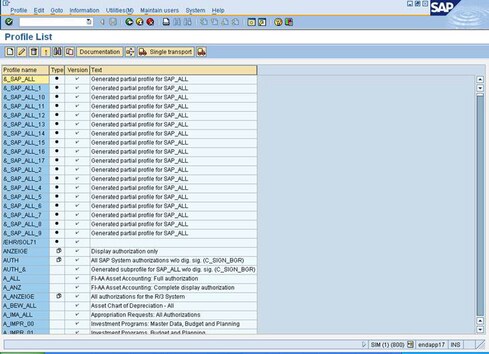
Click
Profile Create
.
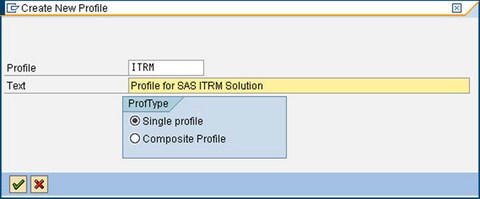
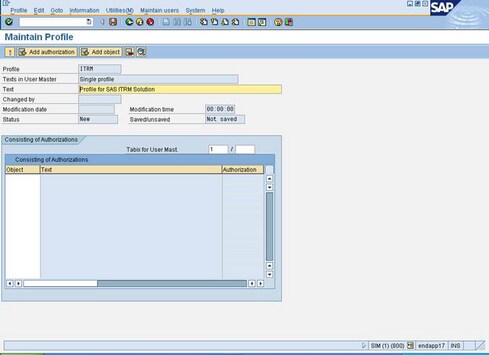
Create New Profile Dialog Box
-
To create a new profile,
complete the following steps:
-
In the
Profile field,
enter a profile name.
-
In the
Textfield,
enter description.
-
Under
ProfType,
select
Single profile.
-
Click

to save the profile.
-
To edit the profile,
click
Add object.
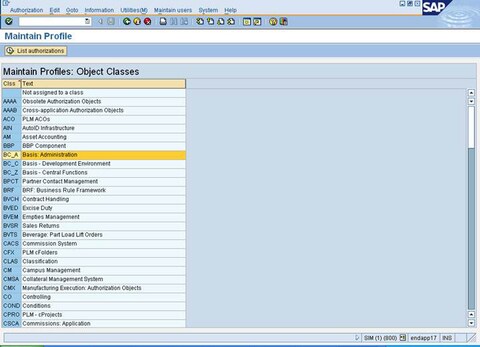
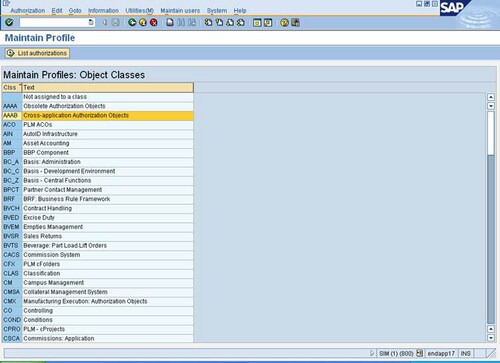
Maintain Profiles: Object Classes Window
-
Double-click
BC_A
Basis: Administration.
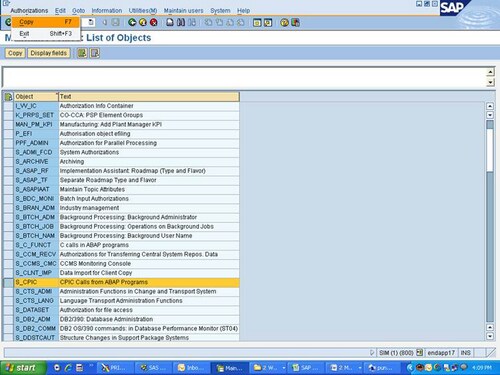
Maintain Profiles: List of Objects Window
-
Click the check box
next to
S_CPIC and then select
AuthorizationsCopy.
-
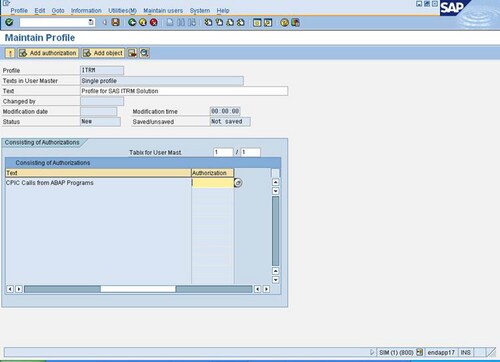
In the Authorization
column, click

.
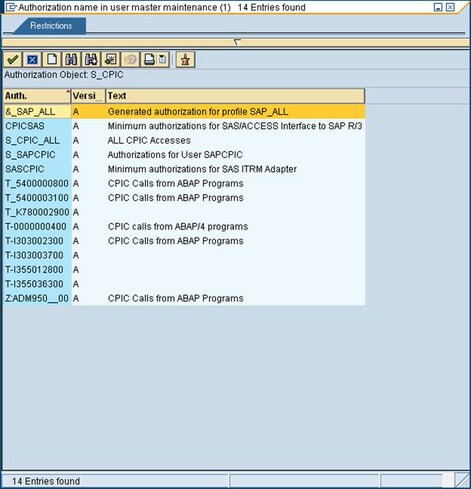
A list of associated
authorizations for the object S_CPIC appears in the
Restrictions window.
Restrictions Window
-
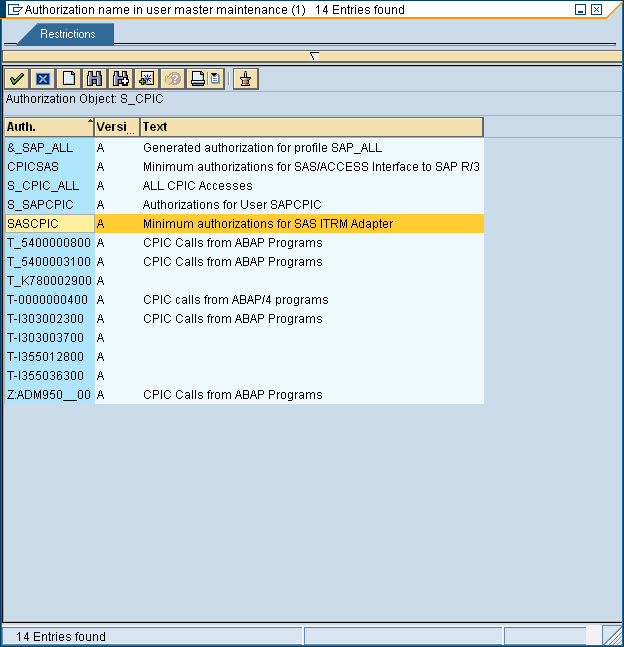
Double-click
SASCPIC.
The authorization SASCPIC is associated with the object S_CPIC.
Restrictions Window Selecting SASCPIC
-
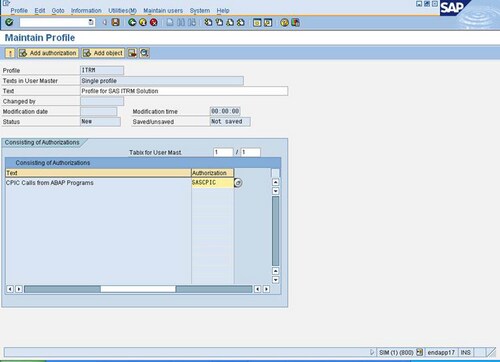
You see the following
display.
Maintain Profiles: Object Classes Window
-
Double-click
AAAB
Cross-application Authorization Objects.
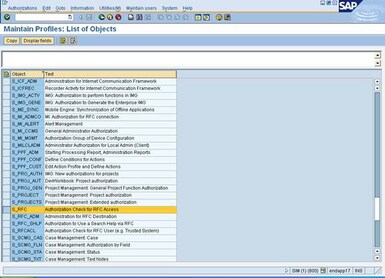
Maintain Profiles: List of Objects Window
-
Click the check box
next to
S_RFC, and then select
AuthorizationsCopy.
-
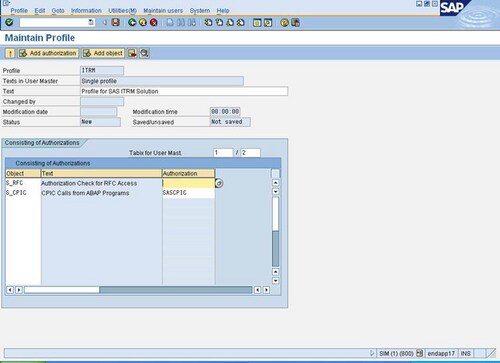
In the
Authorization column,
click

corresponding to
S_RFC.
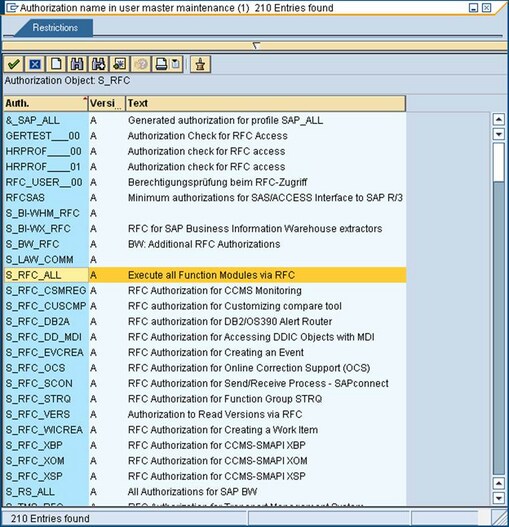
A list of associated
authorizations for the object S_RFC appears in the
Restrictions window.
Restrictions Window
-
You see the following
display.
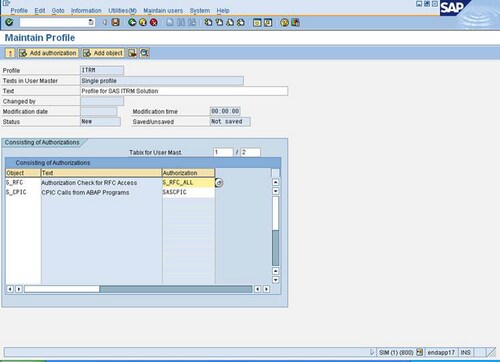
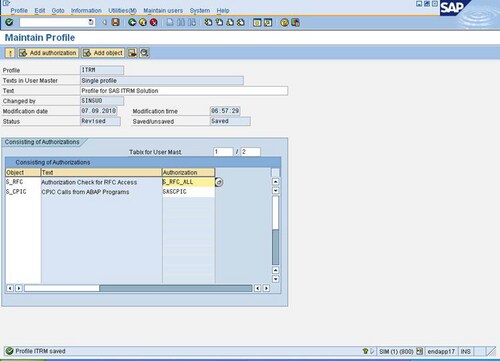
Maintain Profile Window
-
Click the
diskette icon
to save the profile.
-
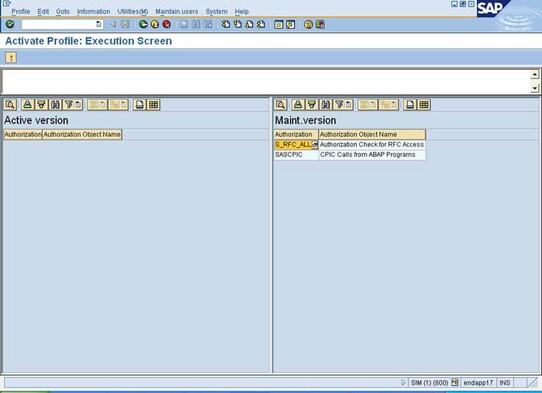
To activate the profile,
select
ProfileActivate.
Activate Profile: Execution Screen Window
-
To activate execution,
select
ProfileActivate.