Delete a Custom Theme

To permanently delete a custom theme from the system:
  1. From the main menu of the SAS Theme Designer 4.4 for Flex, select Tools then select Delete.
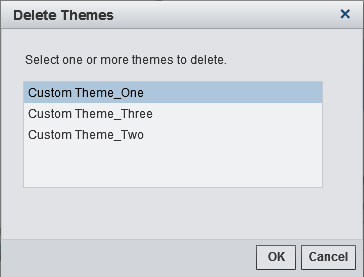
  2. In the Delete Themes window, select the theme.
    delete theme
    Tip
    The predefined themes are not listed because you cannot delete those themes. To avoid unintended results, use caution in deleting themes. Consider theme dependencies. If you delete a theme that serves as a default theme (either globally or for an individual user), the SAS Blue Steel theme is then used as the default.
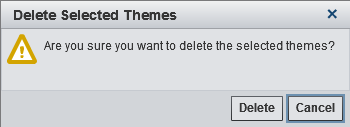
    Click OK. A second window is displayed. Select Delete.
    delete theme confirmation
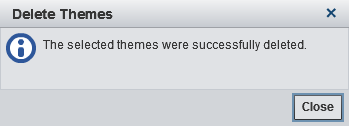
    A confirmation window is displayed.
    delete theme successful
    The change takes effect when a user refreshes or relaunches an eligible application.
    Note: If you want to make a theme unavailable for selection by an end user in the application preferences area, you do not have to delete the theme. You can instead undeploy the theme.