-
-
In the SAS Program Editor,
select
File Open Program
, and then select
CST_FRAMEWORK/programs/validate_iqoq.sas.
-
Select
RunSubmit.
The program outputs
to the SAS log and creates a cstrslt.validation_results data set under
CST_FRAMEWORK/results.
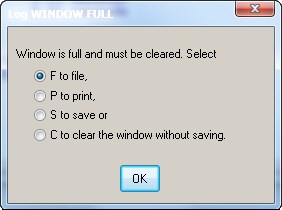
Note: The SAS log might reach its
limit depending on your system options. If it does, print the contents
to a file, and select
APPEND in the pop-up
menu. This can happen several times during the run, so be sure to
append each time it happens. To maximize the log size, you can add
the option
–DMSLOGSIZE 999999 to the
SAS configuration file.
-
If the SAS log reaches
it limit, perform these steps:
-
In the pop-up window,
select
F to file.
-
Enter a filename, and
select
APPEND or
REPLACE.
Note: Select
REPLACE for
the first occurrence of the pop-up window only.
-
-
Repeat steps a through
c until finished.
Use the same filename
each time, and select
APPEND.
-
Review the log to see
whether there are any errors or warnings.
There should be no errors
or warnings.
-
The column labeled
Process
status (named _cst_rc) is
0 for
all records.
-
Review the cstrslt.validation_results
data set using the SAS explorer, especially for the following conditions:
-
The field
resultflag is
not 0.
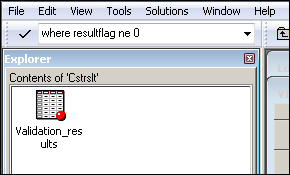
When this value is not
0, a potential problem might exist. To more easily check this value,
subset the validation_results data set by entering
where
                                          resultflag ne 0
in the control box in the upper left:
-
A number of observations
can have
result flag=1.
If the
resultseverity column
is
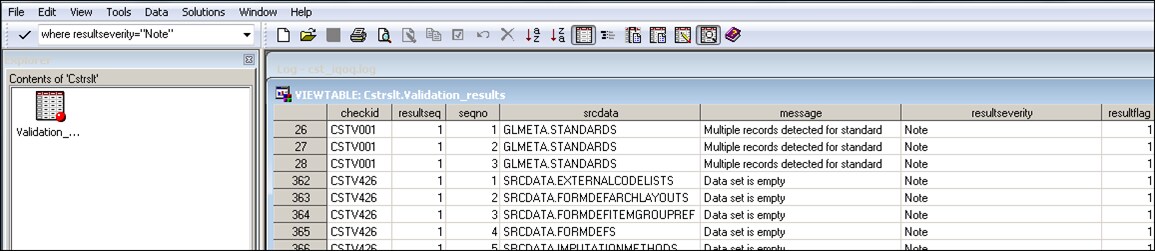
Note, these values are acceptable. To
more easily check these values, subset the validation_results data
set by entering
where resultflag = "Note" (this
is case sensitive) in the control box in the upper left:
Here are examples of
where resultseverity="Note" and resultflag ne 0:
-
In this example, multiple records
are detected because there are multiple standard versions for ODM
(1.3.0 and 1.3.1) and SDTM (3.1.1, 3.1.2, and 3.1.3). If multiple
records were found for the same standard version, this check would
be in error.
-
In this example, a check was not
run because the check is not applicable to this standard. An informational
check informs you that check CSTV251 is not applicable to this standard.
-
In this example, a check was not
run because the check has not yet been implemented in the SAS Clinical
Standards Toolkit. Check CSTV262 included with the SAS Clinical Standards
Toolkit has not yet been implemented in this release. Therefore, the
check did not run.
-
In this example, these data sets
are empty. They are empty because they are templates and do not contain
observations.
-
In this example,
resultseverity equals
Info because
the controlled terminology does not have an sl_cntl folder associated
with it. There are no control type data sets associated with controlled
terminology.
No observations should
appear when you enter
where resultseverity = "Error" in
the control box in the upper left.
-
Running the validate_iqoq
internal validation program without error confirms that all metadata
is in place, all files are in place, and all access (whether Read
or Write) to the SAS Clinical Standards Toolkit is properly initialized.
This process has ensured that the installation of the SAS Clinical
Standards Toolkit was done properly and that the key components are
operational.