Components Window
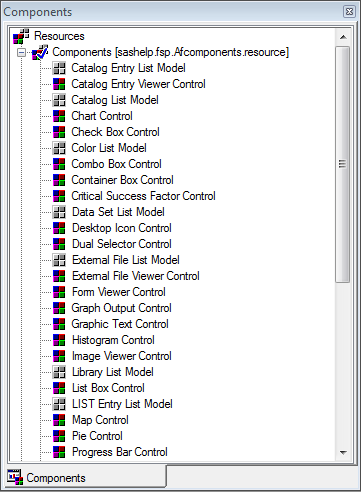
The Components window enables you to view and select components that you can add to a frame at build time. There are a number
of ways to add a component to a frame. For example, you can select the component from the Components window,
and then drag the component and drop it onto a frame. You can also double-click a
component in the Components window to make that component appear on a frame.
SAS/AF Components Window
With the Components
window, you can also
By default, the Components
window appears when you open a FRAME entry (although you can prevent
this by editing the  Component Window to open the Components window.
AutoOpen property for the Components window in the SAS Registry). You can also click the Components
window icon on the toolbar or select ViewComponent Window to open the Components window.
For more information
about the Components window, see “Customizing the Components
Window” in the SAS/AF
online Help. For more information about the SAS Registry, see “Modifying
SAS/AF Items in the SAS Registry” in the
SAS/AF online Help.
Copyright © SAS Institute Inc. All Rights Reserved.
Last updated: May 27, 2017