Workspace Explorer
The Workspace Explorer is a powerful window management tool that enables you to activate, view, hide, or close any of the windows associated with your workspaces.
To display the Workspace Explorer
On the Window menu, click Workspace Explorer.
-or-
Press ALT+X.
-or-
Click the Workspace Explorer button ( ) on the toolbar.
Shown below is a picture of the Workspace Explorer in which there is a single workspace that has just run a Robust Regression analysis for the Baseball data set:
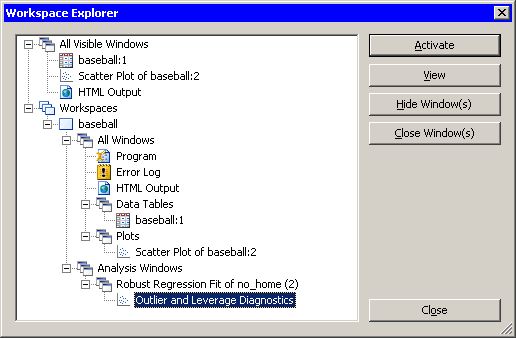
The Workspace Explorer organizes the windows into the following groups:
- All Visible Windows
- Lists all the windows that are currently visible, regardless of the workspace to which they are attached. Note that a window is considered "visible" even if it is obscured temporarily
by other windows.
- Workspaces
- Lists all the workspaces. For each workspace, the Workspace Explorer organizes the workspace's windows into the following groups:
- All Windows
- Lists all the windows attached to the workspace. The Workspace Explorer organizes the windows by type as follows:
- Program
- Represents the workspace's program window. Closing a workspace's program window is the same as closing the workspace itself.
- Error Log
- Represents the workspace's error log window. If the error log is empty, the Workspace Explorer does not list the error log window.
- HTML Output
- Represents the workspace's HTML output window. If you close the HTML output window, IML Studio will start a new HTML file.
- LISTING Output Documents
- Lists all the workspace's LISTING output document windows. If a LISTING output document window is attached to multiple workspaces, the Workspace Explorer lists the LISTING output document window under
each attached workspace.
- Data Tables
- Lists all the workspace's data table windows.
- Plots
- Lists all the workspace's plot windows.
- Analysis Windows
- Lists all the analyses you have performed in the workspace. For each analysis, the Workspace Explorer lists all the data view windows that were created by the analysis.
Note that the Workspace Explorer does not list certain groups, such as Analysis Windows, if there are no windows in that group.
Unlike other dialog boxes in IML Studio, the Workspace Explorer remembers its size and position between invocations.
Managing windows with the Workspace Explorer
The Workspace Explorer provides four command buttons that enable you to manage your workspaces and windows. These buttons are as follows:
- Activate
- Activates the selected workspace or window.
- View
- Shows the selected window or the selected group of windows.
- Hide Window(s)
- Hides the selected window or the selected group of windows.
- Close Window(s)
- Closes the selected workspace, the selected window, or the selected group of windows. If the Workspaces group is selected, the button closes all the workspaces.
The following table shows which buttons you can use depending on which entry is selected:
| Selected Entry |
Activate |
View |
Hide Window(s) |
Close Window(s) |
| All Visible Windows group |
|
|
• |
• |
| Workspaces group |
|
|
|
• |
| All Windows group |
|
• |
• |
• |
| Program |
• |
• |
• |
• |
| Error Log |
• |
• |
• |
• |
| HTML Output |
• |
• |
• |
• |
| LISTING Output Documents group |
|
• |
• |
• |
| Data Tables group |
|
• |
• |
• |
| Plots group |
|
• |
• |
• |
| Analysis Windows group |
|
• |
• |
• |
| a workspace name |
• |
• |
|
• |
| a window name |
• |
• |
• |
• |
| an analysis name |
|
• |
• |
• |
Note that the DELETE key performs the same function as the Close Window(s) button.