Assign
Variables to Roles
On the Define List page of the List Report wizard, you specify the columns that you want to include and the order in which they will appear in the results. There are also
roles that you can use to specify how the columns are grouped and whether
summary data is calculated.
- In the Preview area, select the ProductID column, and then click Delete. Repeat this step to delete the following additional columns:
- SupplierID
- QuantityPerUnit
- UnitsOnOrder
- ReorderLevel
- Discontinued
When you run the report, the columns are listed from left to right in the order in which they appear in this preview.
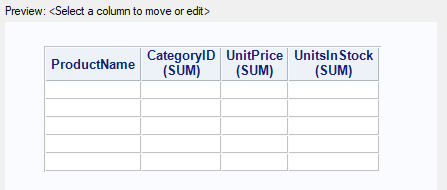 Click to view the full window.
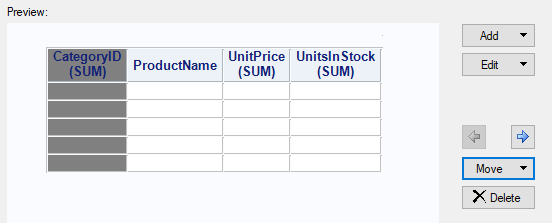
- Next, arrange the columns in the order in which you want
them to appear in the report. Select CategoryID, and then click the Move Left button
 . The CategoryID column will be the first column in the report. . The CategoryID column will be the first column in the report.
If you prefer, you can also delete and move the columns by selecting Edit Assign Columns and using the Assign Columns window. Assign Columns and using the Assign Columns window.
|