logo Getting Started with SAS Enterprise Guide Main menubacknext
    

Copy Objects to a New Process Flow and Run the Process Flow

Suppose that you want to create a process flow that runs only the inventory report and bar chart. You need to include the List Report and Bar Chart tasks as well as the Products data set.
  1. Double-click Process Flow in the project tree.

  2. Right-click in the Process Flow window and select Newthen Process Flow. An empty Process Flow window named Process Flow 2 opens in the workspace.

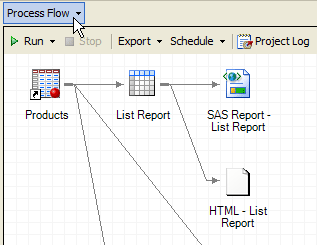
  3. Select Process Flow from the recently viewed items menu in the upper left corner of the workspace to return to the original process flow for the project.


Recently viewed items menu button
Click to view the full window.


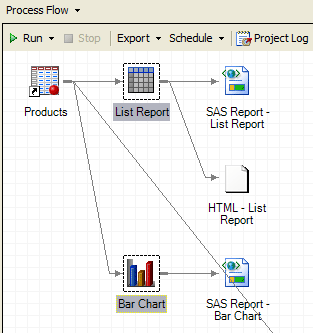
  1. In the Process Flow window, press CTRL and select the List Report and Bar Chart objects.

Process Flow window with objects selected
Click to view the full window.


  1. Right-click one of the selected objects and select Copy.


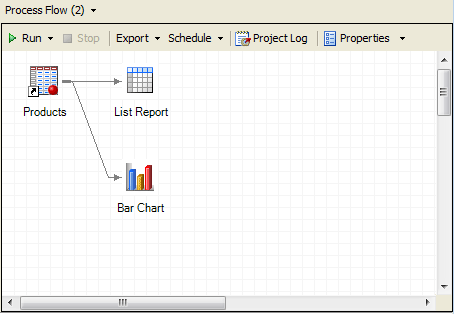
  2. Select Process Flow 2 from the recently viewed items menu. Right-click in the Process Flow 2 window and select Paste. Notice that the Products input data set for the tasks is included.

New Process Flow window the inventory report and bar chart


  1. Right-click in the Process Flow 2 window and notice that one of the pop-up menu options enables you to schedule the process flow to run at a specified time. Select Run Process Flow 2 and watch the progress of the process flow as it runs.

  2. Now you can save your project for the last time. Select Filethen Save Getting Started.


End of Lesson

You've finished . In the next topic you learn about more training that is available for SAS Enterprise Guide.

Main menubacknext