Open Data in the Data Explorer
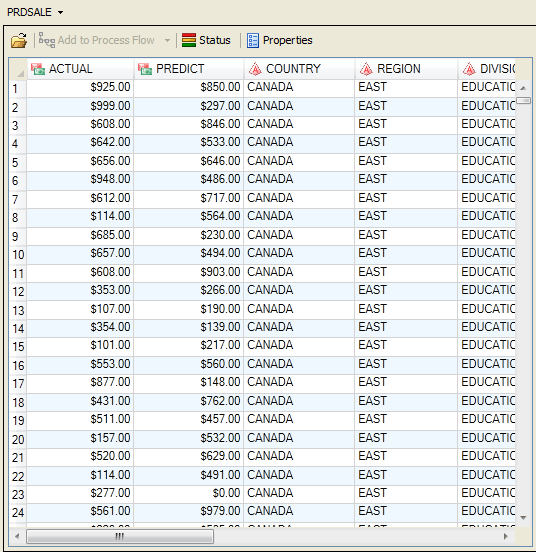
In these steps, you open the PRDSALE data set from your SAS server in the Data Explorer.
- Select File
 Open Data Exploration.
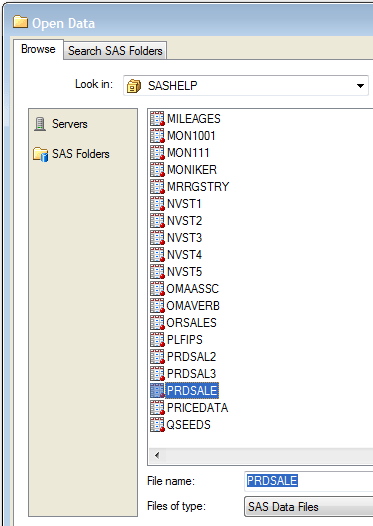
In the Open Data window, select Servers.
Open Data Exploration.
In the Open Data window, select Servers.
- There might be more than one server listed in the window. The server
that SAS Enterprise Guide is connected to is marked with a check mark.
Double-click the server to open it.
- Double-click SASHELP.
As you can see, only SAS data sets are stored in libraries.
- Scroll in the window and double-click the PRDSALE data
set.
|