



|
|
|
| ||
| ||
View the New Results When you edit a task or wizard and then run it, you are prompted to choose whether you want to overwrite the results. If you choose not to, the task is saved as a separate item in the project.
|
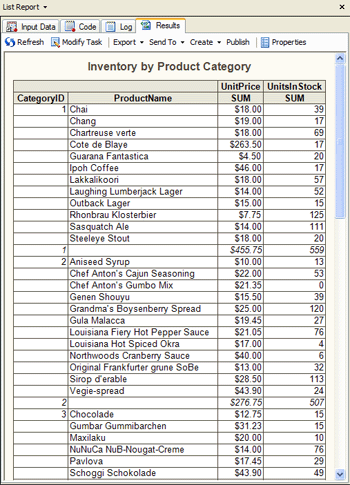
As you have seen, tasks and wizards generate SAS Report output by default. You can change the default output types by using the Options window, but you can also change the output types that are produced by an individual task or wizard by changing the task or wizard properties. Next you change the wizard properties to generate HTML output in addition to SAS Report output. |
|
|
|