Using SAS Studio
About Using SAS Studio
When you sign on to SAS Studio, the main SAS Studio window appears with a blank program
window so that you can start programming immediately. You also have access to all
five sections of the navigation pane.
Note: To sign out of SAS Studio,
click Sign Out on the toolbar. Do not use
the Back button on your web browser.
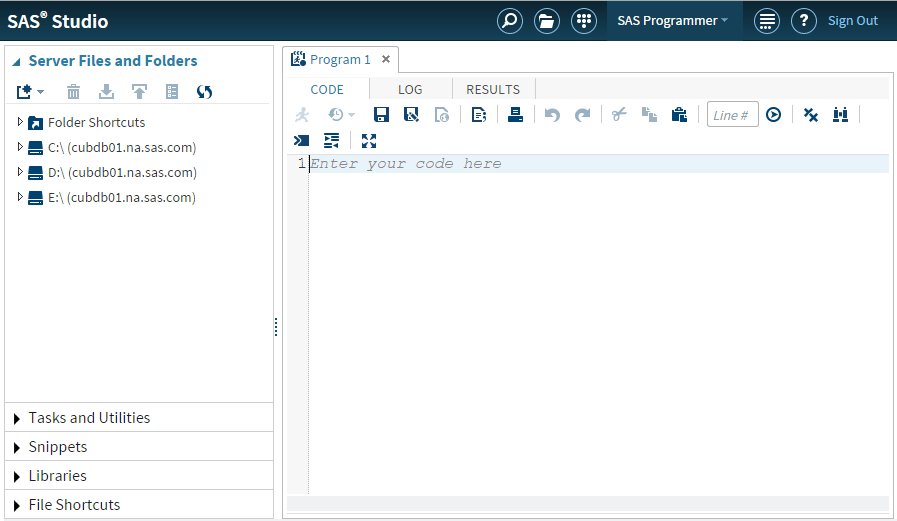
The main window of SAS Studio consists of a navigation pane on the left and a work
area on the right. The navigation pane provides access to
your server files and folder shortcuts, your tasks and snippets, the libraries that you have access to, and your file shortcuts. The Server
Files and Folders section is displayed by default.
The work area is used
to display your data, code, tasks, logs, and results. As you open
these items, they are added to the work area as windows in a tabbed
interface.
Using the Navigation Pane
Working with Server Files and Folders
The Server
Files and Folders section of the navigation pane enables you to access files and folders from the following
locations:
-
your SAS server
-
any remote FTP server on which you have an accountNote: SAS Studio supports only FTP servers that use a directory listing similar to UNIX.
The contents of the Server
Files and Folders section depend on the type of SAS Studio deployment. The default folder shortcuts
and root directories can be configured by your SAS administrator. For more information, see SAS Studio: Administrator's Guide.
You can open files that are saved on the SAS server or the FTP server, such as SAS
program files or program package files. You can also create a folder shortcut to access your z/OS files, and you can open SAS tables that are saved
on the SAS server.
Note: You cannot open SAS tables
from a remote FTP server.
You can use the Server
Files and Folders section to create folders and folder shortcuts, download and upload files, and create
a new SAS program. From the folders tree, you can expand and collapse folders, copy and move items, and open items in folders by double-clicking them or
dragging them to the work area. In addition, you can open files from your folders
and folder shortcuts by clicking  on the SAS Studio toolbar. You can also view items in a folder as text.
on the SAS Studio toolbar. You can also view items in a folder as text.
Note: Files and folders that are
located on an FTP server and are accessible by using an FTP shortcut
cannot contain any of the following characters in their names:
{ } [ ] , : ; “ ‘ / \ | + < > ? @ # $ % ^ & ( ) + !SAS
Studio cannot access, move, rename, or delete files and folders on
an FTP server whose names contain invalid characters. In addition,
you cannot rename or delete any global folder shortcuts.To create a new folder shortcut:
-
If you are creating a shortcut to a SAS server folder, enter the physical path for the directory in the Directory box or click Browse to select a directory. To create a new folder when you are selecting a directory, click
 .
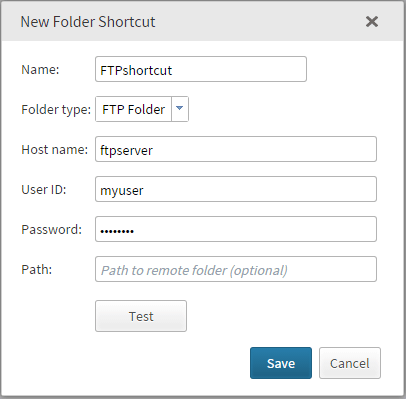
If you are creating a shortcut to an FTP folder, enter the network address of the FTP host in the Host Name box as well as your user name and password. By default, the directory is the home directory of the FTP user. You can use the Directory box to specify another directory that is relative to the home directory. For example, if the home directory of the FTP user is
.
If you are creating a shortcut to an FTP folder, enter the network address of the FTP host in the Host Name box as well as your user name and password. By default, the directory is the home directory of the FTP user. You can use the Directory box to specify another directory that is relative to the home directory. For example, if the home directory of the FTP user isc:\homedir, and you specifydatain the Directory box, then the root directory of the shortcut isc:\homedir\dataon the FTP server. You can validate your connection to the FTP server by clicking Test.Note: If your mid-tier and FTP servers are running different operating systems, you must fully qualify the name of the FTP host in the Host Name box. If this name is not fully qualified, then the connection might fail.
To create a new folder,
select the folder in the Server Files and Folders section
in which you want to create the new folder. Click  and select Folder. The New
Folder window appears. Enter the name of the new folder.
The new folder is added to the list of folders.
and select Folder. The New
Folder window appears. Enter the name of the new folder.
The new folder is added to the list of folders.
and select Folder. The New
Folder window appears. Enter the name of the new folder.
The new folder is added to the list of folders.
To create a new XML
file, Click and select XML. The new
file opens in the XML editor in the work area.
and select XML. The new
file opens in the XML editor in the work area.
To download a file,
select the file that you want to download and click  . You are prompted to open the file in the default application or save it to your local computer.
. You are prompted to open the file in the default application or save it to your local computer.
To upload one or more
files from your local computer, select the folder to which you want
to upload the files and click  . The Upload Files window
appears. Click Choose Files to browse for the files that you want to upload.
. The Upload Files window
appears. Click Choose Files to browse for the files that you want to upload.
. The Upload Files window
appears. Click Choose Files to browse for the files that you want to upload.
Working with Tasks
The Tasks
and Utilities section of the navigation pane enables you to access tasks in SAS Studio. Tasks are
based on SAS procedures and generate SAS code and formatted results for you. SAS Studio is shipped with several
predefined tasks that you can run. You can also edit a copy of these predefined tasks,
and you can create your own new tasks.
To create a new task,
click  and select New Task. SAS Studio creates a template in the work area that you can use to create custom tasks for your site. Custom tasks
can be accessed from the My Tasks folder or from the Server Files and Folders section of the navigation pane. For more information, see Understanding Tasks in SAS Studio.
and select New Task. SAS Studio creates a template in the work area that you can use to create custom tasks for your site. Custom tasks
can be accessed from the My Tasks folder or from the Server Files and Folders section of the navigation pane. For more information, see Understanding Tasks in SAS Studio.
and select New Task. SAS Studio creates a template in the work area that you can use to create custom tasks for your site. Custom tasks
can be accessed from the My Tasks folder or from the Server Files and Folders section of the navigation pane. For more information, see Understanding Tasks in SAS Studio.To edit a task that
you have created, select the task from the My Tasks folder and click  . The XML code that is used to create the task is opened in the work area. If you
want to edit a predefined task, you must first right-click the task and select Add to My Tasks or Add
to Folders. For more information, see Edit a Predefined Task.
. The XML code that is used to create the task is opened in the work area. If you
want to edit a predefined task, you must first right-click the task and select Add to My Tasks or Add
to Folders. For more information, see Edit a Predefined Task.
. The XML code that is used to create the task is opened in the work area. If you
want to edit a predefined task, you must first right-click the task and select Add to My Tasks or Add
to Folders. For more information, see Edit a Predefined Task.Working with Snippets
The Snippets section of the navigation pane enables you to access your code snippets. Code
snippets are samples of commonly used SAS code that you can insert into your SAS program.
SAS Studio is shipped with several predefined code snippets that you can use. You
can also edit a copy of these snippets and create your own
custom snippets. Your custom snippets can be accessed from the My Snippets folder.
For more information,
see Working with Programs.
To edit a snippet that
you have created, select the snippet from the My Snippets folder and
click . If you want to edit a predefined snippet, you must first right-click the snippet
and select Add to My Snippets.
. If you want to edit a predefined snippet, you must first right-click the snippet
and select Add to My Snippets.
Note: You can edit only the snippets
that are in the My Snippets folder.
Working with Libraries
The Libraries section of the navigation pane enables you to access your SAS libraries. SAS tables are stored in SAS libraries. From the Libraries section,
you can open SAS tables and add them to your programs. You can use
the Libraries section to expand a table and
view the columns in that table. The icon in front of the column name
indicates the type.
Here are examples of
common icons for the column types.
|
Icon
|
Type of Column
|
|---|---|
 |
Character
|
 |
Numeric
|
 |
Date
|
 |
Datetime
|
You can drag tables
and columns from the Libraries section to
a program, and SAS Studio adds code for the dragged items to your
program. For
more information, see Opening and Creating Programs.
Note: The Sasuser library is read
only, as in any SAS server environment. You cannot save content to
this library.
You can also create new libraries and assign existing libraries.
To create a new library:

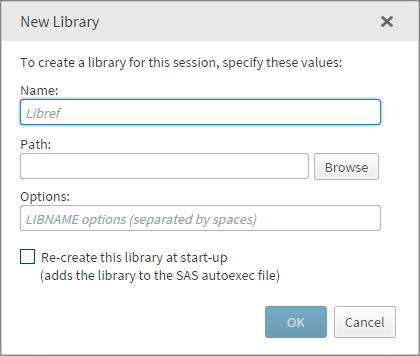
In the SAS Studio Mid-Tier (the enterprise edition) deployment, you can assign unassigned
metadata libraries by clicking  . The libraries that you can assign must already be
defined in your metadata. If you want to access the selected libraries
each time you use SAS Studio, select Assign selected libraries
at start-up. If a library is unassigned, then you cannot access the tables in that library.
. The libraries that you can assign must already be
defined in your metadata. If you want to access the selected libraries
each time you use SAS Studio, select Assign selected libraries
at start-up. If a library is unassigned, then you cannot access the tables in that library.
. The libraries that you can assign must already be
defined in your metadata. If you want to access the selected libraries
each time you use SAS Studio, select Assign selected libraries
at start-up. If a library is unassigned, then you cannot access the tables in that library.
Using File Shortcuts
File shortcuts enable you to quickly access files that you specify. You can create
a file shortcut to a file on your SAS server, via a URL, or on your FTP server.
Note: You can create a file shortcut
to a file on an FTP server only if you have created a folder shortcut
to an FTP folder. FTP folders are not available by clicking Browse and
using the Select File window, however. You
must enter the pathname.
To create a new file shortcut, click  . You can define the shortcut by specifying a complete
path and filename or by specifying a URL. If you want this shortcut
to be available the next time you use SAS Studio, select Re-create
this file shortcut at start-up.
. You can define the shortcut by specifying a complete
path and filename or by specifying a URL. If you want this shortcut
to be available the next time you use SAS Studio, select Re-create
this file shortcut at start-up.
. You can define the shortcut by specifying a complete
path and filename or by specifying a URL. If you want this shortcut
to be available the next time you use SAS Studio, select Re-create
this file shortcut at start-up.
You can open a file from a file shortcut by double-clicking it or dragging it to the
work area.
Customizing the Navigation Pane
By default, all five sections of the navigation pane are displayed when you open SAS
Studio in the SAS Programmer perspective. To customize
which sections are displayed, click  and select View. Select
or clear any sections that you want to add or remove. The navigation
pane is updated immediately.
and select View. Select
or clear any sections that you want to add or remove. The navigation
pane is updated immediately.
and select View. Select
or clear any sections that you want to add or remove. The navigation
pane is updated immediately.
Note: The File Shortcuts section
is not displayed by default in the Visual Programmer perspective.
Using the Work Area
About Using the Work Area
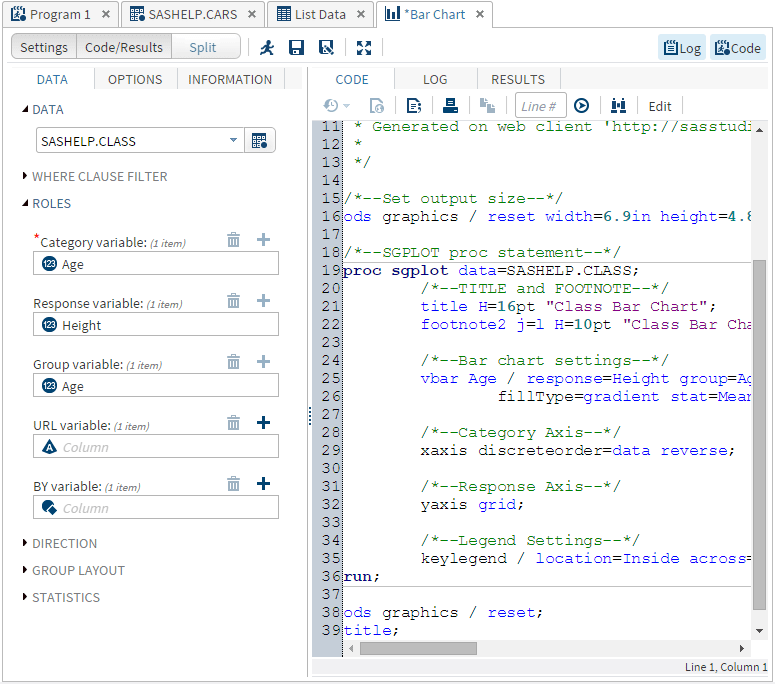
The work area is the main portion of the SAS Studio application for accessing programs
and tasks and for viewing data. The work area is always displayed
and cannot be minimized. When you open a program, task, or table, the windows open
as new tabs in the work area. The code, log, and results that are associated with
programs and tasks are grouped together under the main tab for the program or task.
Customizing the Work Area
By default, the work area is displayed beside the navigation pane, but you can maximize
the work area and hide the navigation pane. You can also close
all of the tabs in the work area at once.
To maximize the work
area, click  on the toolbar.
on the toolbar.
Note: To reopen the navigation
pane, click again.
again.
To close all tabs that
are open in the work area, click  and select Close All Tabs.
You are prompted to save any unsaved programs or tasks.
and select Close All Tabs.
You are prompted to save any unsaved programs or tasks.
and select Close All Tabs.
You are prompted to save any unsaved programs or tasks.
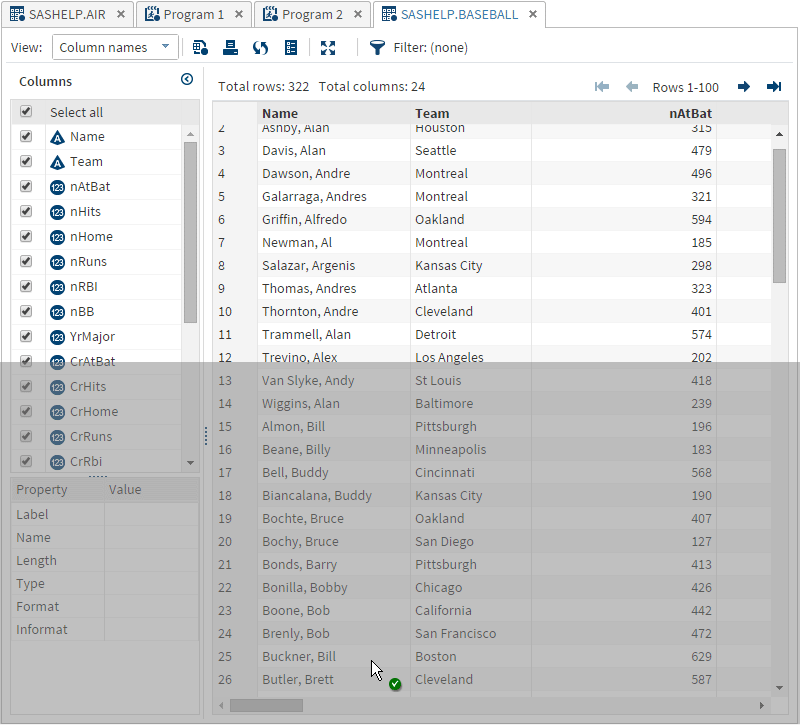
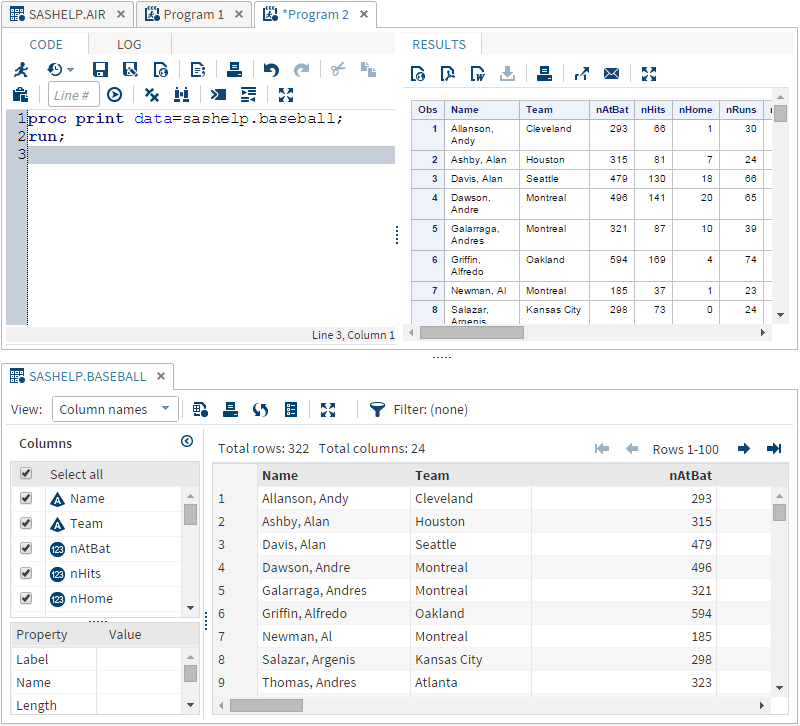
Rearranging the Tabs in the Work Area

Searching in SAS Studio
You can use the Search feature to search all of the sections of the navigation pane.
The types of items that you can search for depend on what is selected in the navigation
pane. For example, if a folder or folder shortcut in the Server Files and Folders section is selected, you can search for folders and files, and you can choose whether
to include subfolders in the search. If a task category in the Tasks and Utilities section is selected, you can search for task names, associated SAS procedures, and
task descriptions.
To access the Search
feature, click  . The search box appears so that you can enter the
text that you want to search for.
. The search box appears so that you can enter the
text that you want to search for.
. The search box appears so that you can enter the
text that you want to search for.
You can limit the scope
of your search by selecting or clearing any of the Narrow
by options. These options vary depending on what is selected in the navigation pane.
By default, the search is case sensitive. To search for both uppercase and lowercase
text, clear the Match
case check box.
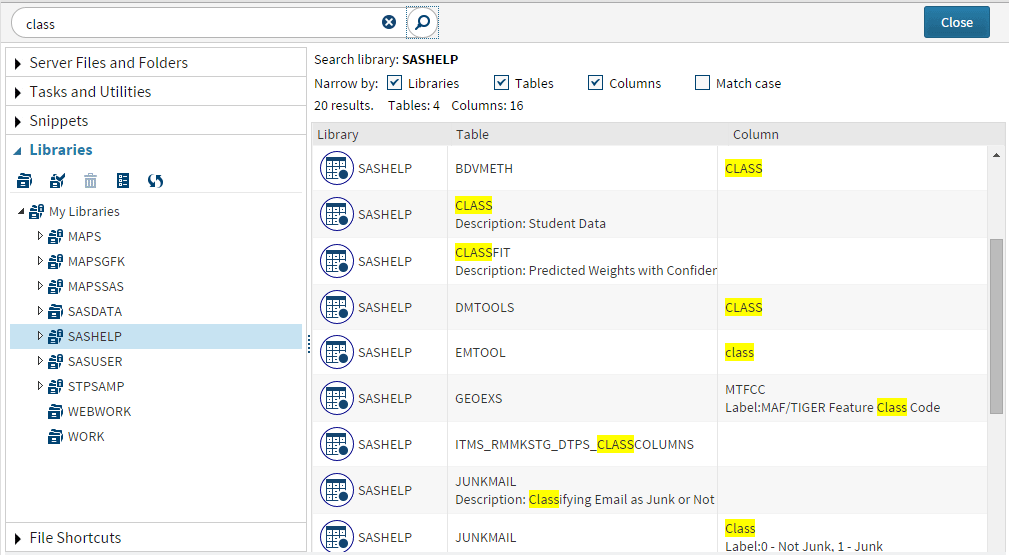
The following example shows a search for “class” in the Sashelp library. The search
includes all tables and columns in the Sashelp library, and it is not
case sensitive.
You can open an item
from your results by double-clicking it. To return to your search
results list, click again.
again.
To clear the search
results, click  .
.
.
Using the Messages Window
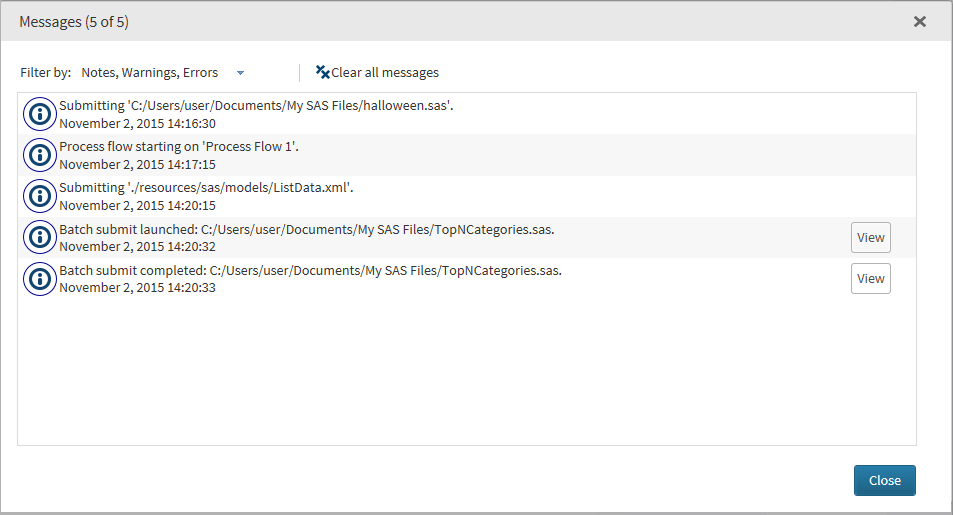
The Messages window displays information about the programs, tasks, queries, and process flows that you run in SAS Studio. To open the Messages window,
click Messages in the lower right corner of your SAS Studio browser window. You can subset the messages that are displayed by clicking the Filter by drop-down
list and selecting the type of message that you want to view.
If you have run a SAS
program in batch mode, you can click View to
open the Batch Submission Status window.
For more information, see Running a Program in Batch Mode. If you have lost your connection to a repository, a message
is displayed along with a Test button that
you can use to test the connection.
Note: If you have selected the Capture
all log events option, then you can also choose to display
debug notifications in the Messages window. For more
information, see Setting General Preferences.
Understanding Perspectives
Because SAS Studio can be used by a variety of people and groups within an organization,
you can choose to view a specific subset of features, or perspective, that meets your
needs best. Perspectives are sets of
functionality that are customized to meet the needs of different types of users.
SAS Studio includes two perspectives: the SAS Programmer perspective and the Visual
Programmer perspective.
The SAS Programmer perspective is for users who intend to use SAS Studio mainly for
writing and editing SAS programs. By default, the SAS Programmer perspective opens
with a new program window and includes all five sections of the navigation pane so
that you can easily manage all of your program files and code snippets.
The Visual Programmer perspective is designed for users who want to work with process
flows in a project-based environment. You can use process flows in the Visual Programmer
perspective to combine individual processes into one repeatable process flow that you can save, reuse, and share with other users. By default, the Visual Programmer
perspective opens with a new process flow window and includes four sections in the
navigation pane: Folders, Tasks, Snippets, and Libraries.
Note: If you open a process flow
while you are using the SAS Programmer perspective, you are prompted
to switch to the Visual Programmer perspective.
In both perspectives, you can run the predefined tasks that are shipped with SAS Studio,
and you can create and edit tasks. You can also use both perspectives to create and
run SAS programs and queries.
The differences between
the perspectives can be viewed in the following table:
|
Element in SAS Studio
|
Available in SAS Programmer?
|
Available in Visual
Programmer?
|
|---|---|---|
|
Navigation Pane sections
|
||
|
Yes
|
Yes
|
|
Yes
|
Yes
|
|
Yes
|
Yes
|
|
Yes
|
Yes
|
|
Yes
|
Yes, but not displayed
by default
|
|
SAS Programs
|
Yes
|
Yes
|
|
Queries
|
Yes
|
Yes
|
|
Process Flows
|
No
|
Yes
|
After you have started SAS Studio and selected a perspective, you can change the perspective
that you are using by clicking the perspectives menu on the toolbar and selecting
the perspective that you want to use.
You can specify which sections of the navigation pane are displayed in SAS Studio
by clicking and selecting View.
and selecting View.
Editing the Autoexec File
The autoexec.sas file includes SAS statements that run each time you start SAS Studio
and connect to your SAS server. For example, you can use the autoexec.sas file to
assign libraries that you want to be available every time you use SAS Studio in both
interactive and
noninteractive modes.
Note: If you create a new library
by using the New Library window, you can
select the Re-create this library at start-up option
to automatically add the LIBNAME statement to the autoexec.sas file.
For more information,
see Working with Libraries.
To edit the autoexec.sas
file:
Changing Your SAS Workspace Server
If you have access to more than one SAS workspace server, you can change the server that SAS Studio connects to. To change the server, click
and select Change SAS Workspace Server. Select the server that you want to use. When you change servers, any libraries and
file shortcuts that you created are deleted. For more information, see SAS Studio: Administrator's Guide.
and select Change SAS Workspace Server. Select the server that you want to use. When you change servers, any libraries and
file shortcuts that you created are deleted. For more information, see SAS Studio: Administrator's Guide.
Copyright © SAS Institute Inc. All rights reserved.