|
|
|
|
|
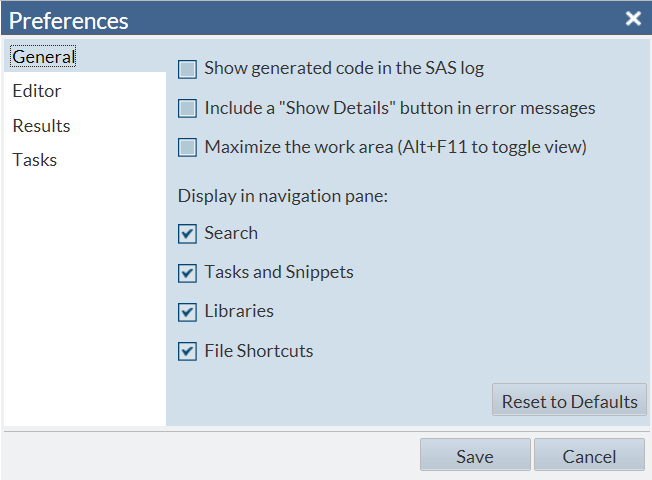
Show generated
code in the SAS log
|
Displays the ODS statements,
%LET statements, and any other code that is automatically generated
by SAS. This option applies to SAS tasks and SAS program files.
|
Include
a “Show Details” button in error messages
|
Displays the Show
Details button in application messages. Click this button
to view any exceptions that occurred. You might need to copy these
details for your SAS administrator or SAS Technical Support.
|
Display
in navigation pane
|
Specifies the sections
to display in the navigation pane. By default, all sections ( Search, Folders, Tasks
and Snippets, Libraries, and File
Shortcuts) are displayed.
|
|
|
|
|
Turns on the autocomplete
feature of the code editor. This feature can predict the next keyword
that you want to enter before you actually enter it completely.
|
|
|
Displays the number
of spaces that are inserted into your text when you insert a tab character.
The default value is four spaces for each tab character.
Note: The Tab width option
is ignored by Internet Explorer 9 (or later) and Safari web browsers.
|
Substitute
spaces for tabs
|
Substitutes the number
of spaces listed in the Tab width box instead
of a single tab character.
|
|
|
Displays the SAS language
elements in color in the code editor.
|
|
|
Displays line numbers
in the leftmost column of the program and log.
|
|
|
Specifies the size of
the font in the code editor.
|
|
|
Display
warning if results are larger than n MB
|
Specifies that you want
a confirmation window displayed when you attempt to open results that
are larger than n megabytes
(MB). The default value is 4 MB.
|
|
|
Specifies the style
that is applied to the HTML results.
|
|
|
Specifies the style
that is applied to the PDF results.
|
Generate
the default table of contents
|
Generates a table of
contents for results in the PDF format.
|
|
|
Specifies the style
that is applied to the RTF results.
|
|
|
Trim all
leading and trailing blank spaces in generated code
|
Removes any blank spaces
that appear before or after the generated code.
|
Generate
header comments for task code
|
Adds comments before
the generated code for a SAS task.
|
Automatically
format generated code
|
Automatically formats
any code that is generated by a task and displayed in the code editor.
|