The Designer
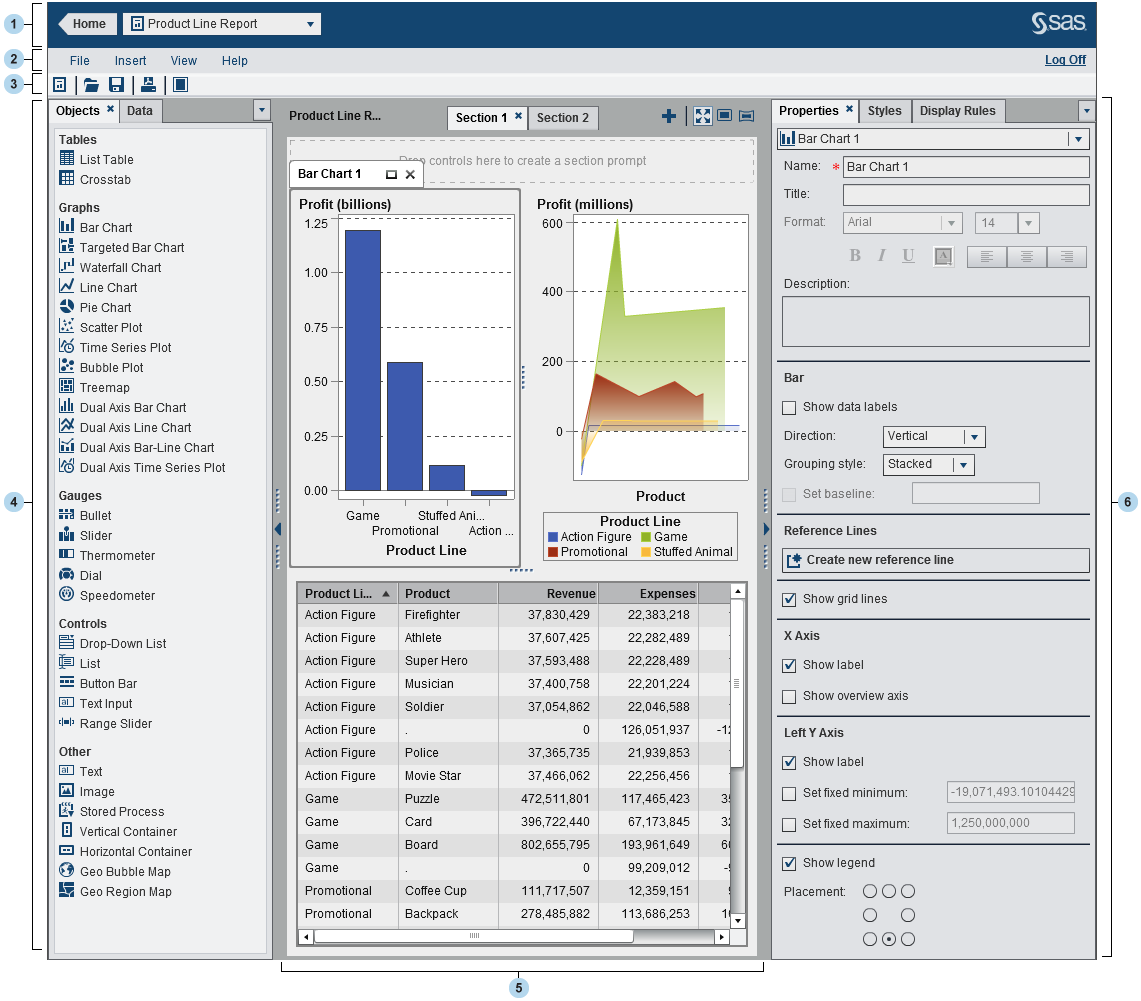
| 1 | The application bar provides access to the home page and recent objects. |
| 2 | The menu bar offers common tasks for the current report or section. |
| 3 | The toolbar enables you to manage your reports and expand the workspace. |
| 4 | The Objects tab
enables you to add new report objects.
The Imports tab
enables you to import and reuse content from other reports.
The Data tab
enables you to select data. You can add, refresh, or remove a data
source using the icons above the list of data items. Using the local
menu
 , you can change the data source, define a hierarchy,
define a calculated item, define an aggregated measure, show or hide
data items, and sort or group data items. You can access the details
for the measures in the data. You can right-click on a data item to
manage it or any data item filters. The data items table on the Data tab
provides information about a selected data item, including the name,
role, format, and aggregation. If you modify any of these data item
properties, all report objects that use that data item are affected. , you can change the data source, define a hierarchy,
define a calculated item, define an aggregated measure, show or hide
data items, and sort or group data items. You can access the details
for the measures in the data. You can right-click on a data item to
manage it or any data item filters. The data items table on the Data tab
provides information about a selected data item, including the name,
role, format, and aggregation. If you modify any of these data item
properties, all report objects that use that data item are affected.
The Shared
Rules tab enables you to create and manage display rules
that are used by multiple gauges (for example, a display rule can
designate range intervals and colors).
To access additional
tabs or to display icons instead of tab names, click
 after the last tab name. after the last tab name.
|
| 5 | The canvas is the workspace for building a report. There is an area at the top of the canvas where you can drop filter controls and then categories to create section prompts. You can change a report’s canvas size. |
| 6 | The
right pane’s tabs enable you to work with details about a report
and its report objects. To access additional tabs or to display icons
instead of tab names, click after the last tab name.
|
Copyright © SAS Institute Inc. All rights reserved.