Exploring the User Interface
The SAS Model Manager interface has
several category views and several detail tiles that display information
about different types of items in the model repository.
Models Category View
Each of the category
views is similar. The following figure shows the Projects category
view, which is a subcategory of the Models category
in the Navigation pane.
Projects Category View
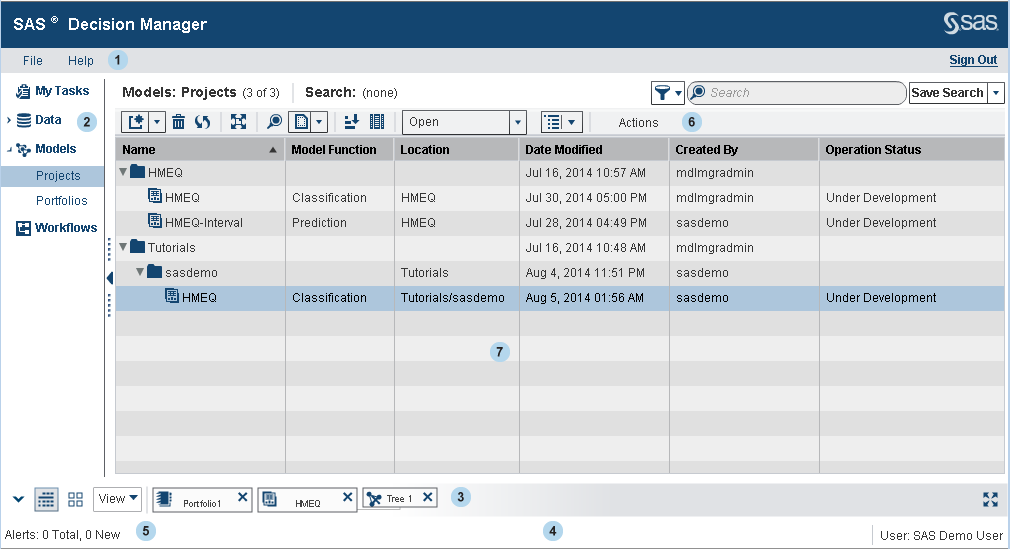
| 1 | The menu bar provides options for managing preferences, accessing Help resources, and opening recently edited items. |
| 2 | The Navigation pane lists the categories of items. Click a category to display the list of items in that category. The Models category, when selected, shows the Projects and Portfolios categories. |
| 3 | The Tile pane
displays icons for open items. When you open an item, its icon is
automatically added to the Tile pane and
remains in the Tile pane until you click  to close the item’s tile. to close the item’s tile.
Use the icons in the View toolbar
to switch between the most recently viewed category view and a detail
tile. Click
 to return to the previously displayed category view.
Click to return to the previously displayed category view.
Click  to display the most recently viewed detail tile.
Click to display the most recently viewed detail tile.
Click  at the far right of the Tile pane
to maximize the display of the currently opened objects. at the far right of the Tile pane
to maximize the display of the currently opened objects.
To close all open items,
click View and select Close All.
To open the tiles for all of the minimized items in the tile pane,
click View and select Show All.
|
| 4 | The status bar displays the user ID or display name of the user who is logged on to the SAS Metadata Server and alert notices. |
| 5 | Alerts are displayed when an action that you take has failed. Click Alerts to view the list of alerts. |
| 6 | Panes and tiles can have their own toolbars, so you might see multiple toolbars when the window contains multiple tiles. |
| 7 | The category view lists the items that are in the currently selected category. In the category view, you can open and edit any of the items that are in your model repository. See Control the Appearance of a Category View for information about controlling the display of information in the category view. |
Control the Appearance of a Category View
To change which columns
are displayed in a category view, click  . SAS Model Manager opens the Manage
Columns window. To remove a column from the category
view, select the item in the Displayed columns list
and click
. SAS Model Manager opens the Manage
Columns window. To remove a column from the category
view, select the item in the Displayed columns list
and click  . To add a column, select the column in the Available
columns list and click
. To add a column, select the column in the Available
columns list and click  . Click OK to save your changes.
. SAS Model Manager opens the Manage
Columns window. To remove a column from the category
view, select the item in the Displayed columns list
and click . To add a column, select the column in the Available
columns list and click . Click OK to save your changes.
To change how columns
are sorted in the category view, click  . SAS Model Manager opens the Sort window.
To sort the category view by one or more columns, select those columns
in the Items to sort list and click . SAS Model Manager adds those columns
to the Sort By list. For each column in the Sort
By list, select whether you want the column to be sorted
in ascending or descending order. The columns are listed in the category
view in the order in which they are shown in the Sort
By list. To change the order of a column, select the
column and click
. SAS Model Manager opens the Sort window.
To sort the category view by one or more columns, select those columns
in the Items to sort list and click . SAS Model Manager adds those columns
to the Sort By list. For each column in the Sort
By list, select whether you want the column to be sorted
in ascending or descending order. The columns are listed in the category
view in the order in which they are shown in the Sort
By list. To change the order of a column, select the
column and click  or
or  .
.
. SAS Model Manager opens the Sort window.
To sort the category view by one or more columns, select those columns
in the Items to sort list and click . SAS Model Manager adds those columns
to the Sort By list. For each column in the Sort
By list, select whether you want the column to be sorted
in ascending or descending order. The columns are listed in the category
view in the order in which they are shown in the Sort
By list. To change the order of a column, select the
column and click or .
Copyright © SAS Institute Inc. All rights reserved.