An information map is a collection of
data items and filters that provides a business-specific view of physical
data. An information map consists of SAS metadata that describes data
in terms that users can readily understand. The information map enables
business users to query data for specific business needs. An information
map can be based on either of the following types of data:
-
OLAP data (multidimensional data on a SAS OLAP Server)
-
relational data (two-dimensional data on
a SAS server or in a third-party database)
Information
maps are created by using SAS Information Map Studio or by using the
INFOMAPS procedure. Here is a sample SAS Information Map:
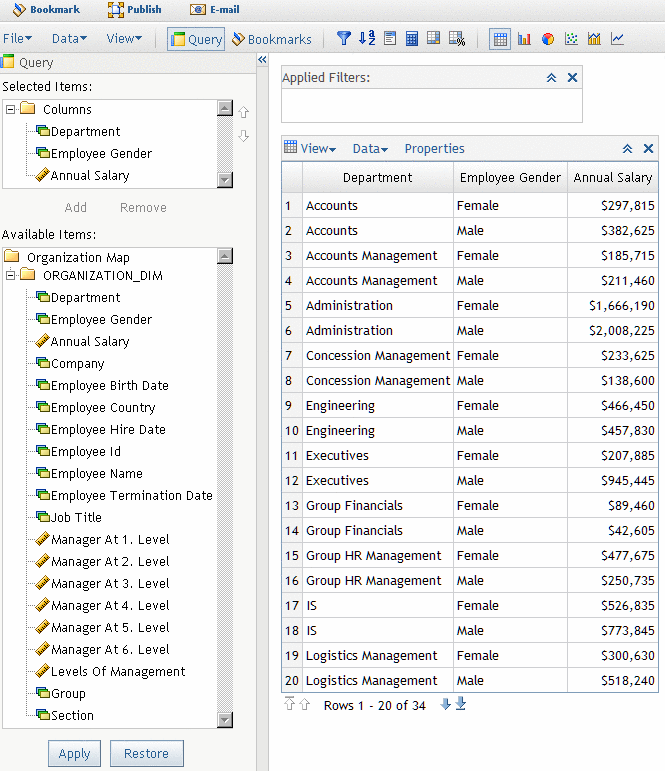
From the
page, you can perform these tasks:
-
Select data items for your query.
You can use the lists on the left side of the page to select which
data items are used in your view. For OLAP data, you also select the
axes to which the data items are assigned.
-
Filter data so that only a subset
is displayed. For example, you can apply a filter so that the view
shows data only for a particular year.
-
Drill down on hierarchy members
(OLAP data only). For example, you might drill down in a region of
the United States to view sales data for the states that are in that
region.
-
Sort and rearrange the data. You
can sort the table by any of the data items in the table. You can
also rearrange the data items, and you can specify the number of rows
and columns that are displayed. For OLAP data, you can move data items
between axes.
-
Display the data as a graph. There
are several types of graphs available, and you can display
each type on the page.
-
Search for data (OLAP data only).
You can find data cell values and hierarchical members.
-
Add totals and calculate new data
items.
-
Export the data view as a SAS report,
Excel file, or PDF document.
-
Save the view that you have customized.
After you edit your query, apply filters, and make other changes,
you can save this view as a bookmark. The information map viewer has
its own bookmark mechanism that is similar to the portal's bookmarks.
This mechanism, called a data exploration, enables you to bookmark
one or more views of an information map. When you reopen the information
map, you can display the view that you bookmarked.
Note: You cannot
make changes to information maps or to physical data. You can change
only the view of the information map that is displayed in your portal.