Cleanse Data in Hadoop
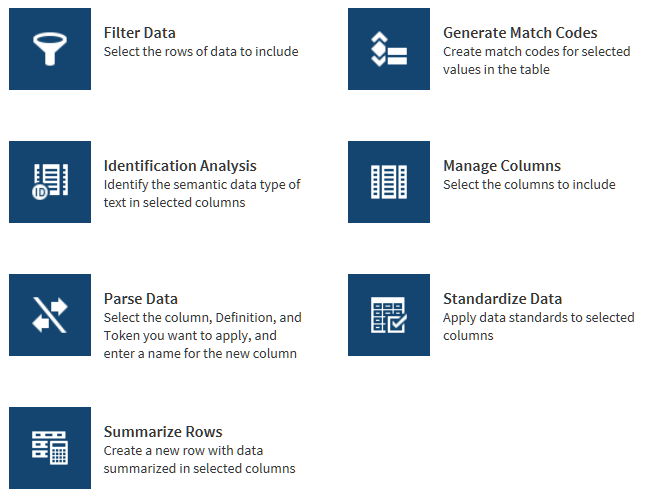
Filter Data Transformation
Use the Filter Data
transformation at the beginning of a job to decrease the number of
rows that will be processed in subsequent transformations.
Follow these steps to
use the Filter Data transformation:
-
In the Source Table page, click the data source that contains your source table, click the source table, and then click Next.TipYou can examine the contents of tables using the Table Viewer (
 ) or the Data Viewer (
 ). For more information,
see About the SAS Table Viewer orAbout the Sample Data Viewer.
). For more information,
see About the SAS Table Viewer orAbout the Sample Data Viewer. -
In the Filter Data page, you specify one or more expressions that are applied to each source row. If the expressions are true, the row is written into the target. If you specify more than one expression, you can also specify that all expressions need to be true, or only one needs to be true, to write the row into the target. In the Include field, you can accept the default Rows for which all of these rules apply, or you can select Rows for which one or more of these rules apply.
-
Click Operator and select a logical operator. The available logical operators vary by the column data type. For descriptions of the operators, see About the Operators in the Filter Data Transformation.


Standardization Transformation
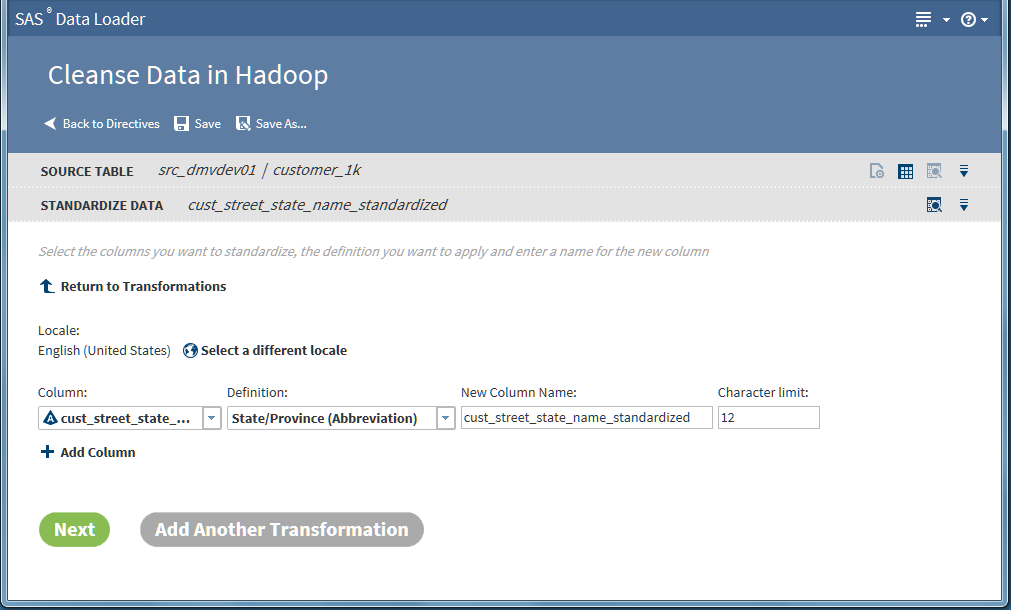
Follow these steps with
your own data to learn how to use the Standardization transformation.
This example creates a job that standardizes a column of state names
in a table of customer data.
-
TipYou can examine the contents of tables using the Table Viewer () or the Data Viewer (). For more information,
see About the SAS Table Viewer orAbout the Sample Data Viewer.
-
Click Select a Definition and select the standardization definition to be applied to the selected column. Standardization definitions are available for certain character strings and numeric values. Also, standardization definitions are available for generic actions that are independent of content, such as Space Removal and Multiple Space Collapse. To learn about definitions, see About Definitions, Locales, and the SAS Quality Knowledge Base.
-
The standardization transformation is now completely defined. By default, the target table contains both the original source column and the new standardized column. If you would prefer to remove the source column in the target, or make other changes to target columns, add a Manage Columns transformation toward the end of your job.Click Next to complete your job by selecting a target table. To continue your job, click Add Another Transformation.Note: If your job includes multiple transformations, note that they are executed the order that you define them.
Parse Data Transformation
Use the Parse Data transformation
to extract tokens from a source column and add the token to a new
column. A token is a meaningful subset of a data value that provides
a basis for analysis. For example, for a column that contains phone
numbers, you could extract the area code token and insert that value
in a new column. You could then analyze the source table by grouping
rows by area code.
Follow these steps to
learn how to use the Parse Data transformation:



Identification Analysis Transformation
Use the Identification
Analysis transformation to report on the type of the content in a
given column. The content types that can be detected include contact
information, dates, e-mail, field names, offensive content, and phone
numbers. The result of the analysis is added to a new column in the
target table. You can analyze one column for multiple content types,
and you can analyze multiple columns in the source table.
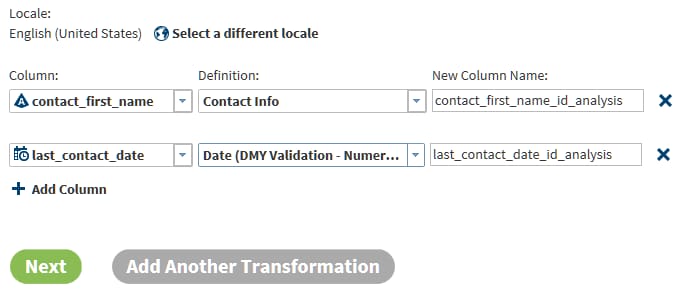
Follow these steps to
learn how to use the Identification Analysis transformation:
Generate Match Codes Transformation
The Generate Match Codes
transformation generates match codes for specified columns. The generated
match codes are then added to new columns in the target table. The
match codes are generated based on a definition and a sensitivity.
The definition specifies the type of the content in the column. The
sensitivity determines the degree of exactitude that is required in
order for two data values to be declared a match. Higher sensitivity
values specify that data values must be more similar to be declared
a match. Lower sensitivity values enable matching with less similarity.
The level of sensitivity is reflected in the length and complexity
of the match codes.
Match codes can be used
to find columns that contain similar data. For example, you can generate
match codes for name and address columns, and then compare the match
codes to detect duplicates.
Follow these steps to
use the Generate Match Codes transformation:
-
This completes the definition of the Generate Match Codes transformation. To generate match codes for the same column using a different definition, or to generate match codes for a different column, click Add Another Transformation. Otherwise, click Next to conclude your job and select a target table.
Manage Columns Transformation
Use the Manage Columns
transformation to remove, reorder, and rename source columns. You
can also add new columns. The new columns contain generated values
of a specified length and type. The values are generated by a DS2
expression that you supply, based on the values in each row. To learn
more about DS2, see the SAS 9.4 DS2 Language Reference.
Follow these steps to
learn how to use the Manage Columns transformation:
-
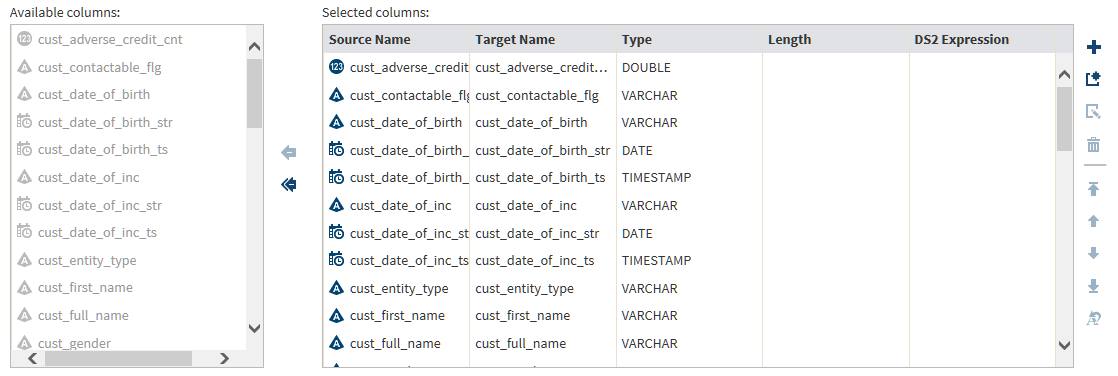
In the Manage Columns page, columns are listed in order of appearance. The top column is the first or leftmost column.Note the arrow icons between Available columns and Selected columns. To remove a column from the target, click the column name on the right and click the top arrow. To move all columns out of the target, click the double-arrow icon. After you remove a column, arrows will appear so that you can move columns from Available to Selected.Initially, all columns are selected for the target table, including all of the new that you added in prior transformations.
-
Now locate the icons on the right side of Selected columns. These icons provide the following functions:
-
 Add a new column and enter a DS2 expression for that
column without using the Advanced Editor.
Add a new column and enter a DS2 expression for that
column without using the Advanced Editor.
-
 Add a new column and specify a DS2 expression using
the Advanced Editor.
Add a new column and specify a DS2 expression using
the Advanced Editor.
-
 Edit the selected column using the Advanced Editor
to modify its DS2 expression.
Edit the selected column using the Advanced Editor
to modify its DS2 expression.
-
 Remove the selected column from the target table.
Removed columns appear in Available columns.
Remove the selected column from the target table.
Removed columns appear in Available columns.
-
 Move the selected column to the first column position
in the target (leftmost.)
Move the selected column to the first column position
in the target (leftmost.)
-
 Move the selected column one position to the left
in the target.
Move the selected column one position to the left
in the target.
-
 Move the selected column one position to the right.
-
 Move the selected column to the last column position
in the target (rightmost.)
Move the selected column to the last column position
in the target (rightmost.)
-
 Change the name of the selected target column.
-
-
If you want to use the Advanced Editor to define a DS2 expression, click and see About DS2 Expressions and the Advanced Editor.

Summarize Rows Transformation
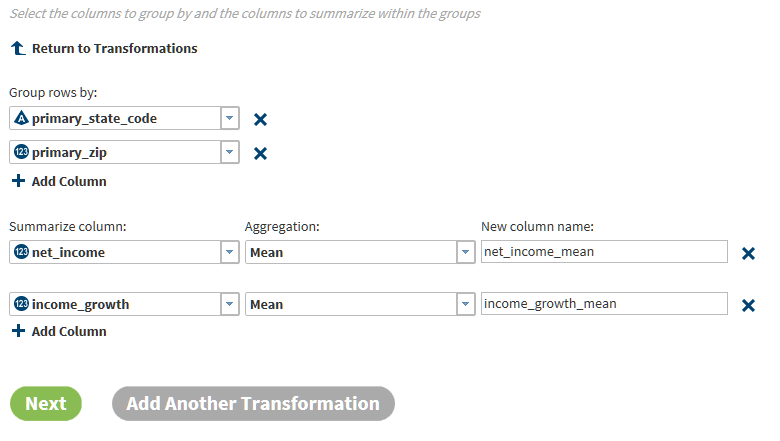
Use the Summarize Rows
transformation to add summarized numeric values to your target table.
To generate summaries, you first group rows by one or more columns.
Then you select the columns that you want to summarize for each group
and subgroup. The method of summarization is known as an aggregation.
The number of aggregations depends on the column data type. Numeric
columns have 13 available aggregations.
Follow these steps to
learn how to use the Summarize Rows transformation:

About Definitions, Locales, and the SAS Quality Knowledge Base
In the SAS data quality
software, definitions specify the usage
of terms within a locale. A locale consists
of a language and a region. The region is frequently a country. The
default locale is English (United States). You can read the locale
name as “the English language, as it is used in the United
States.” You can change the current locale using Select
a locale.

In the selected locale,
definitions are provided for each type of transformation. Transformations
apply definitions to columns in source tables. For the standardization
transformation, you can for example apply the Phone definition to
a column of phone numbers. The transformation converts all of the
values in the specified column into the phone number format that is
specified in the definition.
About DS2 Expressions and the Advanced Editor
In the Manage Columns
transformation, you can add new columns and specify DS2 expressions
for those columns. When you run your job, the DS2 expression is evaluated
for each row and the result is added to the new column.
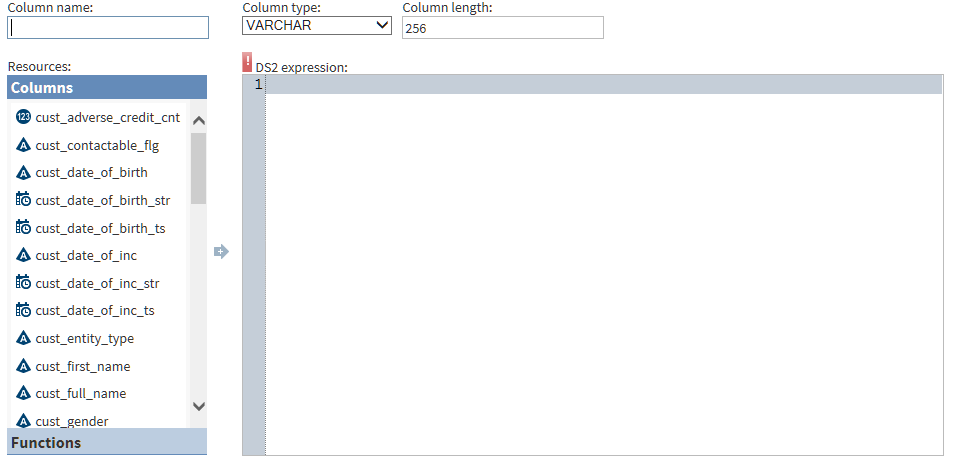
When you add a new column,
you can enter or paste a DS2 expression directly into the DS2
Expression column (click ), or you can add your DS2 expression in the Advanced
Editor (click .) In either case, your expression uses DS2 expression
syntax (and not SAS expression syntax.) For information about DS2
expressions, refer to the SAS 9.4 DS2 Language Reference.
), or you can add your DS2 expression in the Advanced
Editor (click .) In either case, your expression uses DS2 expression
syntax (and not SAS expression syntax.) For information about DS2
expressions, refer to the SAS 9.4 DS2 Language Reference.
Follow these steps to
learn more about the Advanced Editor:
Copyright © SAS Institute Inc. All rights reserved.