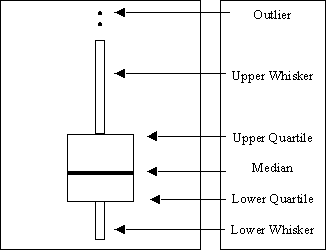
The box plot summarizes the distribution of data sampled from a continuous numeric variable. The central line in a box plot indicates the median of the data, while the edges of the box indicate the first and third quartiles (that is, the 25th and 75th percentiles). Extending from the box are whiskers that represent data that are a certain distance from the median. Beyond the whiskers are outliers: observations that are relatively far from the median.
To create a box plot using the GUI
For details, see Creating a Data Table.
IML Studio displays the Box Plot dialog box.
You can create box plots of sub-classes of a variable, based on the value of one or more nominal variables. (Recall that a nominal variable is either a character variable or a numeric variable that can only assume a discrete set of values.) To do this, select nominal variables and click Add X.
You can optionally select a numeric frequency variable and click Set Freq. The ith value of the frequency variable specifies the frequency of the ith value of the Y variable.
For a discussion of the BY Variables and BY Options tabs, see BY Group Processing: Using BY Group Processing.