Navigating Gallery Folders and Galleries
Understanding the Gallery Folder Structure
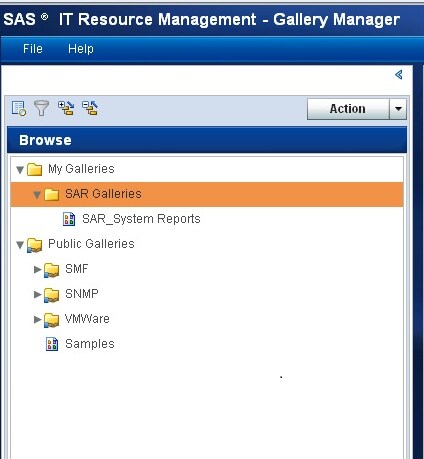
The Browse pane enables
you to navigate and open gallery folders and galleries to locate reports.
You can click the arrow to the left of a folder to view its contents.
You can click a gallery to view its contents in the Gallery pane.
The gallery folders
and galleries in the Browse pane are divided into the following folders:
This folder contains
all of the gallery folders and galleries that you created, regardless
of whether the folders or galleries are public or private. For more information about identifying public and private
galleries, see Public and Private Gallery Folders and Galleries.
This folder contains
all of the gallery folders and galleries that other users create and
mark as public.
You cannot see a gallery
folder with your user name in the
Public
                                 Galleries
folder.
You can see only the public gallery folders of other users in the Public
Galleries folder. When you log on with your user name,
all of the gallery folders and galleries that you created are in the My
Galleries folder.
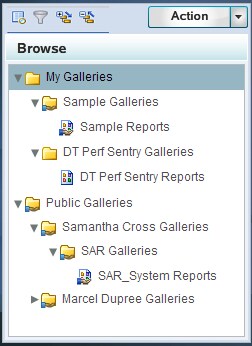
For example, if a user
named Samantha Cross creates a public gallery folder called
SAR
Galleries, then the gallery folder appears in her My
Galleries folder when she uses her user ID to access
Gallery Manager. The gallery folder icon indicates that her new gallery
folder is public. Samantha can also see the public gallery folders
for other users. However, the name of the owner of a public gallery
folder is not displayed. Instead, the name of the gallery folder is
displayed.
Public and Private Gallery Folders and Galleries
You can designate gallery
folders as public or private based on whether you want other users
to see your galleries. This parameter is called the Status.
Gallery Manager uses
different icons to designate whether a gallery folder or gallery is
public or private. You can use these icons to quickly determine the
status of an object.



For more information about where to find public and private
gallery folders and galleries in Gallery Manager, see Understanding the Gallery Folder Structure.
You can specify the Status of
a gallery folder when you create or edit it. However, all gallery
folders and galleries automatically inherit the same status as the
gallery folder that contains them. Therefore, when creating a new
gallery folder or gallery, you must consider the status of the gallery
folder that will contain it. For example, if you copy an existing
public folder and save the copy in a private folder, then the copy
inherits a status of private.
Note: If you copy a gallery folder
to the first level of the
My Galleries folder,
then the copy inherits a private status by default. You must modify
the status of the gallery folder manually to specify a public status
for the copied folder.
For more information,
see Change the Public or Private Status of a Gallery Folder or Gallery.
Change the Public or Private Status of a Gallery Folder or Gallery
To change the public
or private status of one or more gallery folders that reside on the
first level of the
My Galleries folder,
perform the following steps:
Note: All galleries that reside
on the first level of the
My Galleries folder
are private. To change the status of these galleries, you must move
them into a public gallery folder.
To modify the status
of an existing gallery folder or gallery that is not on the first
level of the
My Galleries folder, you
must change the status of the parent gallery folder or move the object
to another folder that has the status that you want.