SAS Institute. The Power to Know

SAS/GRAPH(R) 9.2: ODS Graphics Editor User's Guide

Data Attachment Examples

Example: Text Annotation

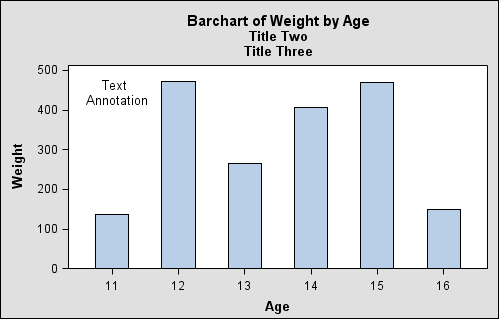
This example shows how text annotations behave when the plot area is resized. The behavior varies depending on whether the annotation is attached to the data.
For this example, perform the following steps:
  1. Create a text annotation in the upper left corner within a plot. For instructions, see Add a Text Annotation to a Graph.
    The following figure shows an example. In the example, the text annotation has a red circle around it:
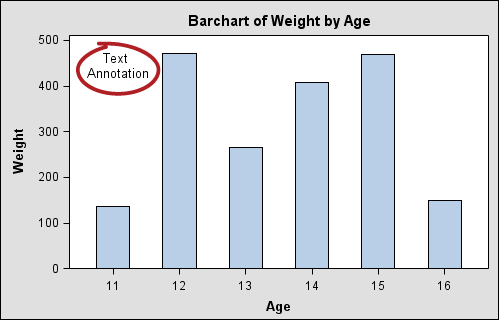
    Example Text Annotation
in Plot
    By default, the annotation is attached to data in the upper left corner.
  2. Add one or two titles to the graph. For instructions, see Add a Title or Footnote to a Graph .
    When you add titles, the plot is resized. The annotation stays with the data.
    Example Text Annotation
in Plot, Resized
  3. Delete the title(s) that you added. For instructions, see Delete a Title or Footnote from a Graph.
  4. Change the properties of the text annotation so that the annotation is not attached to the data. For instructions, see Change the Data Attachment Properties of an Annotation.
    Annotation Properties
dialog box, attach to data unchecked
  5. Add one or more titles to the graph. The text does not move when the plot is resized. The text is no longer associated with the data.
    Example Text Annotation
in Plot, Resized
Regardless of whether the annotation is attached to data, if you change the size of the overall graph, the text annotation moves in proportion with the graph.

Example: Circle Annotation

This example shows the behavior of circles that are created around data points when the plot area is resized. The behavior varies depending on whether the circle is attached to the data point.
For this example, perform the following steps:
  1. Draw an oval annotation around a data point. For instructions, see Add an Oval to a Graph.
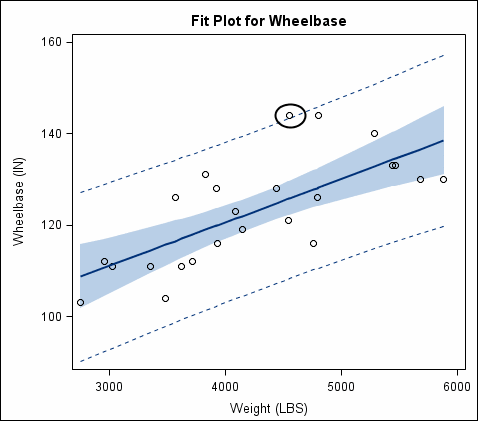
    The following figure shows an example:
    Example Circle Annotation
in Plot
    By default, the annotation is attached to the data point.
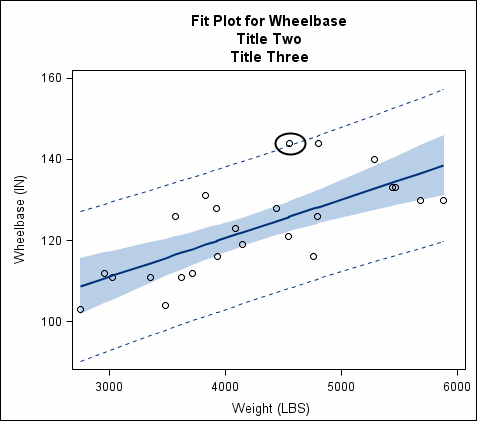
  2. Add one or two titles to the graph. For instructions, see Add a Title or Footnote to a Graph .
    When you add titles, the plot is resized. The oval stays around the data point.
    Example Oval Annotation
in Plot, Resized
  3. Delete the title(s) that you added.
  4. Change the properties of the text annotation so that the annotation is not attached to the data. For instructions, see Change the Data Attachment Properties of an Annotation.
    Annotation Properties
dialog box, attach to data unchecked
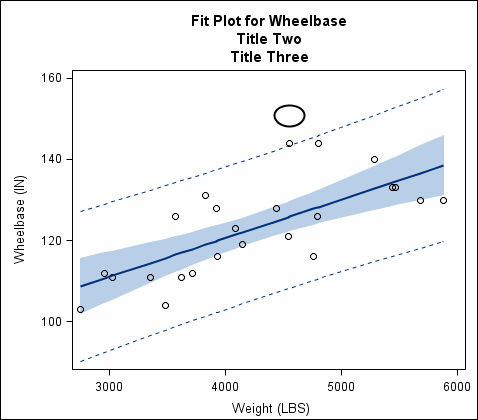
  5. Add one or more titles to the graph. The oval does not move when the plot is resized. The oval is no longer around the data point.
    Example Oval Annotation
in Plot, Resized
Regardless of whether the annotation is attached to data, if you change the size of the overall graph, the oval annotation moves in proportion with the graph.

Example: Arrow Annotation Partially Attached to Data

This example shows the behavior of arrow annotations when the plot area is resized. In this example, one end of the arrow is attached to the data and the other end isn't.
For this example, perform the following steps:
  1. Create an arrow with one end in the plot and the other end outside the plot. For instructions on creating arrows, see Add an Arrow to a Graph.
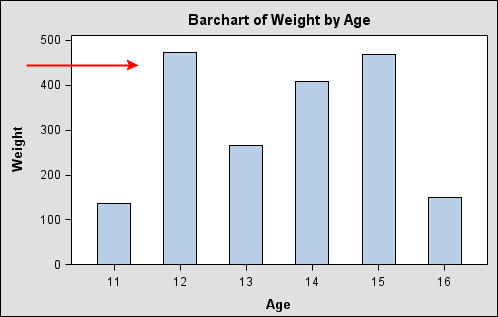
    The following figure shows an example:
    Example Arrow Partly in
Plot
    Only the end that resides within the plot is attached to data.
  2. Add a title to the graph. For instructions, see Add a Title or Footnote to a Graph .
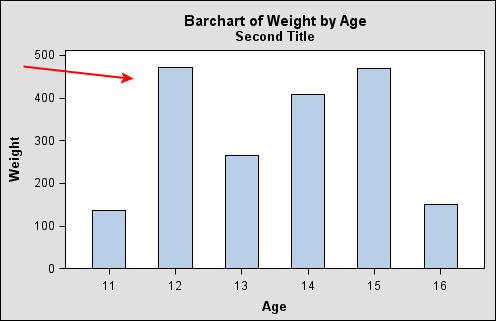
    When you add a title, the plot is resized. The end of the arrow that is attached to data moves, while the other end stays in place.
    Example Arrow Partly in
Plot that is Resized

Example: Marker Annotation with Text

This example shows the behavior of marker annotations that have text when the text is moved off the edge of the plot.
For this example, perform the following steps:
  1. Create a marker inside the plot. For instructions on creating markers, see Add a Marker to a Graph.
  2. Add text to the marker. For instructions, see Add Text to an Annotation.
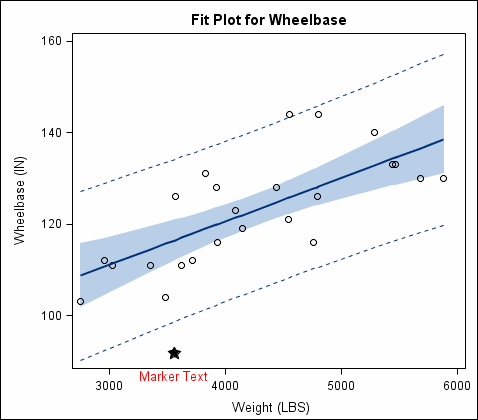
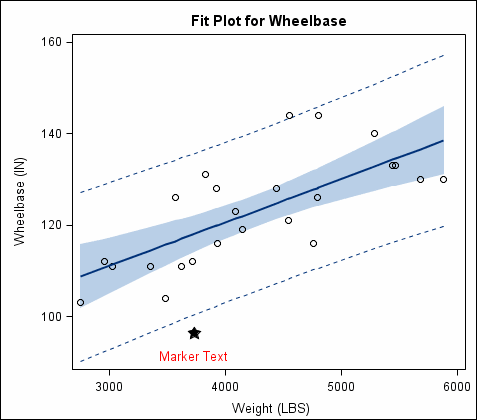
    The following figure shows an example:
    Example Marker in Plot
    By default, the marker and its text are attached to data.
  3. Click and drag the marker downward so that the text moves outside the plot.
    The text disappears (is cropped). By default, when an annotation is attached to data, any part of the annotation that resides outside the plot is cropped.
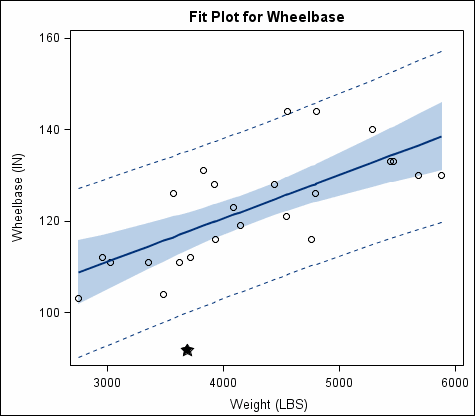
    Example Marker, Text is
Cropped
  4. Change the properties of the marker annotation so that the annotation is not cropped. For instructions, see Change the Data Attachment Properties of an Annotation.
    Annotation Properties
dialog box, attach to data unchecked
    The text appears outside the plot because cropping has been turned off.
    Example Marker, Text is
Not Cropped
Another way to make the marker text appear is to reposition the text above the marker. For instructions, see Move Text That Has Been Added to an Annotation. You can alternatively detach the marker from the data.