Steps
-
Start a new SAS session,
and submit the sample program
CST_CRTDDS/programs/create_crtdds_define.sas.
This program writes
to the SAS log and generates two files in
CST_CRTDDS/sourcexml directory
and a Results data set in the
CST_CRTDDS/results directory.
-
Review the log to see
whether there are any errors or warnings.
There should be no errors
or warnings.
-
Ensure that two files
were generated in the
CST_CRTDDS/sourcexml directory:
define.xml and define1-0-0.xsl.
-
Open the define.xml
file.
On Microsoft Windows,
you can open it by double-clicking it in the SAS Program Editor. This
renders the file in your default web browser or any other application
that has been associated with XML files.
On UNIX, if you have
not set up your browser configuration in SAS, you need to copy define.xml
and define1-0-0.xsl to an environment where you can display the define.xml
file in a web browser.
Note: The style sheet information
in define1-0-0.xsl is not guaranteed to work for all browser types
and versions to produce the correct HTML, but it does work for Internet
Explorer 6.0 and higher.
-
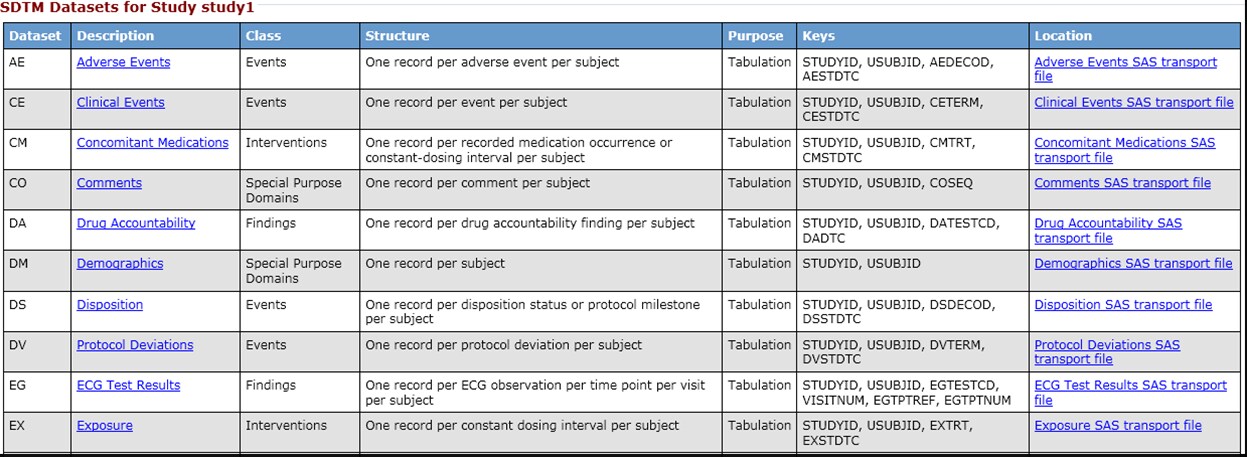
Ensure that the first
few rows of the first table appear similar to this image:
Note: Minor variations in appearance
are possible and are not a problem. Reviewing these rows is sufficient
to confirm that the product is installed and functioning properly.
-
Ensure that the define.xml
file contains tables for the following:
-
For each domain, a table that lists
the domain’s variables.
-
Computational Algorithms Section
-
-
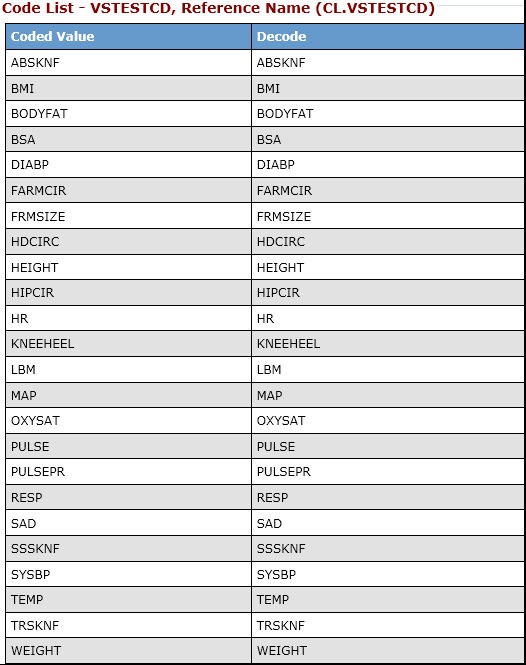
In the last table in
define.xml (which contains controlled terminology), ensure that the
last few items in the file are values for VSTESTCD, including the
values BMI and WEIGHT.
-
Copyright © SAS Institute Inc. All rights reserved.