Steps
-
-
In the SAS Program Editor,
select
File Open Program
, and then select
CST_SDTM/programs/create_sasdatafromxpt.
-
Select
RunSubmit.
The code outputs to
the SAS log and creates an xpt_results data set in the
CST_SDTM/results directory
and 36 data sets in the
CST_SDTM/derived/data directory.
Note: For this program,
the library information was cleaned up, so these files are not immediately
accessible under
Libraries in the SAS Explorer.
On Microsoft Windows, you can access these files through the SAS Explorer
by navigating from within the SAS Explorer starting at the node labeled
My
Computer. On UNIX, it is necessary for you to copy these
data sets into a directory that is viewable by the SAS Explorer (for
example, your
Home Directory listed under
Favorite
Folders).
-
Review the log to see
whether there are any errors or warnings.
There should be no errors
or warnings.
You might sporadically
see warnings in the SAS log such as
WARNING: Libname
                              <libref> is not assigned.
These occur with redundant
requests to clear SAS librefs or filerefs and do not indicate a problem
with the SAS Clinical Standards Toolkit installation.
-
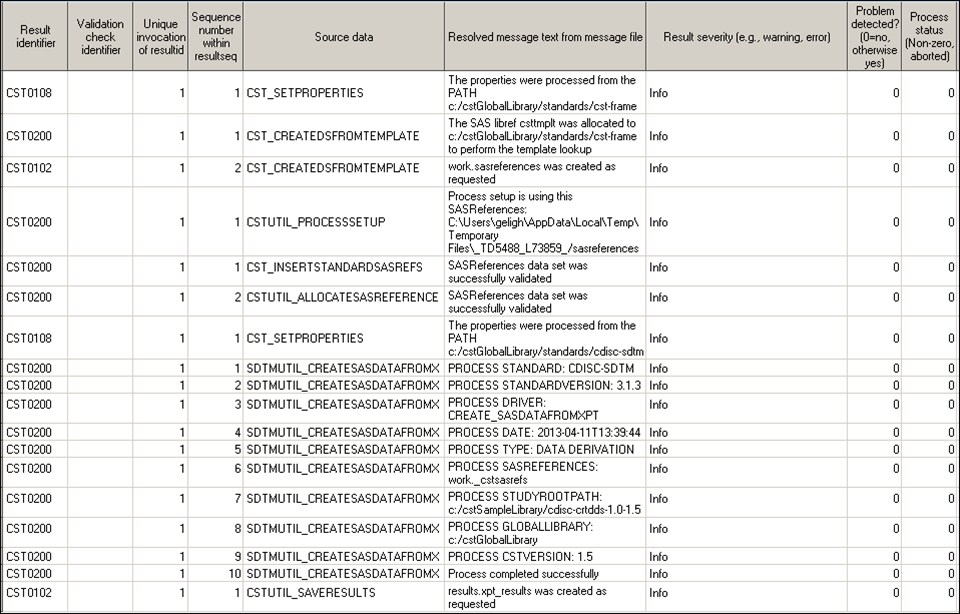
Review the xpt_results
data set to ensure that the following conditions are met:
-
The
Resolved message
text from message file column (named message) contains
correct paths and process metadata.
-
The column labeled
Process
status (named _cst_rc) is
0 for
all records. There are not any checks with
resultseverity=’Warning:
                                             Check not run’
.
-
The data set contains 18 records
and that a record near the end reports
Process completed
                                             successfully
.
See the sample output
above.
Note: Values that refer to temporary
directories, files, or
PROCESS DATE: vary.
-
Review the
CST_SDTM/derived/data directory
to ensure that the following conditions are met:
-
There are 36 new SAS data sets.
-
The dm data set has 70 records
and 28 columns.
-
Copyright © SAS Institute Inc. All rights reserved.