Attribute Linking
Introduction
Attribute linking enables components to interact without the need for any
SAS Component Language (SCL) code. Instead, interactions are specified with the Properties window.
Attribute linking involves
setting the Link To values of a component's attributes. For example, if you want the text value that is entered into a text
field to update a graph output control, link the graph output control's
graph attribute to the text entry control's text attribute.
You can define attribute links between attributes on the same component
or between different components on the same frame.
Determining When to Use Attribute Linking
Use attribute linking when you
-
want one component to access the value of another component without any SCL code.
-
want to maintain consistency between components. For example, if you change the background color of a push button, you may want every push button on the frame to use the new background color.
-
define component communication for objects at build time.
Establishing an Attribute Link
To establish an attribute link between two attributes, you define the link on the
attribute that you want to
receive the new value. Attribute linking includes the following steps:
-
Identify the component whose attribute or behavior you want to dynamically change. For example, you may want to change whether a text entry control is enabled or disabled.
-
In the Properties window Attribute table, find the component attribute that you want to change. In the case of our text entry control, it would be the
enabledattribute. -
Define the link on that attribute by specifying a value in its Link To cell. For example, you might link the text entry control's
enabledattribute to theselectedattribute of a check box control that is also present on the frame.
An attribute link consists of a componentName/attributeName pair
where
componentName
refers to the component that owns the above attribute
attributeName
refers to the attribute that contains the value that you want your linked attribute
to contain
Example
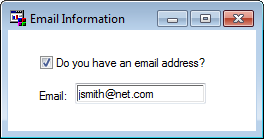
Suppose your application prompts a user to choose whether or not they receive e-mail
messages. Your frame might include a check box labeled “Do you have an e-mail account?”
If the user clicks the check box, then a text label and text entry field are enabled
so that the user can enter an e-mail address.
You can complete this type of component communication with multiple attribute links. The following steps detail
the process:
-
Create a new FRAME entry.
-
Place a check box control on the frame and change its
labelattribute to “Do you have an e-mail account?”You can use the Properties window to change thelabelattribute. -
Place a text label and a text entry control on the frame.The text label should be positioned on the left of the text entry and should be labeled “e-mail address:”
-
Link the
enabledattribute of the text entry control to theselectedattribute of the check box. -
Link the
enabledattribute of the text label object to theenabledattribute of the text entry object. -
Test the frame by selecting Build
 Test.
Test.
Note: This example is used to describe
attribute linking only. Other tasks would be necessary to complete
this frame and make it function properly within an application.
When you select the
check box, the text label and text entry objects become available.
When you deselect the check box, the text label and text entry objects
become grayed and are therefore unavailable.
Copyright © SAS Institute Inc. All Rights Reserved.
Last updated: May 27, 2017